
How to Create a Manual Order
StoreHippo allows you to create orders manually from the admin panel. This is useful for phone orders, WhatsApp orders, offline sales, or test orders.
Step 1: Open the Create Order Page
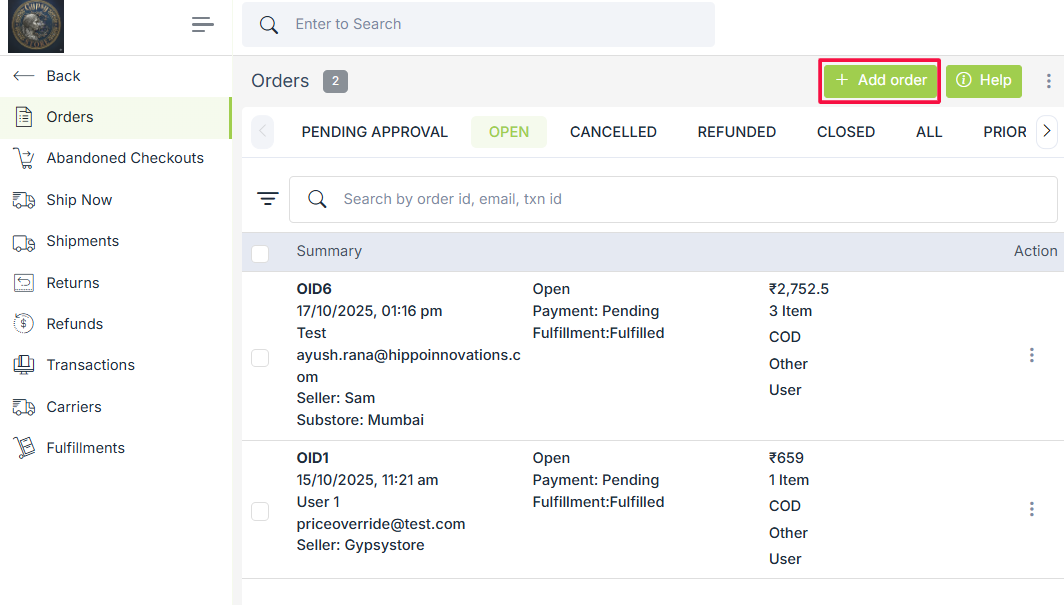
Go to Orders in your admin panel and click Create Order. This will open the manual order creation screen.
Step 2: Add Products to the Order
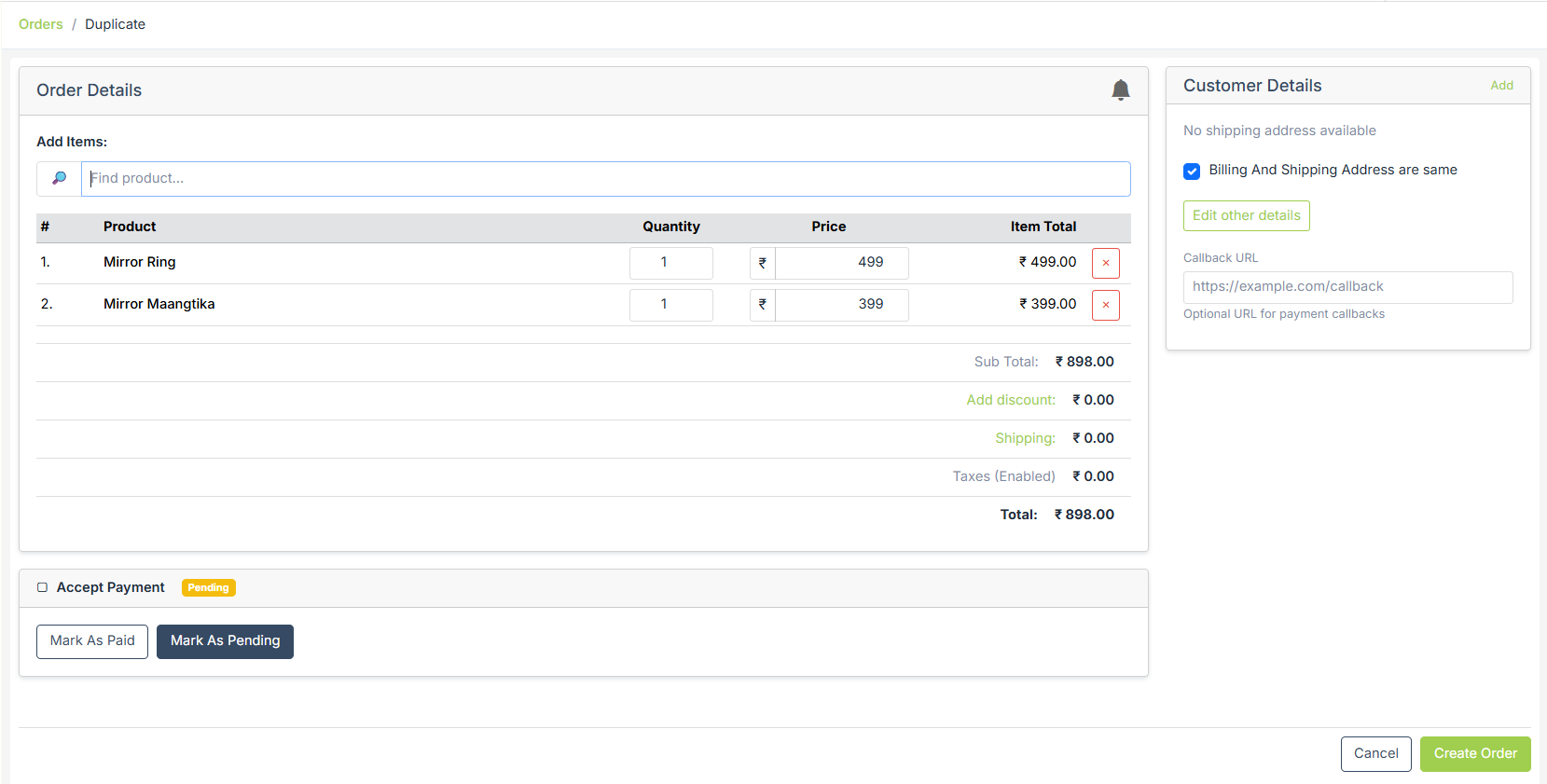
In the Add Items section, search for the product using the product name or SKU.
Step 3: Review Pricing Details
Once products are added, review the pricing section:
- Subtotal shows the total value of added items
- Add Discount allows you to apply manual discounts
- Shipping shows shipping charges, if applicable
- Taxes are applied based on your tax settings
- Total shows the final payable amount
All values update automatically as you make changes.
Step 4: Add Customer Details
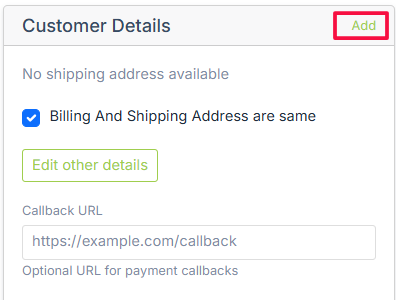
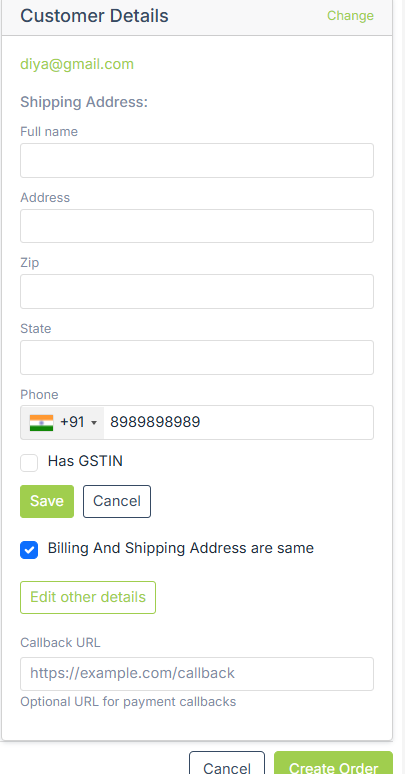
In the Customer Details section, click Add to enter customer information.
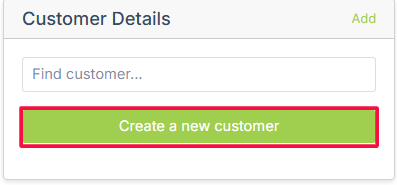
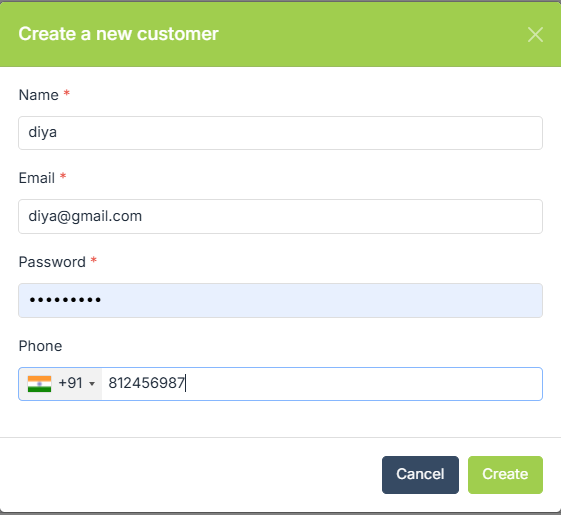
 If the customer already exists, click on find customer and search for the name. If the customer is new, click on "Create New Customer."
 This will open the following pop-up. Fill in all the details of the customer and click on create.
 Enter the shipping details of the customer.
Step 5: Accept Payment Status
Under Accept Payment, choose the current payment status:
- Mark as Paid if payment is already received
- Mark as Pending if payment is yet to be collected

This helps track payment status correctly from the start.
Step 6: Create the Order
After reviewing all details, click Create Order.
Important Notes
- Taxes are applied based on your configured tax rules
- Products must already exist in your catalog to be added
- Manual orders follow the same fulfillment and payment flow as online orders