
How to set premium delivery in store?
Scenario
You want to provide a "Premium delivery" option to your users at the time of checkout for which the user will have to pay some additional charges.
Example
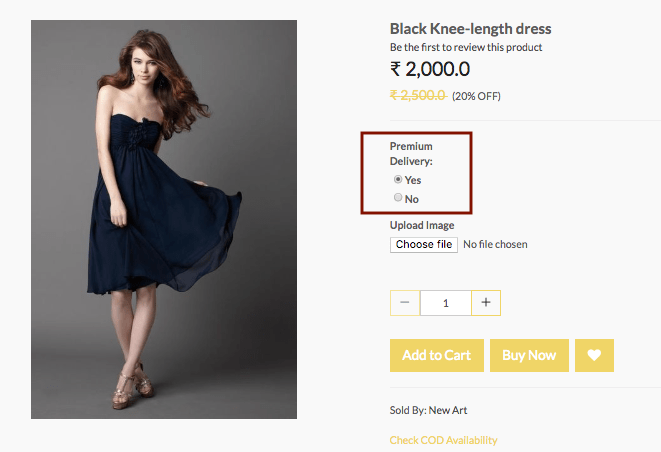
Steps
Follow the
Create option and variants
Please follow these steps to create option and variants for the product:
Creating Option Sets
- Go to Products > Option Sets section in StoreHippo Admin Panel.
- Click on Add New.
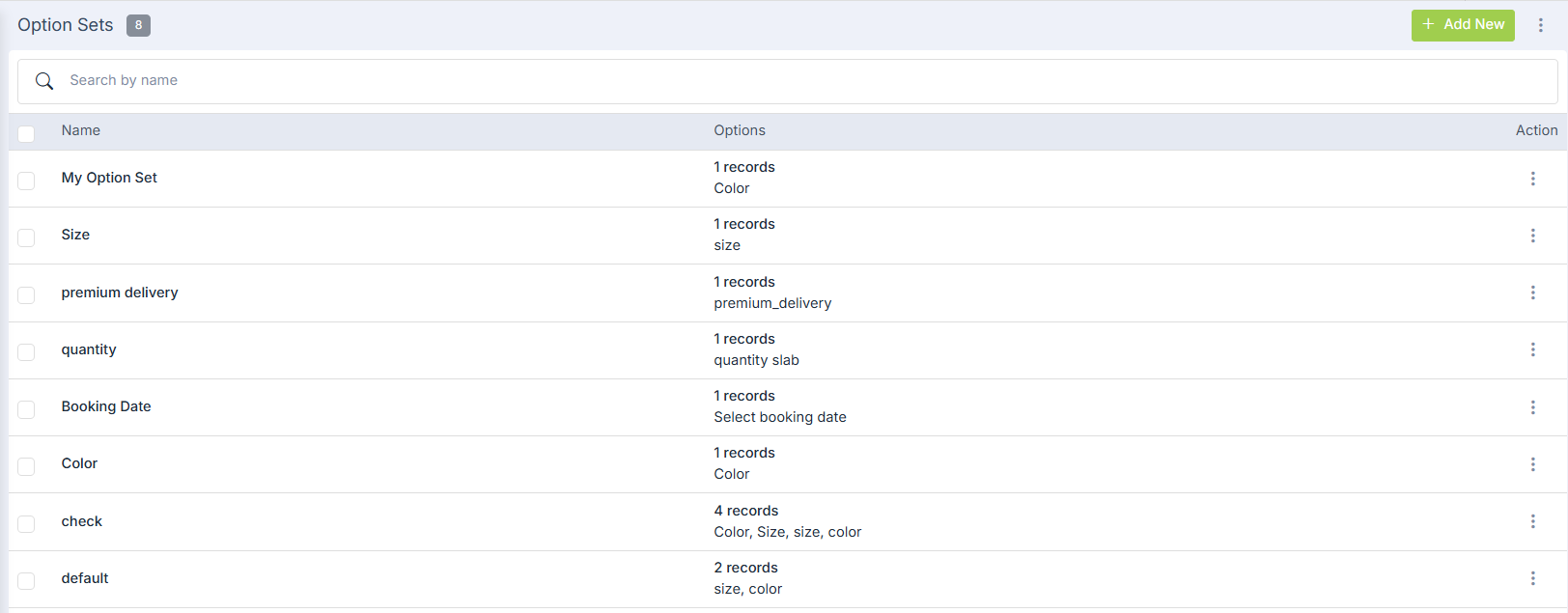
- Provide the Name as 'Premium Delivery' and click on Add Options to add options.

- Enter Name as 'premium_delivery' and Display name as 'Premium Delivery'.
- Select Type as 'Radio' from the drop-down.
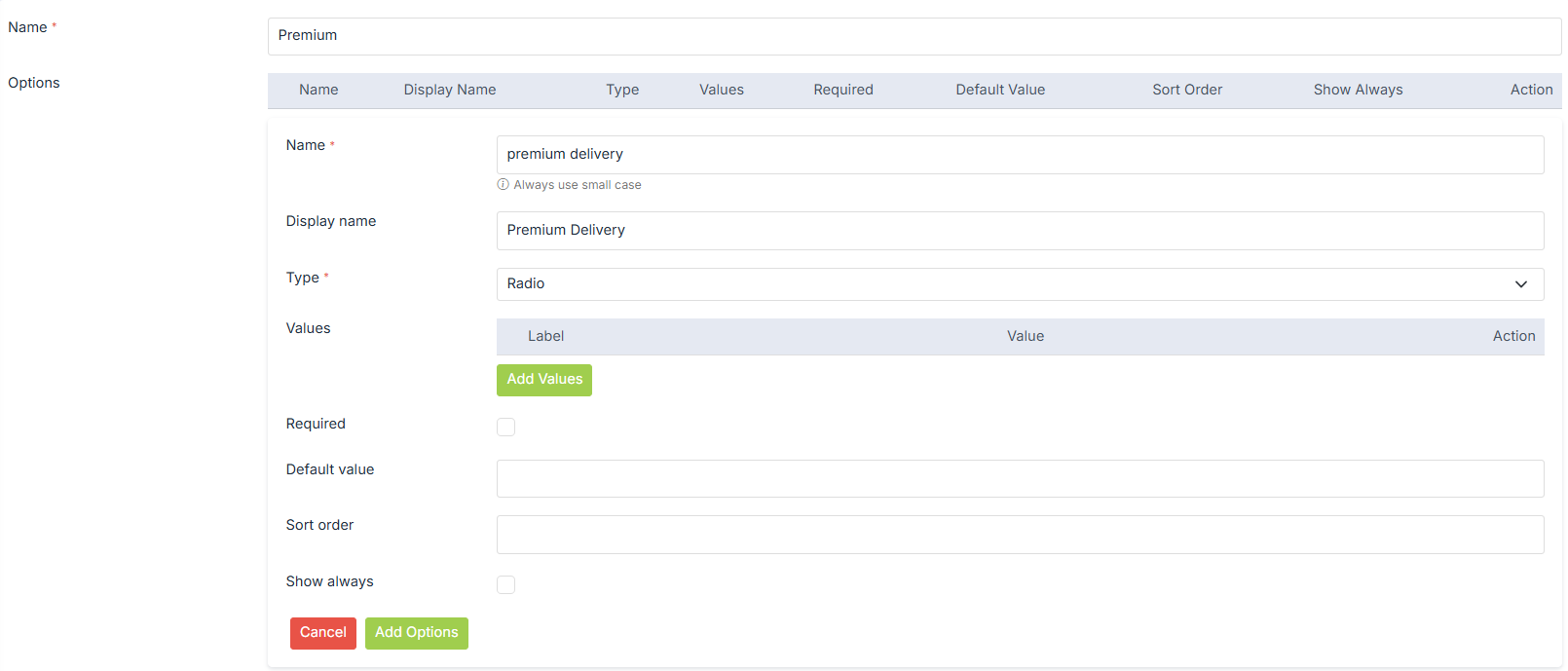
- Now, click on Add Values.
- Specify Label and Value both as 'Yes' and click on Insert Values.

- Similarly, add the Value for 'No'.
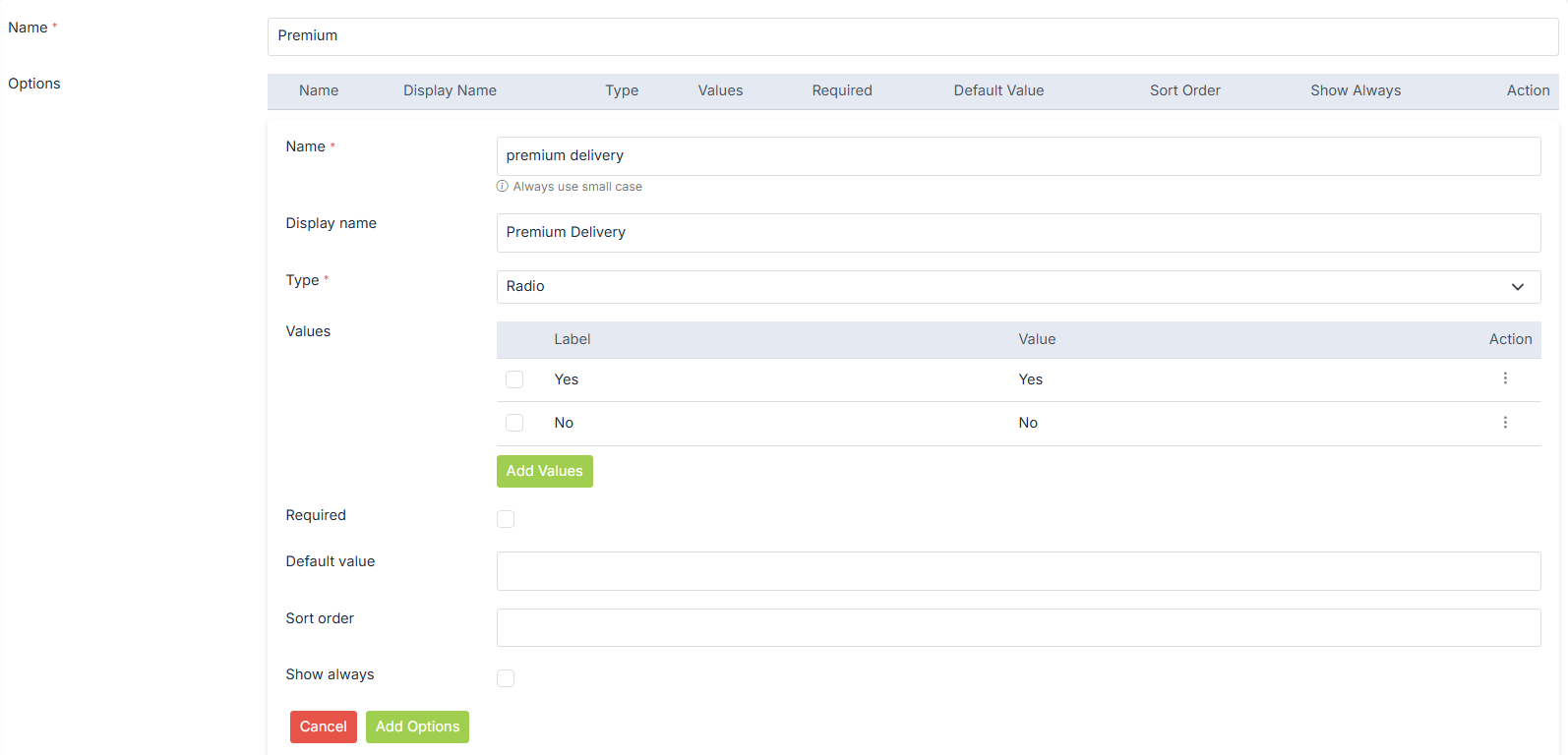
- Click on Insert options.
- Click on Submit to save the
option set.
Creating Options and Variants
- Go to Products > Products section of StoreHippo Admin Panel.
- Add/edit a product.
- Go to Options and Variants tab to add a variant for Premium delivery.
- Choose the Option Set 'Premium delivery' from the drop-down.

- Enter the Name as "Premium Delivery" and Value as "Yes" and "No".
- Click on the Automatically Generate Variants to create variants.
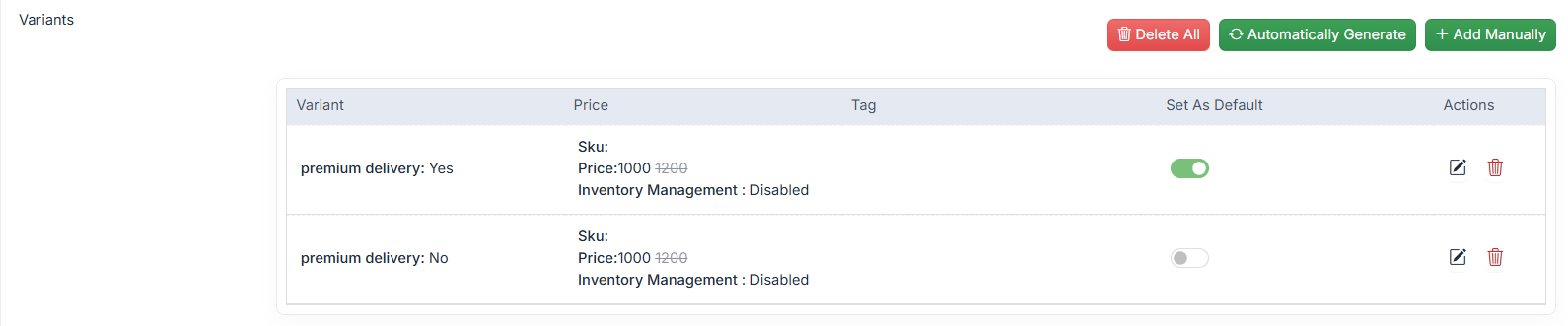
-
Save the changes.
Setting up additional charges
- Go to Settings > Additional Charges section of StoreHippo Admin Panel.
- Click on Add New.

- Provide Name as "Premium delivery" charges and Amount as "Flat 50".
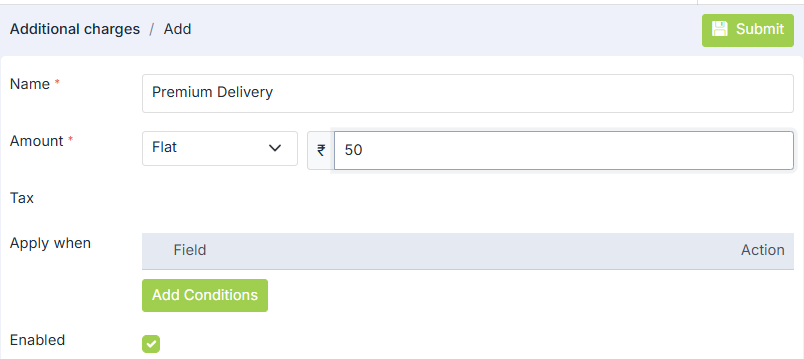
- Click on Add Condition.
- Select the Field as "Any item's selected options" and Option name as "premium_delivery". Select Option operator as "Contains" and Option value as "yes".
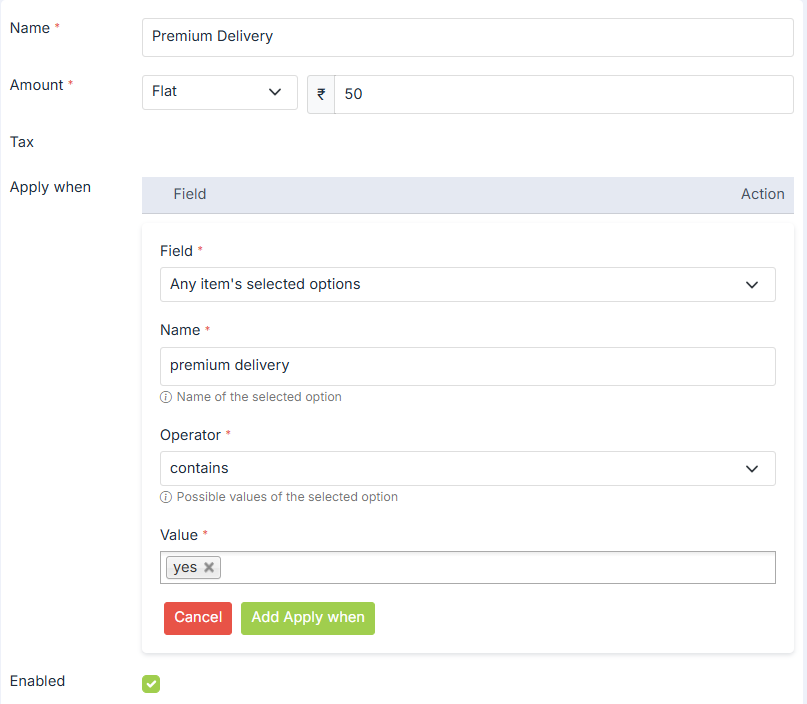
- Click on Update Conditions.
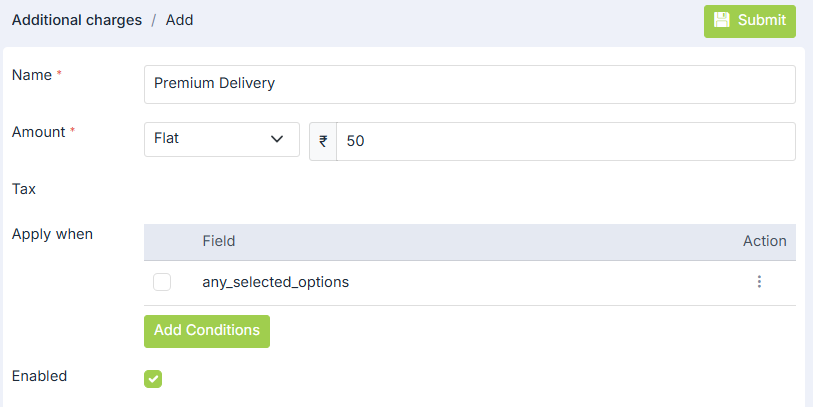
- Click on Submit to save the additional charge.
Was this page helpful?