
Invoice Templates
Invoice Templates allow you to choose from one of the available invoice templates or to design your custom invoice template. You can define multiple custom invoice templates but there will be only one active invoice template that is used by default when generating an invoice for an order.
You can manage invoice templates in the Settings > Invoice Templates section under StoreHippo Admin Panel.
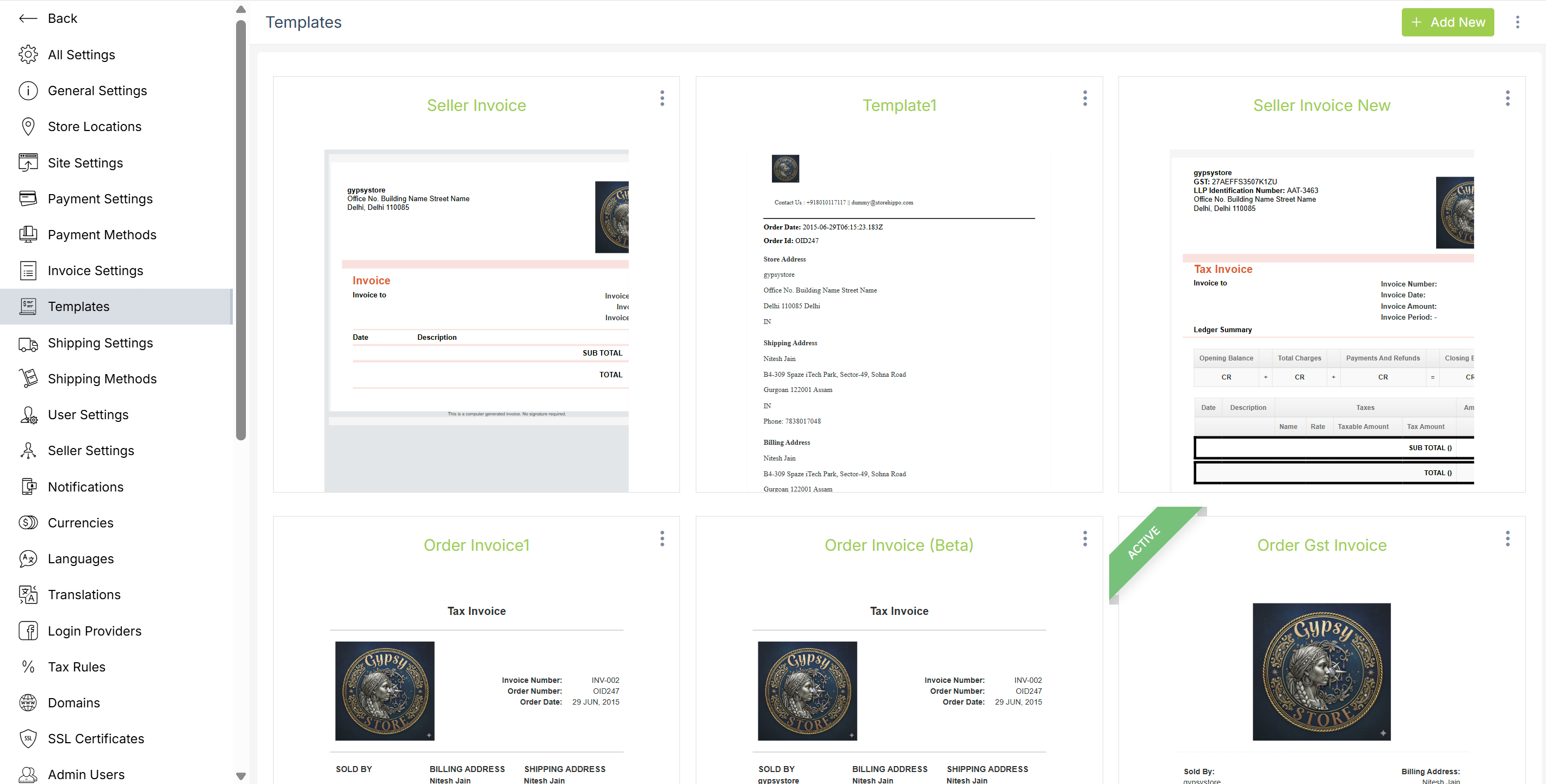
Adding new invoice template
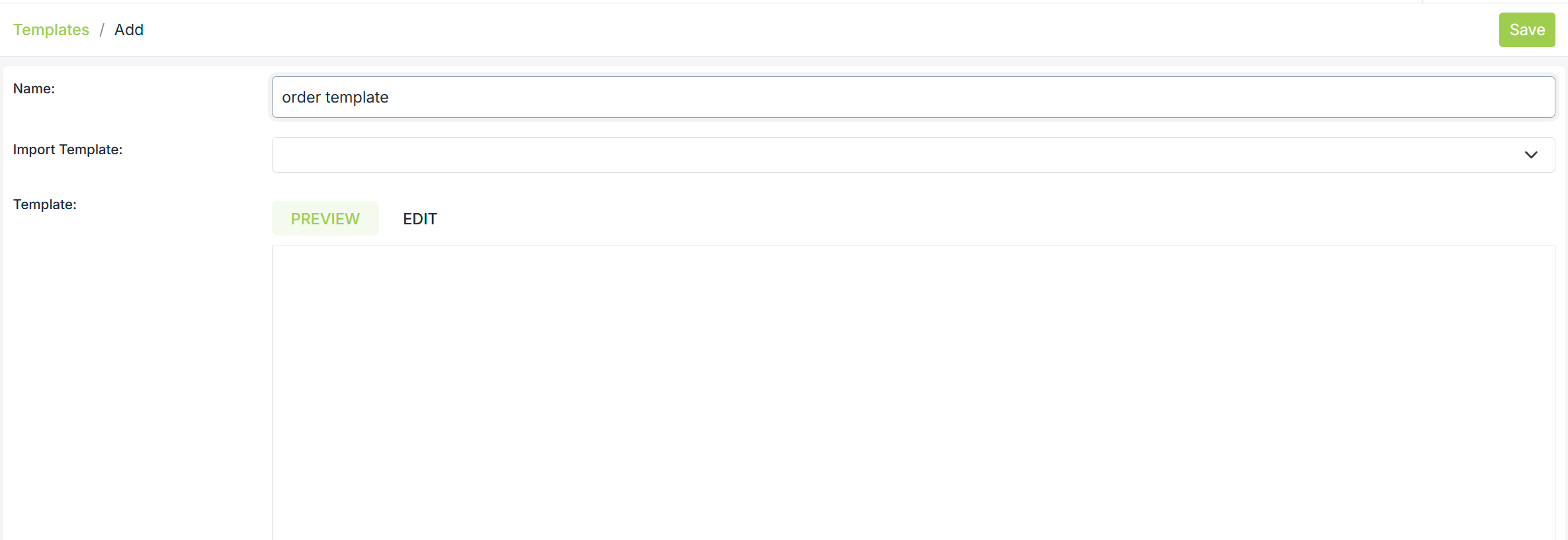
You can add a new custom template by clicking on Add New button. To add a new template you need to fill the following fields:
You can edit and delete the template by clicking on the ellipsis button and selecting the desired option from the drop-down menu.
Name
Provide the name of the template in this field.
Import Template
In this field, you can import the templates by selecting between the various templates that are already provided in the drop-down.
Template
In this field, there are two tabs.
-
Preview: In the preview tab, you can preview the invoice template here.
- Edit: In the edit tab, you can edit the code of the template which includes some variables. We use the following variables for fetching our data in invoices:
| Created on | created_on |
| Invoice date | invoice_generated_on |
| Order Id | order.order_id |
| Address | store_address.address |
| City | store_address.city |
| Country | store_address.country |
| State | store_address.state |
| Title | store_address.title |
| Zip code | store_address.zip_code |
| Shipping Address | shipping_address.address |
| Shipping City | shipping_address.city |
| Shipping Country | shipping_address.country |
| Full name | shipping_address.full_name |
| Phone | shipping_address.phone |
| State | shipping_address.state |
| Zip | shipping_address.zip |
| Product | this.product.name |
| Quantity | this.quantity |
| Unit Price | this.product.original_price |
| Total Amount | order.total |
| Total after discount | this.total |
| Sub Total | order.sub_total |
| Total Tax | order.taxes_total |
| Shipping Charges(+) | order.shipping_total |
| Item Shipping | this.shipping_cost |
| Taxable Amount | this.tax_applied_on |
| Taxable Shipping Amount | order.shipping_method.tax_applied_on |
| Shipping Tax Name | order.shipping_method.taxes |
| Shipping Tax Amount | this.tax_amount |
| Discounts(-) | this.saved_amount |
| Additional Charges(+) | order.additional_charges |
| Total | order.total |
Activating the invoice template
To activate an invoice template, choose an invoice template that you wish to set as your default invoice template. Click on the ellipsis button on the template and choose the Make Active command from the drop-down.
Support for GST (India) in Invoice
GSTIN number
GST rule requires the invoice to contain the GSTIN numbers of buyer and seller. You can use the following variables:
seller.gstin. (seller)
user.metafields.
HSN and SAC numbers
Every product/Service has HSN/SAC number. That number needs to be mentioned on the invoice templates. You can access the numbers using the following variable:
order.items[0].product.hsn
Language specific invoice template
You can customize the invoice templates and put a language check condition to check in which language the user has ordered. You can modify your mail invoice template accordingly. This will help you to send invoices to your customers in the language they have placed the order.