
How to provide option to set product prices with respect to product quantity?
Scenario
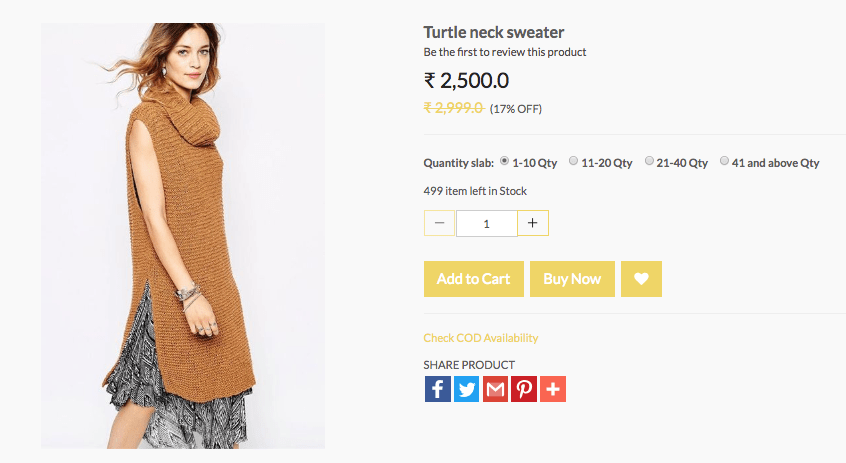
You want to create product options like 0-10, 11-20 etc which are available at different prices. On the product page, the option will be applied if the quantity falls within the range.
Example
Steps
Follow the
Creating Option Sets
- Go to Products > Option Sets section in StoreHippo Admin Panel.
- Click on Add New.
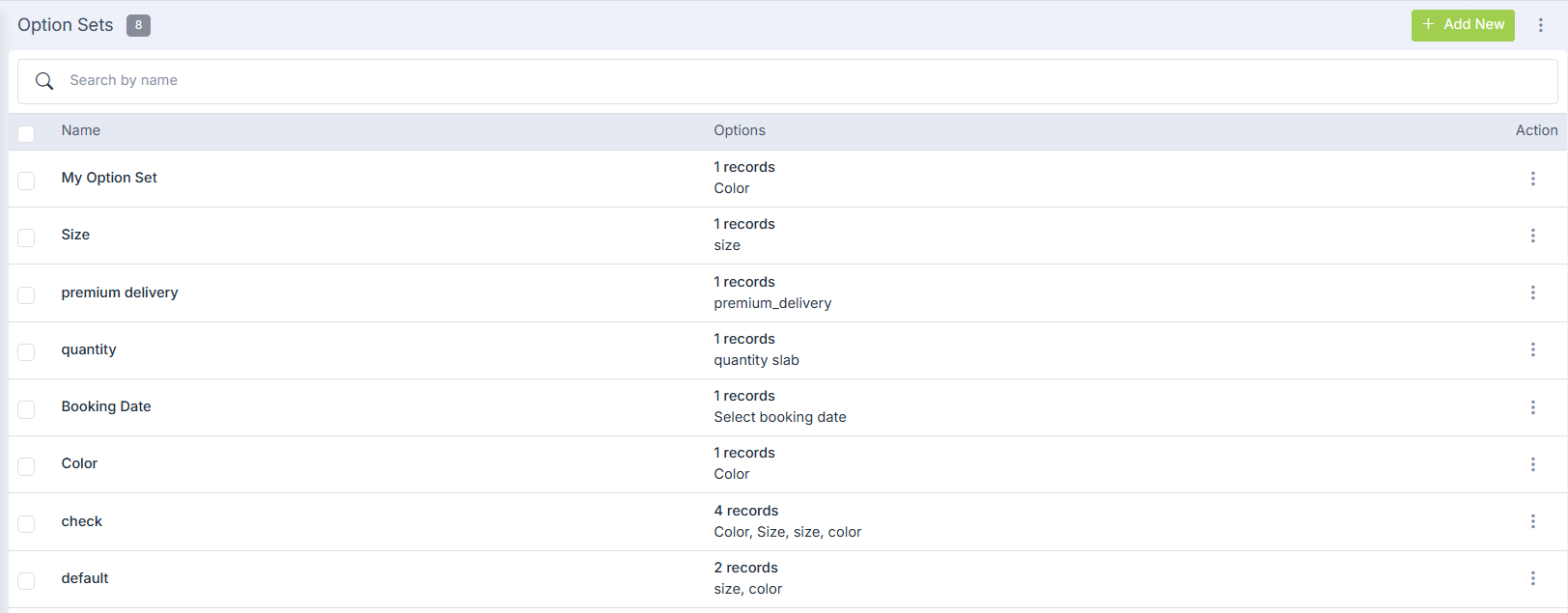
- Provide the Name as 'Quantity slab' and click on Add Options to add options.

- Enter Name as 'Quantity slab' and Display name as 'Quantity slab'.
- Select Type as 'Radio' from the drop-down.
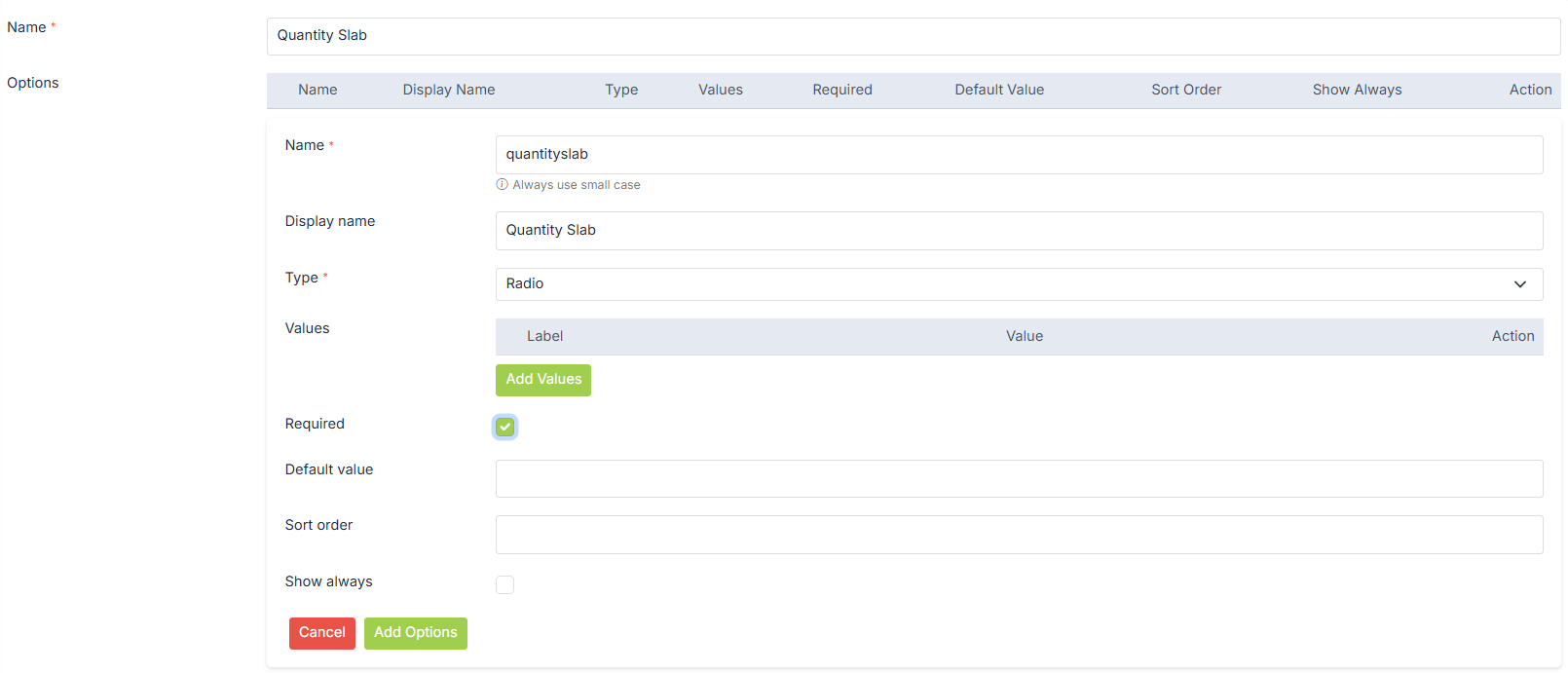
- Now, click on Add Values.
- Specify Label and Value both as '1-10 Qty' and click on Insert Values.
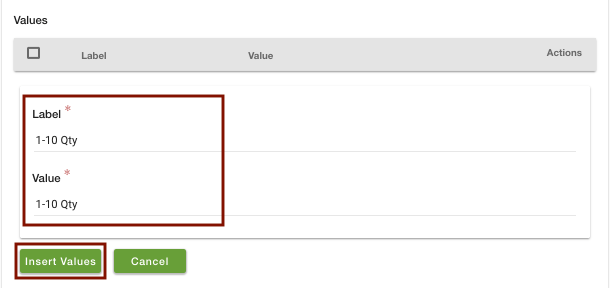
- Similarly, add the Value for '11-20 Qty', '21-40 Qty', and '41 and above Qty'.
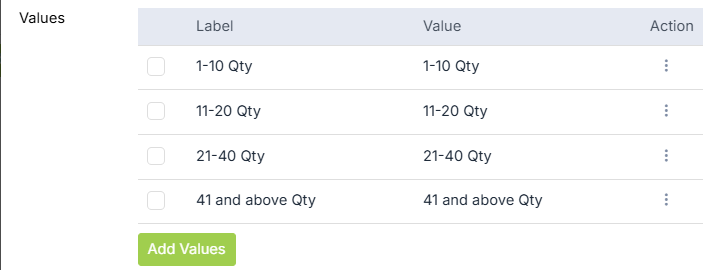
- Select the Required checkbox and click on Insert options.
- Click on Submit to save the
option set.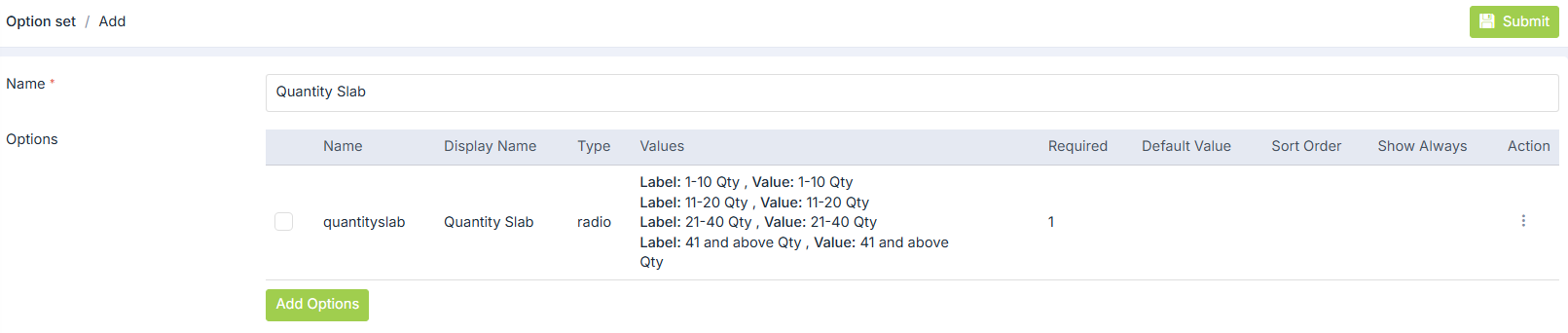
Creating Options and Variants
- Go to Products > Products section of StoreHippo Admin Panel.
- Add/edit a product.
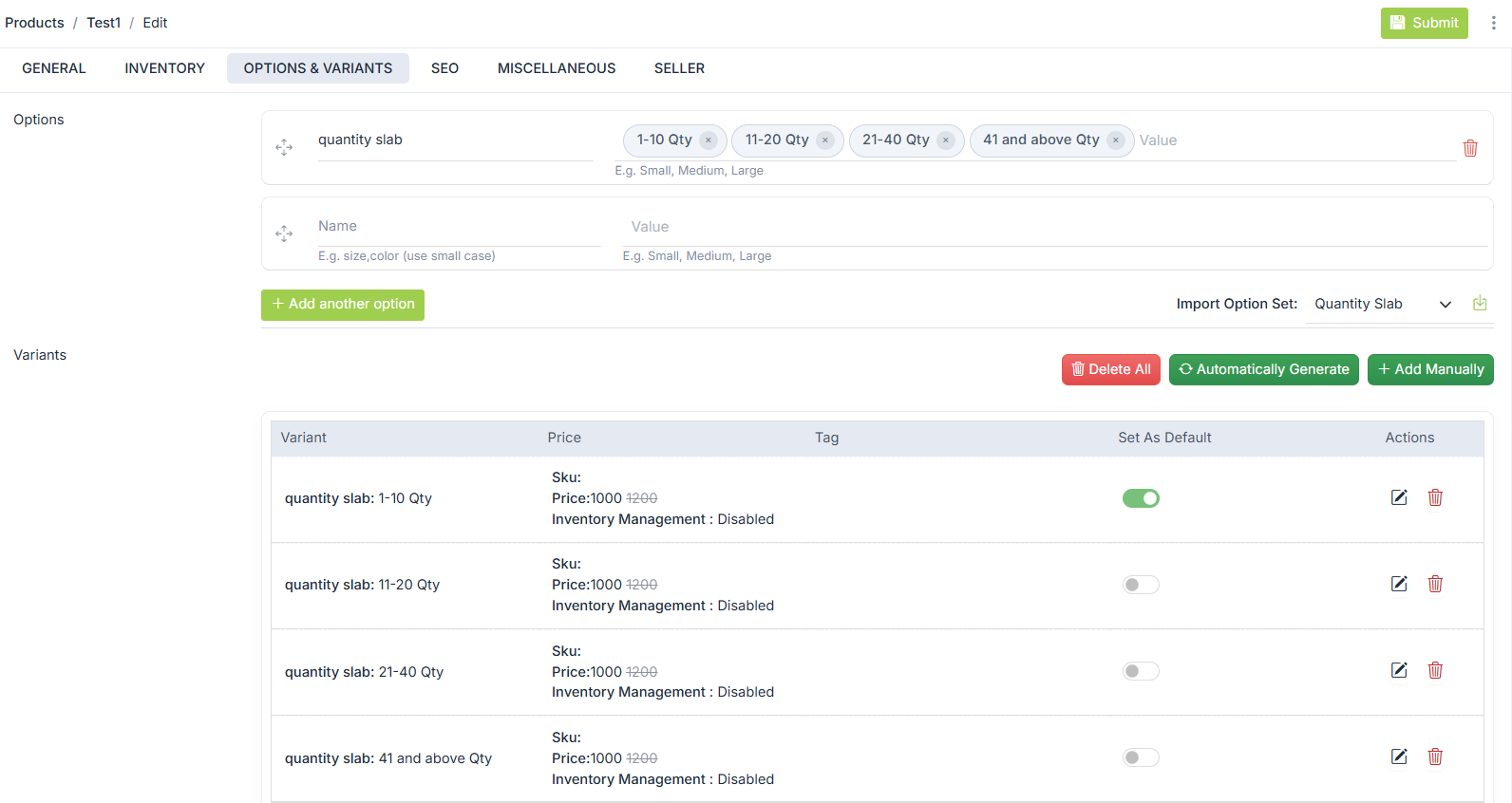
- Go to Options and Variants tab to add a variant for Quantity slab.
- Choose the Option Set 'Quantity slab' from the drop-down and import the option sets.

- The Name and values will be displayed as shown in the above screenshot.
- Click on the Automatically Generate Variants to create variants.
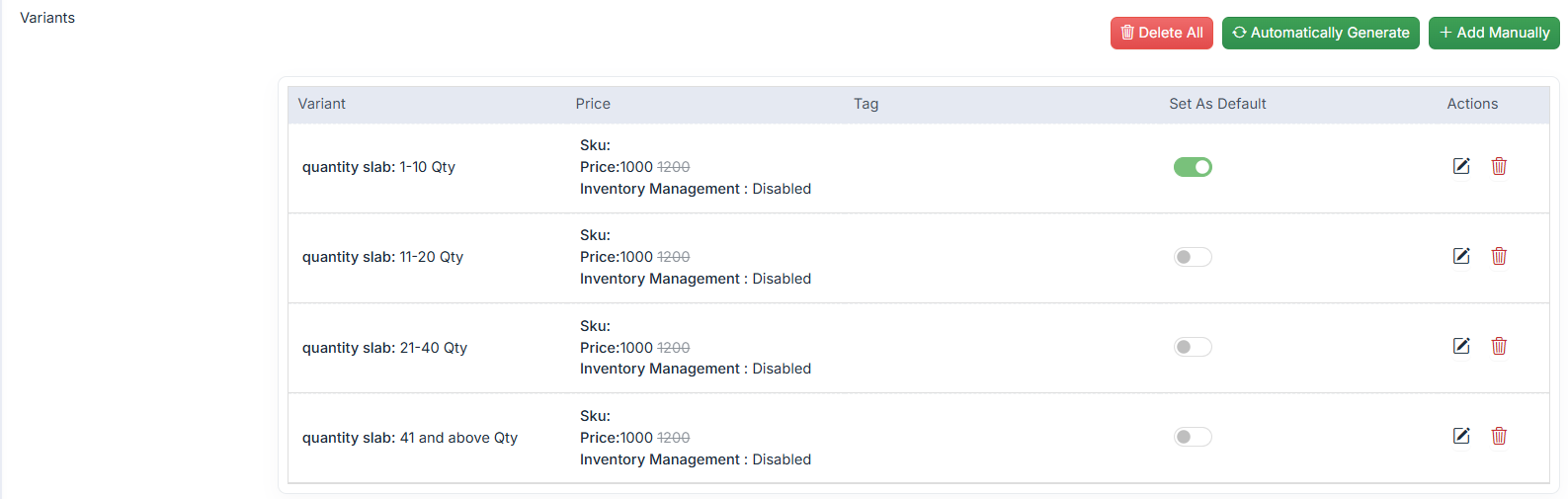
- Click on the vertical ellipsis button and choose to edit the variant.
- Edit the price and mention the new price.
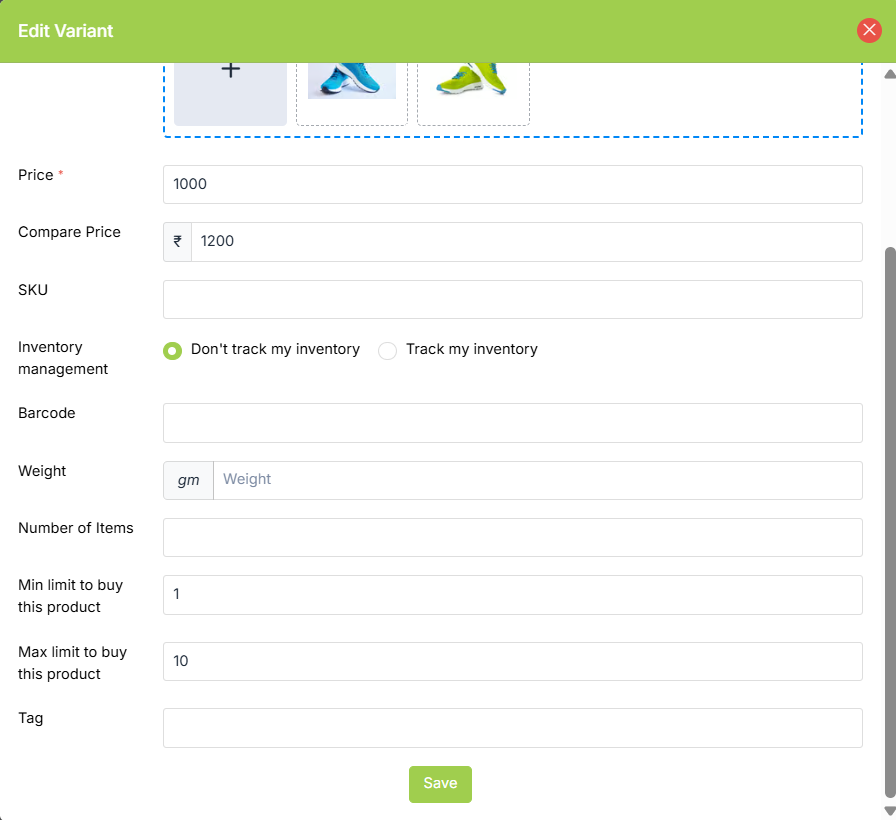
- Provide the minimum and maximum quantity to buy the product. Click on Save to save the changes.
- Similarly, update the price, minimum and maximum quantity of all the variants.
- Click on the Submit to save the changes.
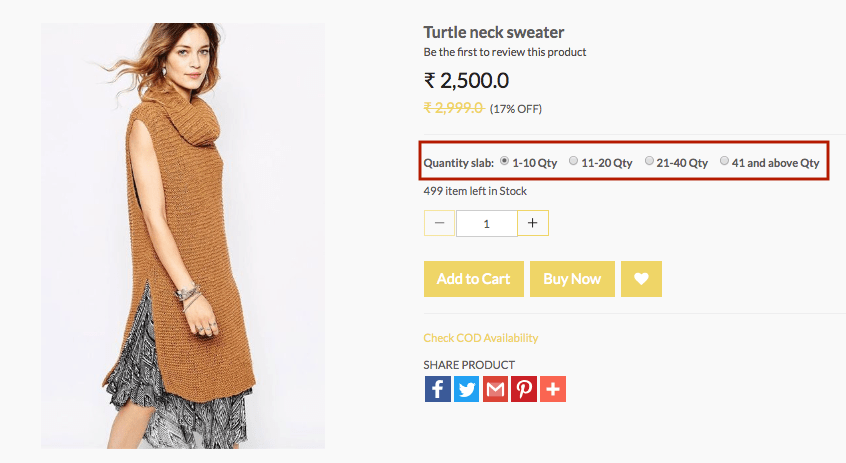
- The option of the product appears as shown below:
Adding Tier Pricing via CSV
- Go to Products > Products section in StoreHippo Admin Panel.
- Click on the Export button to export the product CSV file.

- A
dialog box for exporting file opens. Fill up the fields as shown below: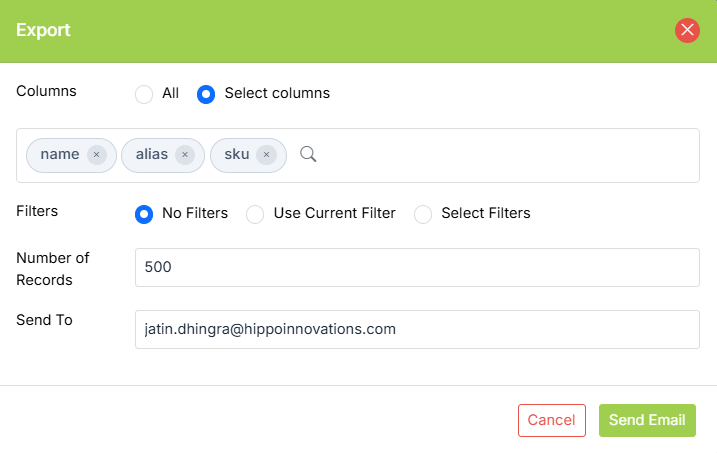
- Click on Send to Email. The CSV file is sent to you in the email or you can download the file from Export logs.
- View the downloaded CSV file.
- Go to the option1_name column of the product for which you want to add variants. Then enter the value of the variant in the option1_value column. For example; you can put
option name as 'Quantity slab' and option value as '1-10 qty'. You can provide option sets for your product variants in the option_set column.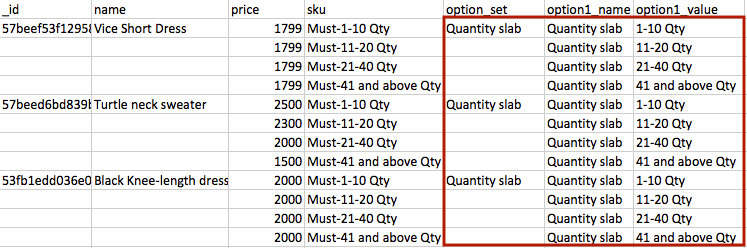
- When you have entered all the desired variants, go to the Products section of the admin panel. Click on the Import button to import the edited CSV file.

- The
dialog box for importing file opens. Upload the file in which you made changes and click on Import file.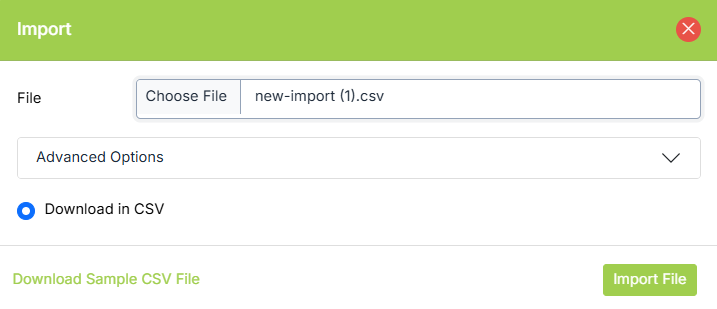
- You can check the status of the imported CSV file by clicking on the notification icon or in Import logs.
- The variants will be updated in the admin panel and storefront.
Was this page helpful?