
Importing Products (in bulk)
Using the Import feature, you can add or update multiple products at the same time. When importing products, you can specify the data in simple CSV format. StoreHippo uses the data from your CSV file and turns it into products in your store.
To import products through your StoreHippo you need to follow these steps:
Go to Products > Products section in StoreHippo Admin Panel. Click on the ellipses in the top right corner. On choosing the 'import' option, the following

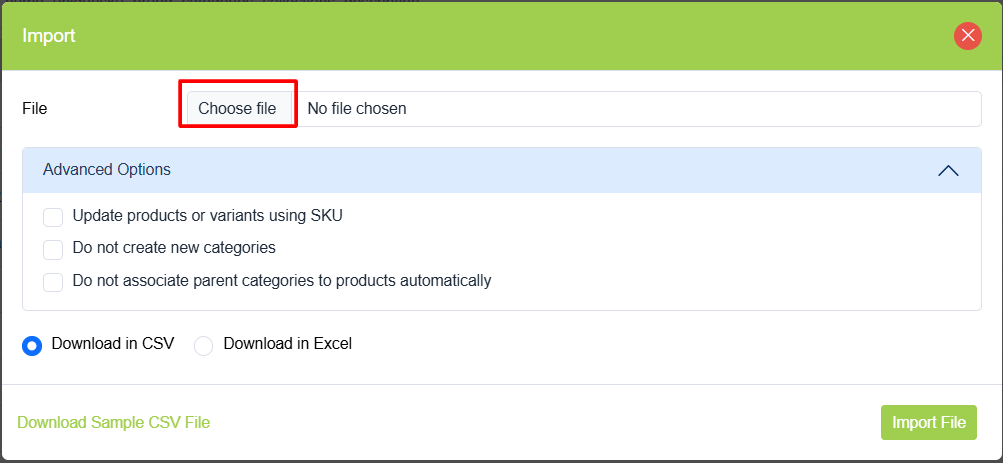
File
Click on Choose file and upload your product CSV file.
Advanced Options
For advanced import option or customization in import, click on Advanced Options. The following option appears:
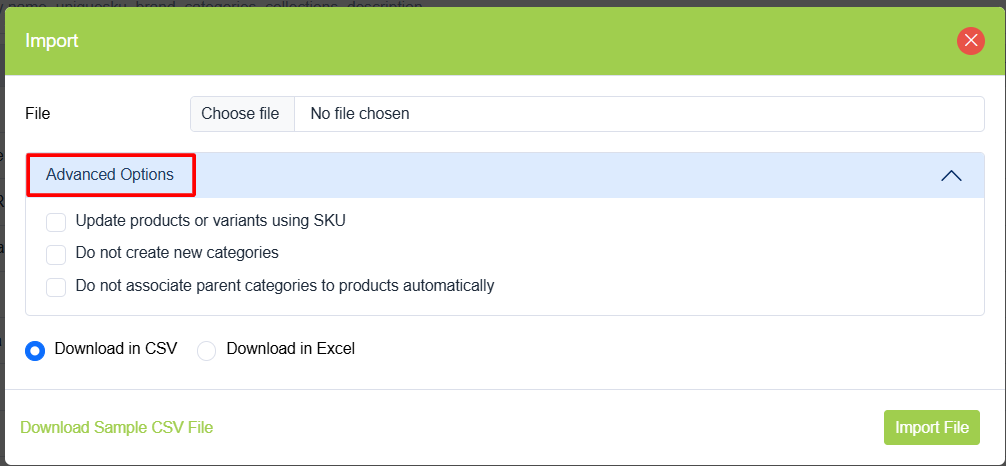
The options are detailed below:
Update products/variants by SKU
This option is used if products are updated using SKU for products/variants. By default, products are updated using the _id field.
Do not create new categories
If we check this field, then new categories do not get created even if there are new categories listed in the file.
Do not associate parent category in products automatically
In product import, by default parent category gets associated with products even when only child category is given. However, if we check this field, then the parent category will not be associated.
Click on the Import button to initiate the import process.
Checking Status
You can check the status of the ongoing process when the import process is initiated. Click on the notification (bell) icon on the top right side of your admin panel to view the status of import.

The status of the import process can be viewed by clicking on the button. You can find all the details of the imported files in
Example
How to edit
How to delete products in bulk via CSV?
How to add variants of products in bulk?
How to add attributes via CSV?
How to replace product images via CSV?