
Audit Logs
StoreHippo allows you to maintain a track of changes that were made to your store. It is sometimes necessary to keep track of what changes were made, and by whom. This is known as Audit Logging or an audit trail.
You can view the audit logs in the Logs > Audit Logs section in StoreHippo Admin Panel.
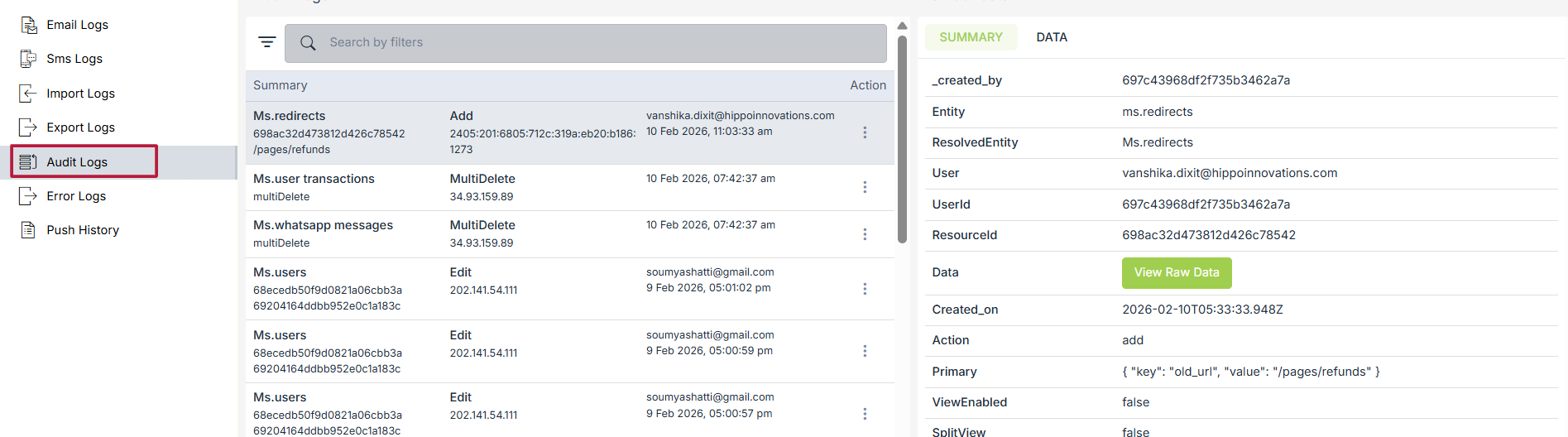
Details of Audit Log Record
Following is the summary of a sample audit log record:

|
Products |
The name of the entity which is affected. |
|
585d007fef0b71ef64d6a353 |
The unique id of the record updated. |
|
Test Product |
The primary field of the record updated. |
|
EDIT |
The action that was performed. The actions can be ADD, EDIT, DELETE etc. |
|
Desktop |
The device of the user who made the change. |
|
118.67.252.150 |
The IP of the device of the user who made the change. |
|
The email id of the user who made the change. |
|
|
Feb 13, 2017 3:36:11 PM |
The time at which change occurred. |
|
2 Changes |
|
The detailed view of the record shows more information about the change.
Summary
The summary tab shows a more detailed view that has more fields in addition to the fields explained above.
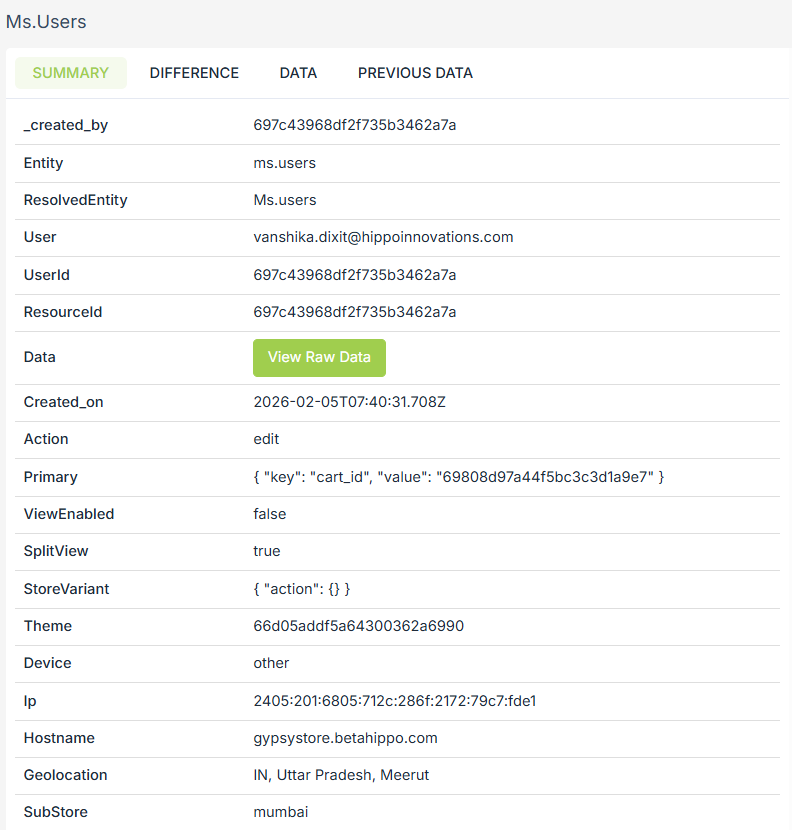
- Entity: The name of the entity which is affected.
- Record ID: The unique id of the record updated.
- Shipping status: The shipping status of the order.
- User: The email id of the user accessing the entity.
- Action: The action that was performed. The actions can be ADD, EDIT, DELETE etc.
- Store variant: Whether a store variant was applied when the change was made.
- Theme: The theme which was applied at that time.
- Device: The device of the user who made the change.
- Geolocation: The physical location, if available on the device.
- Sub Store: If the request was for a substore.
- IP: The IP of the device of the user who made the change.
- Environment: The environment on which the website was running.
- Server: Server on which the request was sent.
User agent : The user agent on which the change is made.- Page: URL of the page from which the request was made.
- API: The API through which the change is made.
- Host: The host website.
- Data: The data which was changed. Shows the raw data in JSON format.
- Previous data: The data before the update process. Shows the raw data in JSON format.
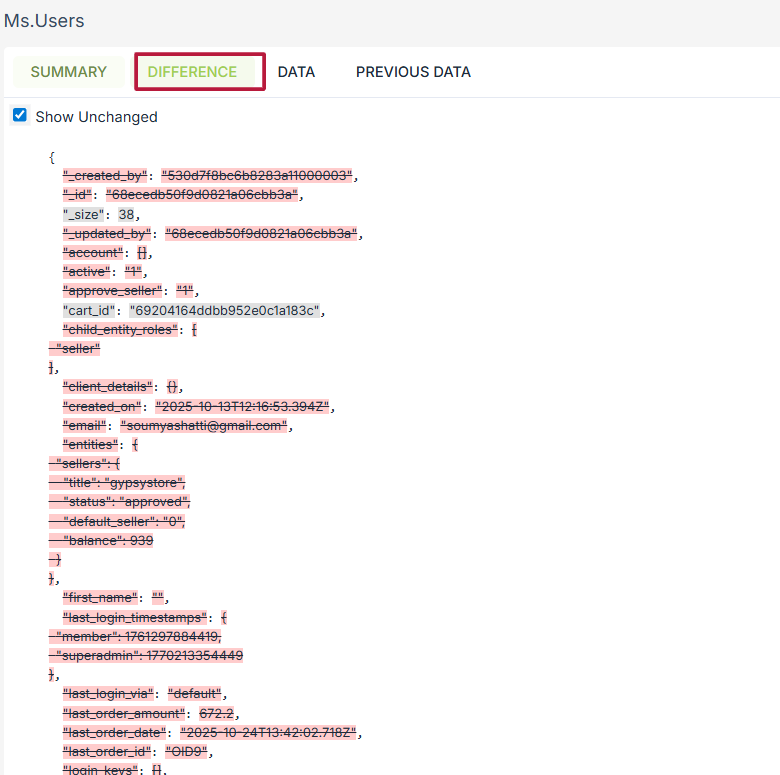
Difference
This tab shows the data which was updated. Clicking on Show Unchanged will show the unchanged data also.
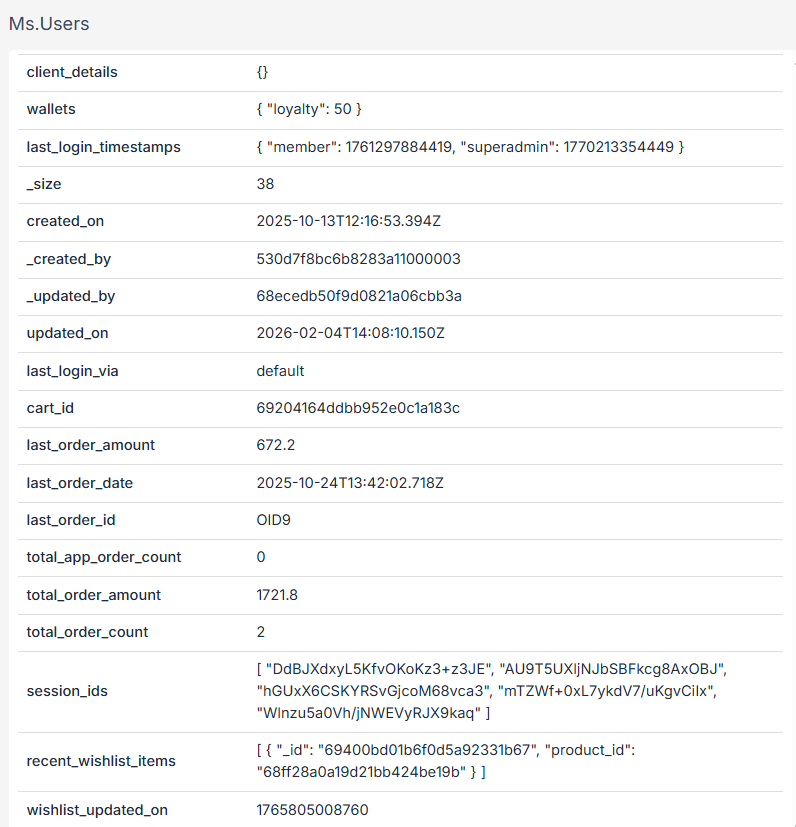
Data and Previous Data
This tab shows the data that was updated and the data before the update.
Searching audit logs
You can also search in your audit logs using the name of the entity. Provide the name of the entity in the search bar to view the search results.

Advanced Search
It allows you to search the audit logs with more options. Click on the filter button on the search bar for the options:
It will open a modal which asks for the field on which the filter is to be applied.
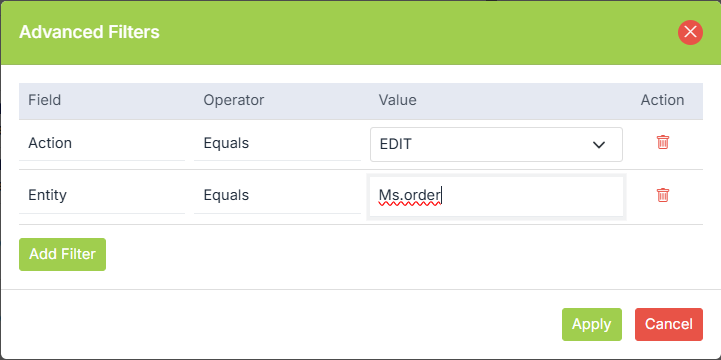
Select the field and enter the value for which you would like to search
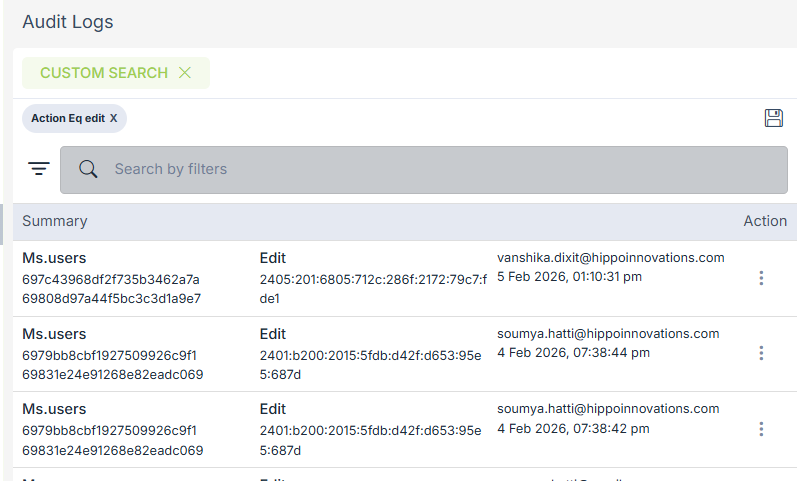
You can save the search so that you don't have to apply the filter again.