Creating Expo Account and Generate an Access Token
Expo is a platform used to build and manage mobile applications. Follow this guide to create your Expo account and proceed with the app build process.
To create and manage your Expo-based mobile app, you need an Expo account and an access token. Follow the steps below.
First, open the Expo signup page using this link: https://expo.dev/signup
Create a new account by entering your email address, username, and password. After completing the signup, verify your email address and log in to your Expo account. After logging in, you will be redirected to your Expo dashboard.
Next, create an access token. From your Expo dashboard, navigate to Account Settings and open the Access Tokens section. Click on Add Robots > choose developer > select a name for the robot (Eg. storehippoRobot)
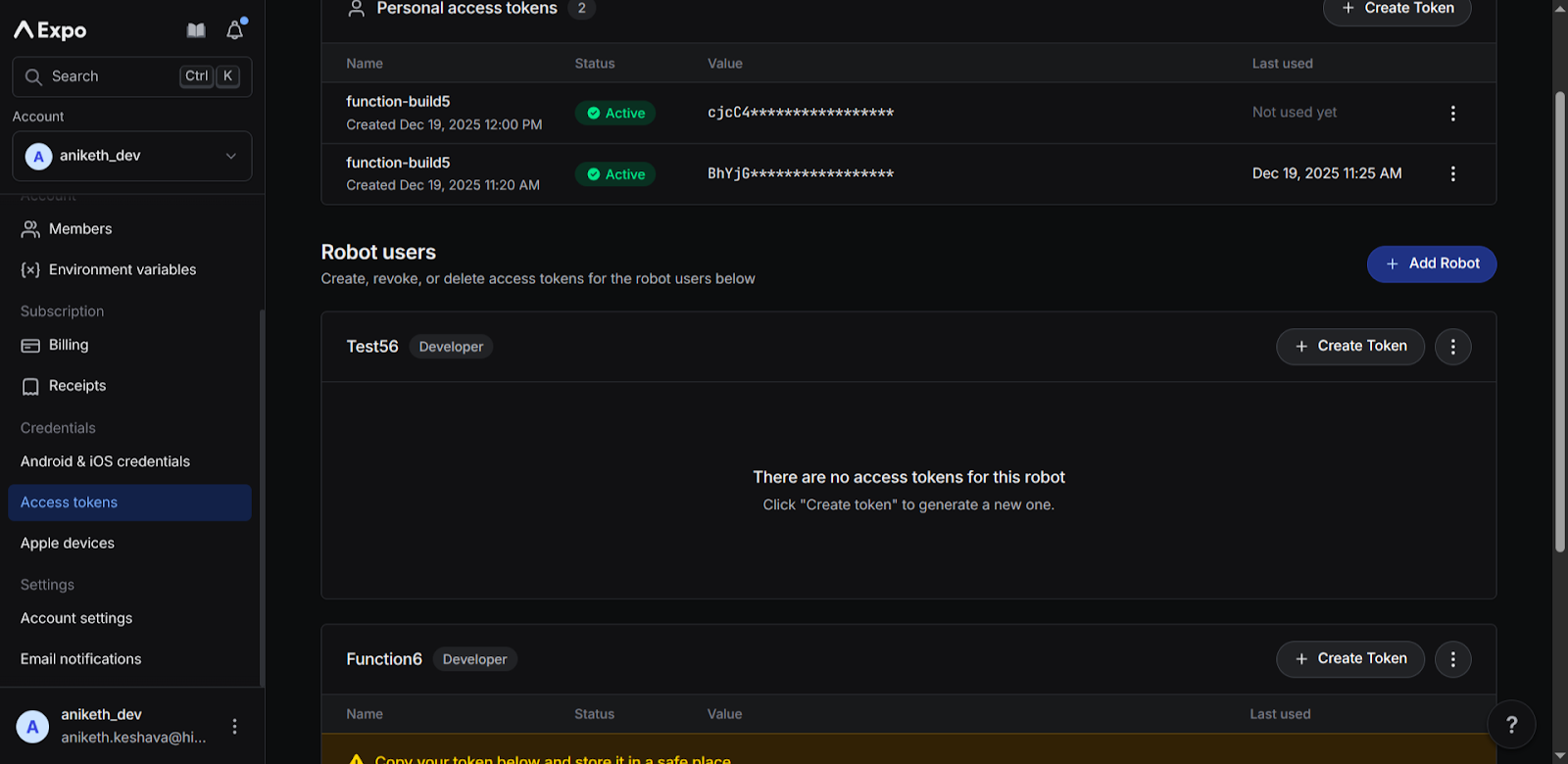
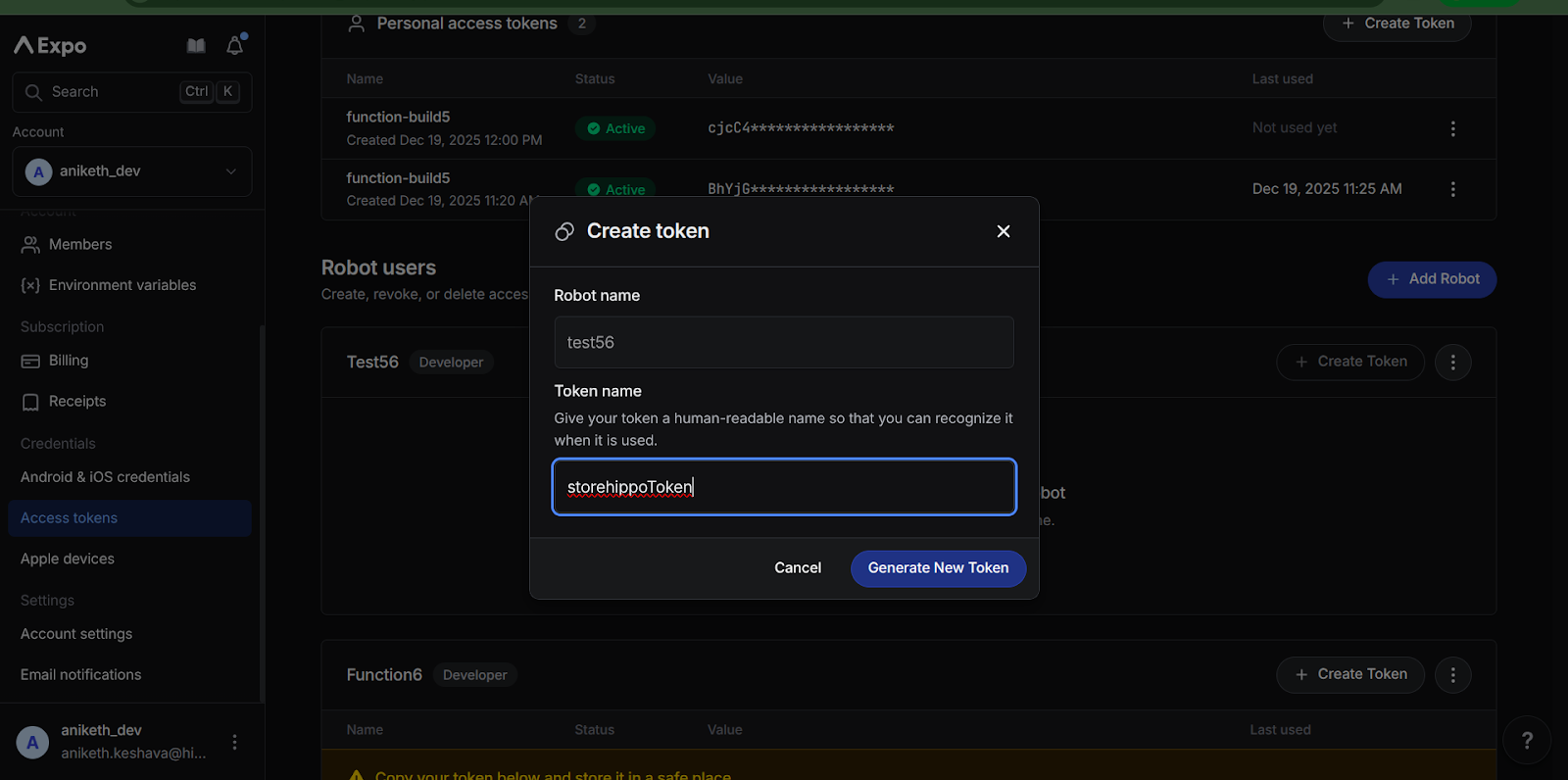
Then click on Create Token within the newly created robot > Give it a name for identification > Generate new token
It will generate access key as shown below.
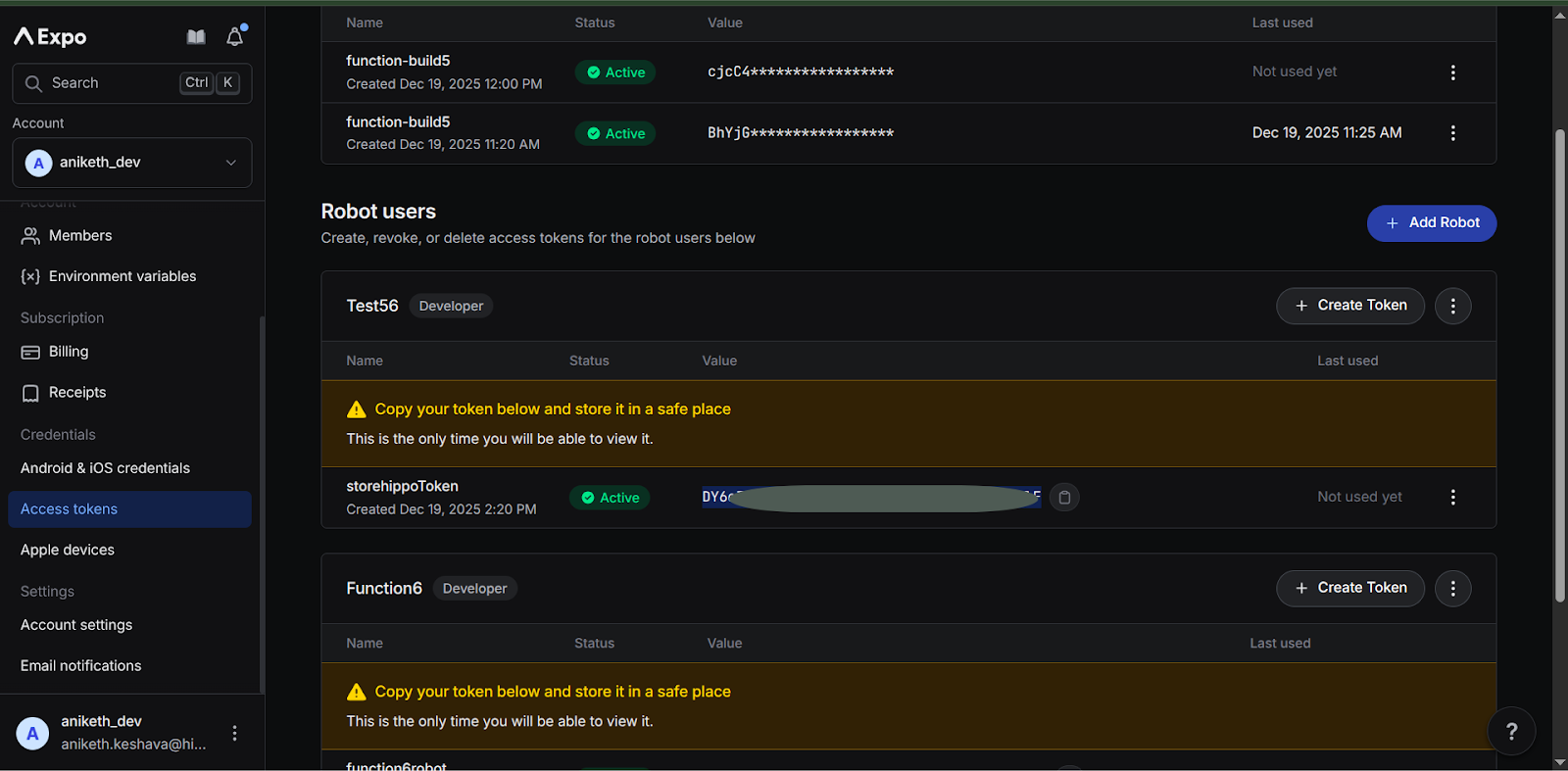
Make sure to copy and securely save the access token, as it will be required for app build and deployment processes in Storehippo. For security reasons, the token will not be shown again.
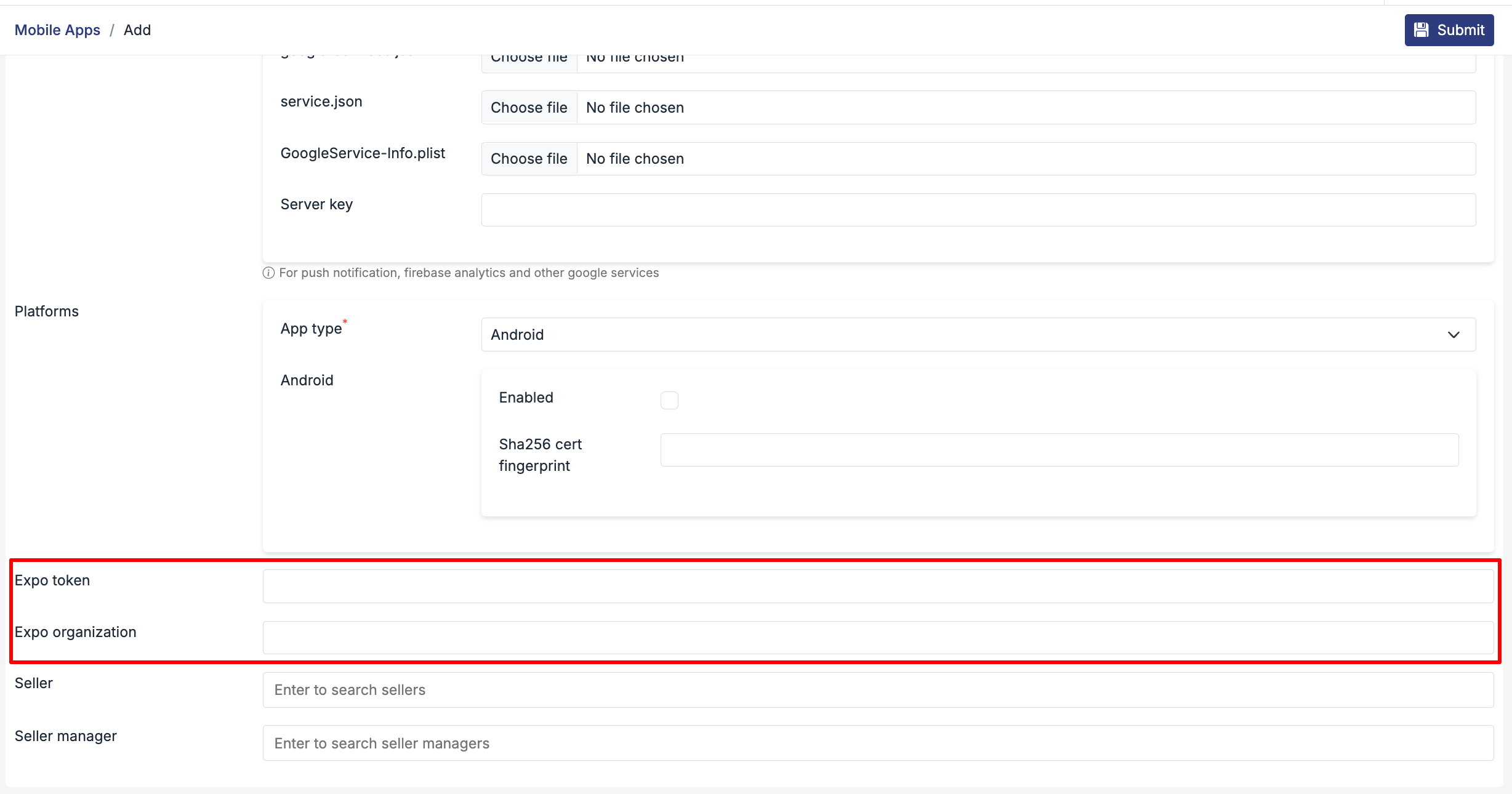
Once the token is generated, Open the mobile app using edit > open general section> Expo token, Expo organization (add the token and the account name here)