
Currencies
StoreHippo's multi-currency functionality lets you add multiple currencies thus enabling you to sell internationally. To allow your customers to access the store with the currency of their choice, you first need to add multiple currencies. The currencies which you add here are displayed on the storefront, providing customers with the option to change currencies as per their desire.
Go to Settings > Currencies section in StoreHippo Admin Panel to manage the currencies for your store.
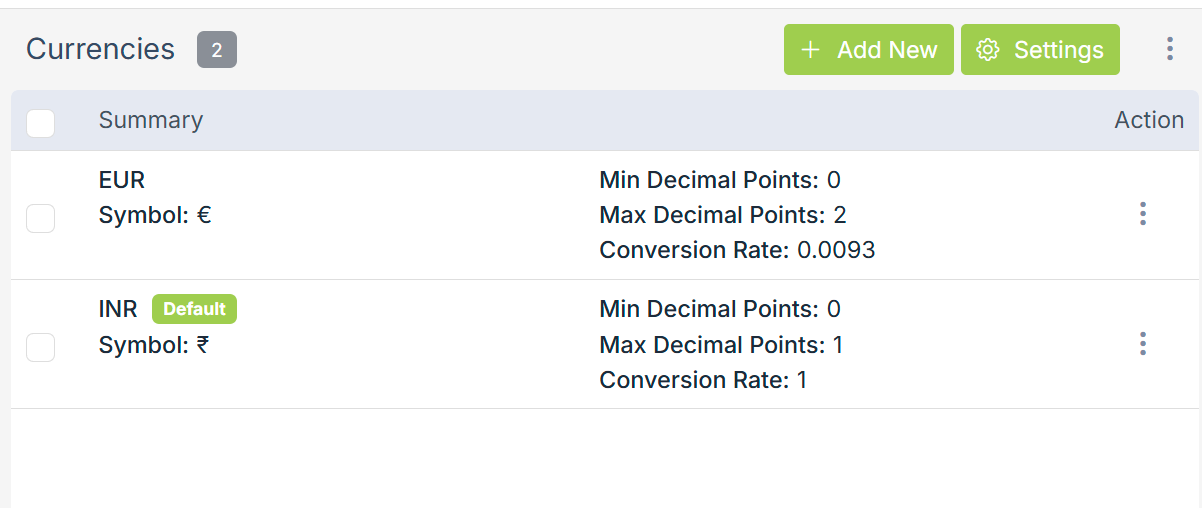
Adding a currency
To add a new currency, click on the Add New button in the top right corner. Clicking on the button will open the following form with the fields explained below:
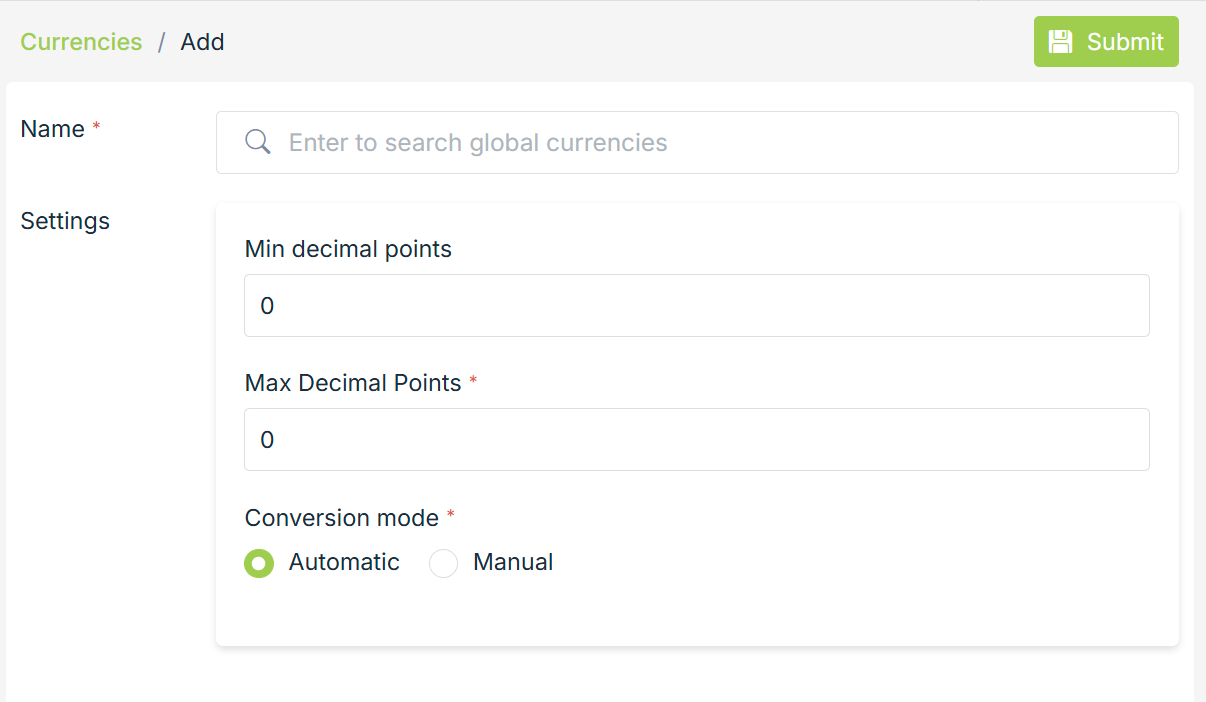
Name
Select the name of the currency from the drop-down.
Decimal Points
Mention up to which decimal point you want to display the currency.
Conversion Mode
Conversion mode decides the conversion rate of the currency with respect to the default currency(explained below) of your store. The conversion rate is the ratio at which the currency will be converted into the default currency.
Automatic
In the case of automatic conversion mode, the conversion rate of the currency will be automatically fetched from the automatic conversion rate provider of your store. The default conversion mode for the currencies is automatic.
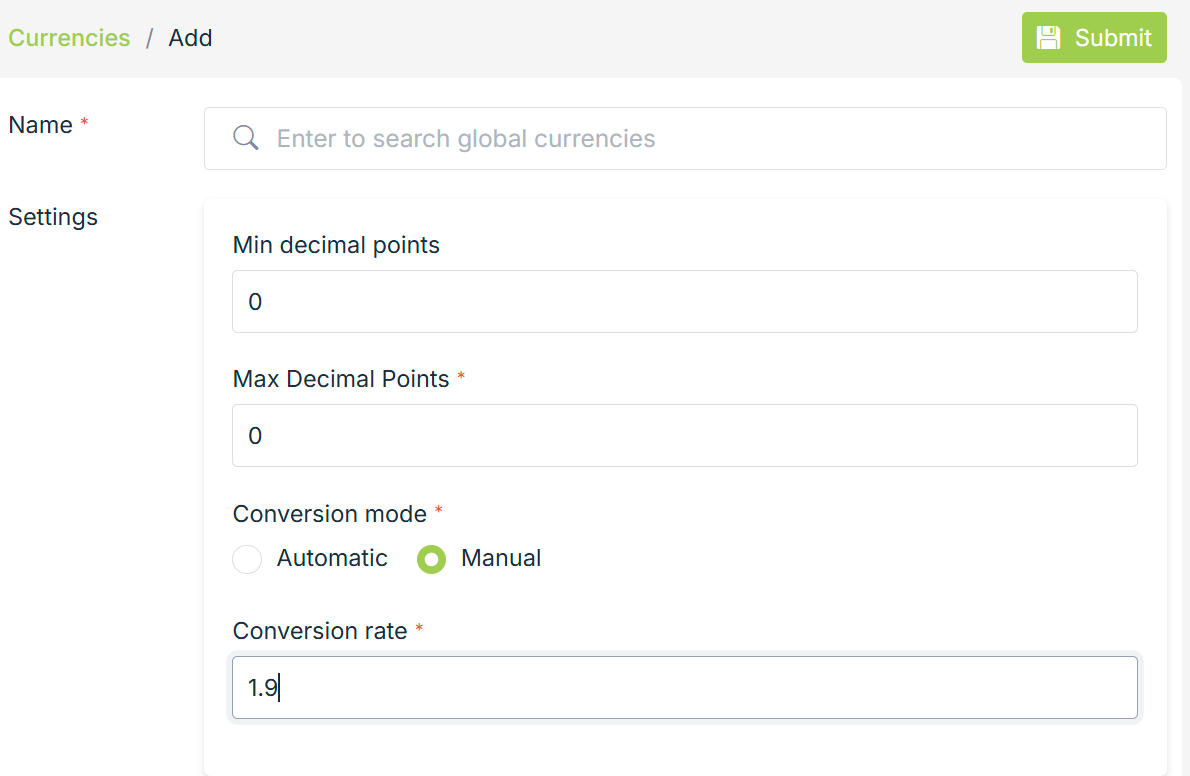
Manual
You can also manually define the conversion rate for your currency. To do that, set the conversion mode to manual and define the conversion rate of your currency.
Currency settings
Currency settings can be accessed by clicking on the Settings button next to the Add New button in the currencies section.
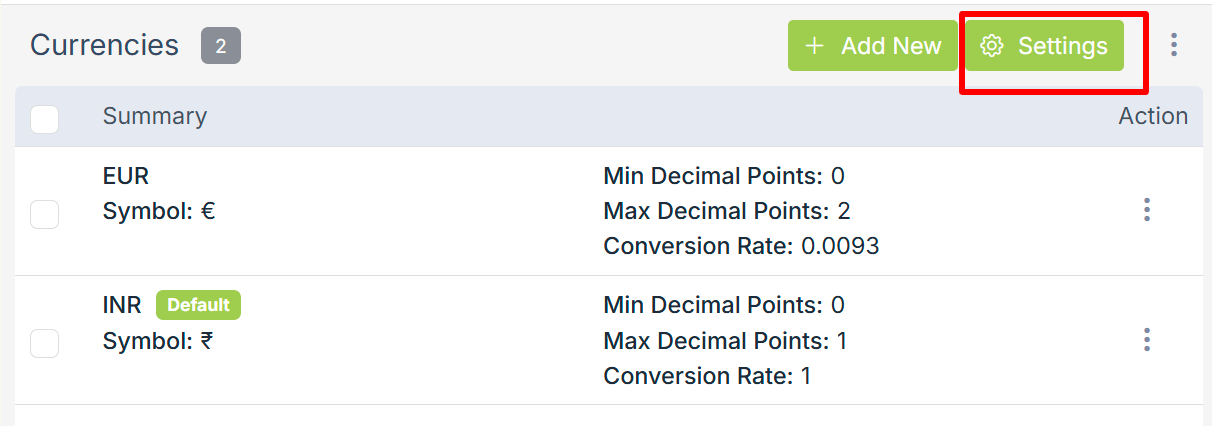
Clicking on the Settings button opens the following
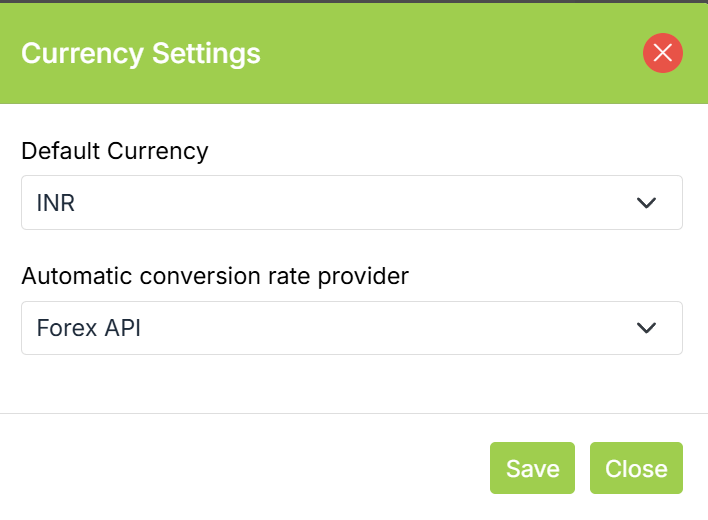
Automatic conversion rate provider
The default automatic conversion rate provider is the Forex API. The automatic conversion rate provider is used to automatically update the conversion rate of all the currencies of your store whose conversion mode is set to automatic.
Default currency
The default/base currency of your store is the currency with respect to which all currency conversions are made. All the currencies of your store can be exchanged for the default currency on the basis of the conversion rate. The conversion rate for other currencies is hence defined with respect to the default currency of your store.
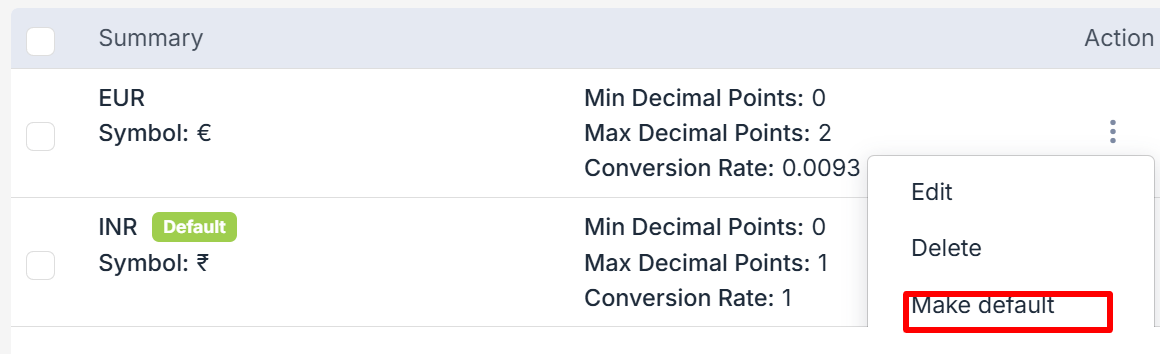
To make a currency default, click on the ellipsis button against the currency and choose the Make Default option from the drop-down.
Set IP based currency
StoreHippo provides the store variants feature. Using the store variant feature, you can set up the IP based currencies.