
Discounts
Video to be added
StoreHippo provides built-in discount and promotion tools to market your store on a full scale. It allows you to create storewide discount rules based on product category, collection, brands, and other parameters.
Go to the Marketing > Discounts section of the StoreHippo Admin Panel to manage the discounts.
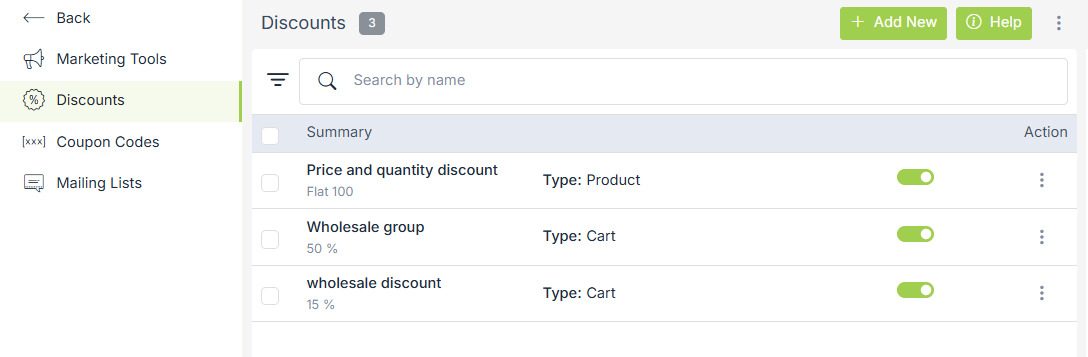
Adding a Discount
To add a new discount, click on the Add New button in the top right corner. Clicking on the button will open a form with the following fields:
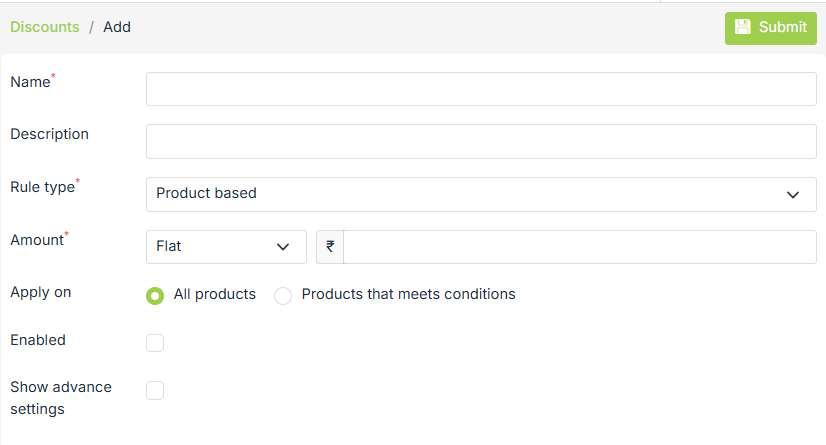
Name
Enter the name of the discount rule. This name will be visible to the customer at the storefront.
Rule Type
Rule type defines whether the discount is product-based or order based. Let's see what each of them mean:
Product-based
Product-based discounts are applied at the product level. The discount rule will be automatically applied to the product price on Storefront wherever the product is displayed, e.g. in the product listing, product page or in the cart.
Order based
Order based discounts are applied at the cart level.
Amount
You can define the amount of the discount as a flat or percentage amount.
Apply on
By default, the discount rule is applied to all products/orders. However, you can also choose to apply the discount rule when specific conditions are met. If you choose to define conditions, then the discount rule will be applied only when the product/order meets all of the specified conditions.
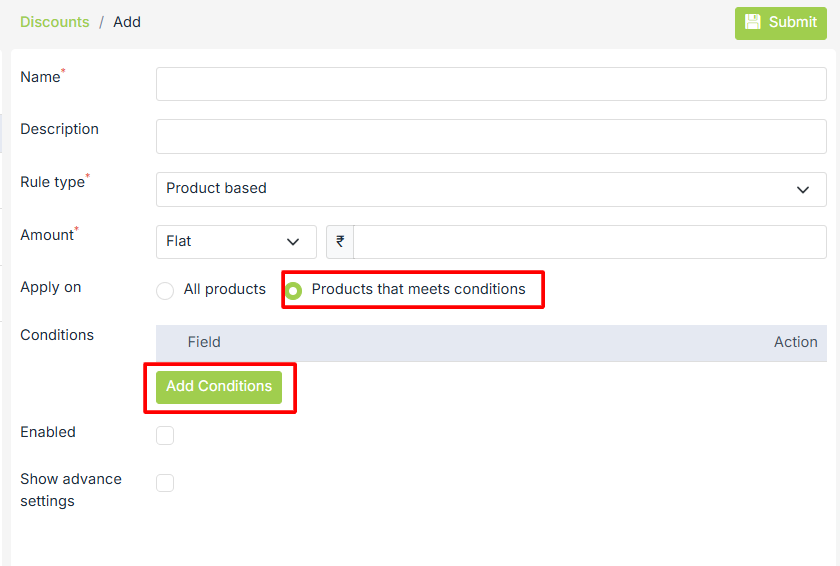
-
Possible conditions in the case of Product-Based rule type:
-
Product Name
- Product Quantity
-
Product Categories
-
Product Collections
-
User group
- Substore
-
Device
-
Possible conditions in the case of Order-Based rule type:
-
Any Product Categories
-
Product collections
-
Every Item Category
- Every Item Collections
-
Order total
-
Order quantity
-
User group
- Substore
-
Device
Enabled
It defines whether the discount is enabled or not. You can enable it by selecting the checkbox.
Advanced settings
In advanced settings, there are some fields to configure the discount further.
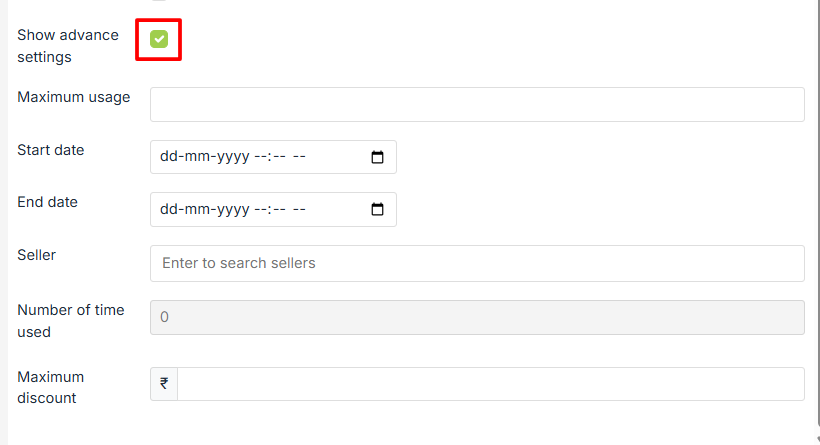
Maximum usage
It defines the allowed limit up to which the discount is applicable.
Start Date/End Date
It defines a period for which the discount is applicable.
Seller
To define a discount for a specific seller. The discount will be applicable only for the product of the specified seller only.
Number of times used
This field tells you how many times the discount has been applied. It is a read-only field.
Exporting/Importing Discounts
Importing Discounts
Discounts can be added in bulk by using the CSV format. Click on the ellipsis button and select the Import option from the drop-down menu.
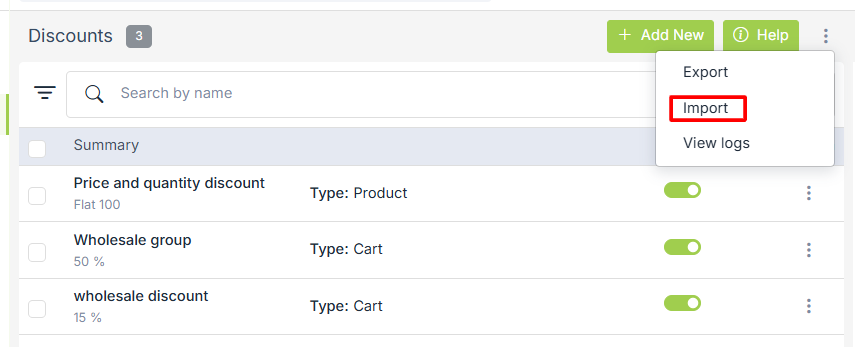
You can create a new CSV file by referring to the sample file or choose the existing CSV file and upload it to
Exporting Discounts
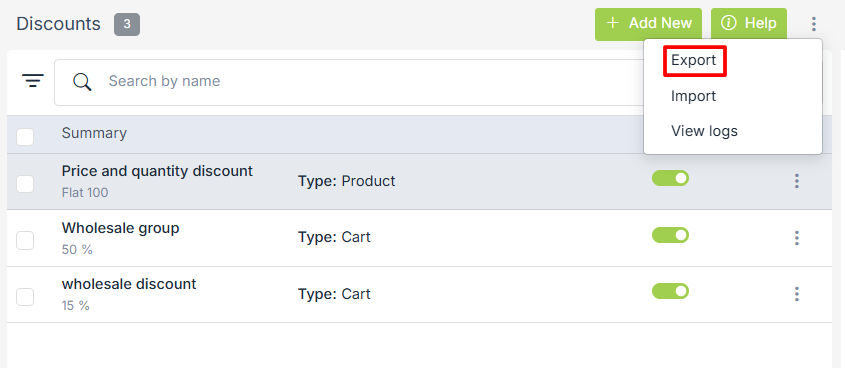
Discounts can be exported using export command in the drop-down option.
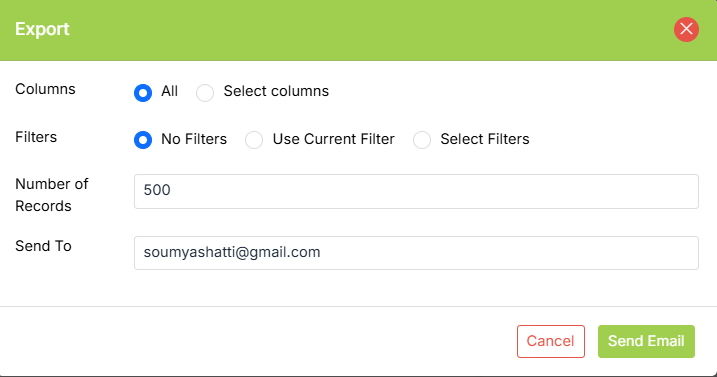
You can select all or some specific columns and add filters to export. The number of discounts to be exported can be specified in the Number of records field.
Show Checkout Discount
StoreHippo provides you with the ability to make changes on your website using Design Theme. Using this, you can show the discount coupon field on the checkout page of your website. Click here, to know more about showing the discount coupon field on the checkout page.
Similar Topics
- How to give flat discounts on products?
- How to give discounts on products for a specific time period?
- How to add discounts based on order quantity?
- How to add discounts based on product quantity?
- How to add seller based discounts?
- How to add brand based discounts?
- How to show discount coupon field on the checkout page?