
Enabling Push Notifications
Push notifications let you send instant updates (like order alerts, offers, and messages) directly to your customers’ phones. To enable push notifications in your app, you’ll need to integrate Firebase Cloud Messaging (FCM).
Below are step-by-step guides for Android and iOS.
Set Up Firebase Project
- Go to the Firebase Console.
- Create a new project (or use an existing one).
- Once your project is ready, you’ll add your app (Android or iOS) to it.
1. Setting Up Push Notifications for Android
Add Firebase to Your Android App
1. In Firebase Console, click the Android icon to add a new Android app.
- If a Firebase project already exists → go to Project Overview > Add App.
2. Enter your app details:
- Android Package Name → Must match the package name you used in Storehippo.
- App Nickname → (Optional, just a friendly label).
- SHA-1 Certificate → Generate from Android Studio or your signing keys.
NOTE: You can build the app without uploading Android signing keys. In that case, the app will be signed with Storehippo default key. When you use the Storehippo inbuilt Android build, then the SHA-1 key for your app will be 15:27:AE:98:AA:0F:93:05:4F:6A:1E:F1:99:1E:88:D9:33:29:AA:AE
3. Click Register App.
Download Required Files
1. Download the google-services.json file.
- This file contains your Firebase credentials.
- Save it carefully.
2. Skip remaining Firebase setup steps → click Next or Continue to Console.
Generate Service Account Key
- In Firebase Console → go to Project Settings > Service Accounts.
- Click Generate New Private Key.
- Download the service-account.json file.
Note: Keep it safe. If you regenerate this key, old ones stop working.
Upload Files in Storehippo Admin Panel
1. Log in to Storehippo Seller Admin Panel.
2. Go to Mobile Apps > Edit App.
3. In Google Service Settings, upload:
- google-services.json
- service-account.json
4. Save the changes.
Done! Your Android app is now connected to Firebase for push notifications.
2. Setting Up Push Notifications for iOS
Add Firebase to Your iOS App
1. In Firebase Console, click the iOS icon to add a new iOS app.
- If a Firebase project already exists → go to Project Overview > Add App.
2. Enter app details:
- Bundle ID → Must match your iOS app’s Bundle ID in Storehippo.
- App Nickname → (Optional).
- App Store ID → Found in your App Store link (e.g.,
id123456789).
3. Click Register App.
Download Required Files
1. Download the GoogleService-Info.plist file.
- Save it securely.
2. Skip remaining Firebase setup steps → click Next or Continue to Console.
Generate Service Account Key
- In Firebase Console → go to Project Settings > Service Accounts.
- Click Generate New Private Key.
- Download the service-account.json file.
Create Apple Push Key (.p8 Certificate)
1. Log in to your Apple Developer Account.
2. Navigate to Certificates, IDs & Profiles > Keys.
3. Click + → Add New Key.
4. Enter:
- Key Name (e.g., Storehippo Push Key).
- Enable Apple Push Notifications service (APNs).
- Select both Sandbox and Production.
5. Click Register and download the .p8 certificate.
Note: This file can only be downloaded once, keep it safe.
Upload Push Key in Firebase
1. In Firebase Console → go to Project Settings > Cloud Messaging.
2. Under Apple App Configuration, upload the .p8 file.
3. Enter:
- Key ID (from Apple Developer account).
- Team ID (from Apple Developer account).
Add the following details in Storehippo Admin Panel
1. Log in to Storehippo Seller Admin Panel.
2. Go to Mobile Apps > Edit App.
3. In Google Service Settings, upload:
- GoogleService-Info.plist
- service-account.json
- Apple push key (Upload the downloaded .p8 certificate from apple developer account)
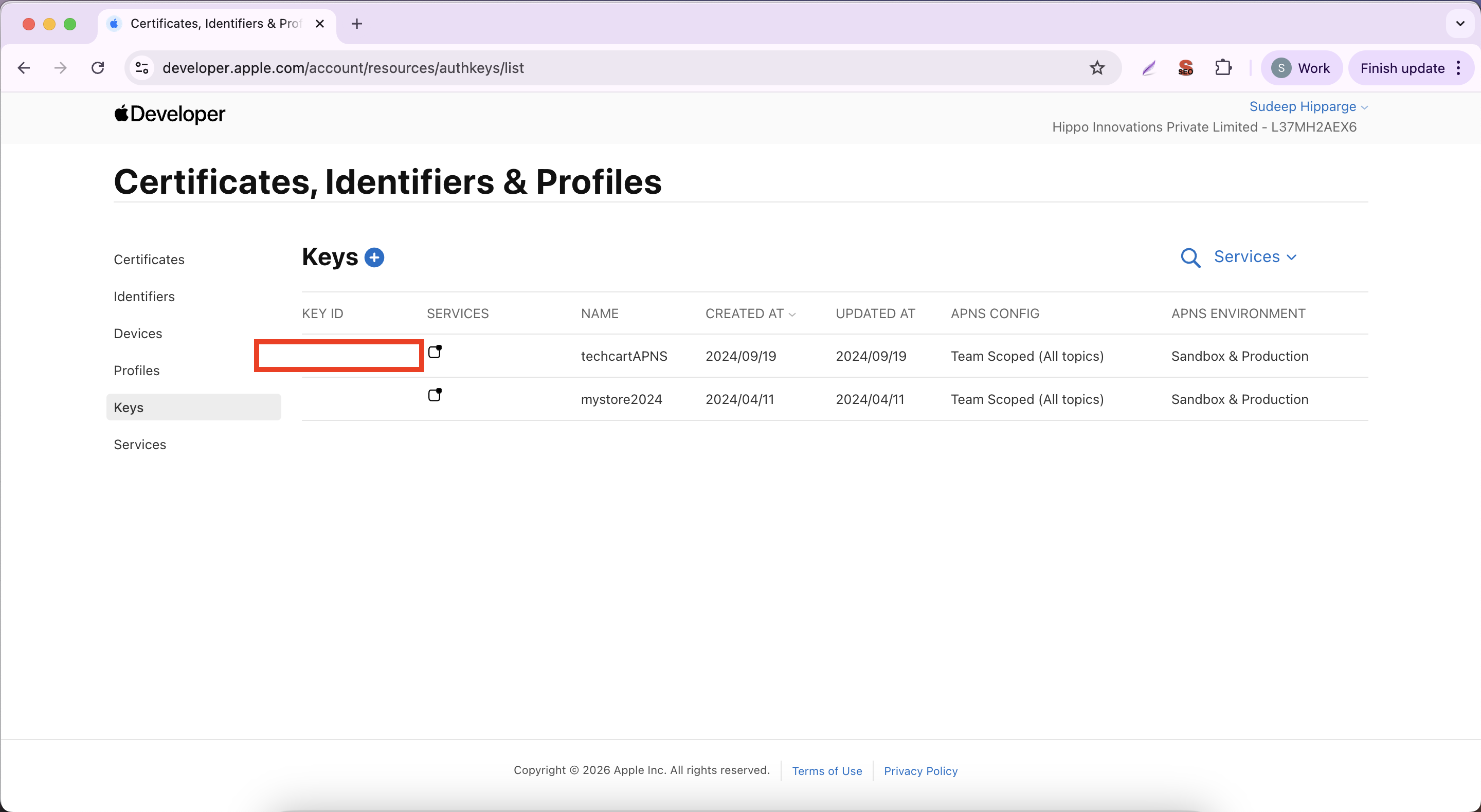
4. Apple push key ID: To add Apple push key ID go to apple developers account -> Click on Keys -> Copy the key Id.
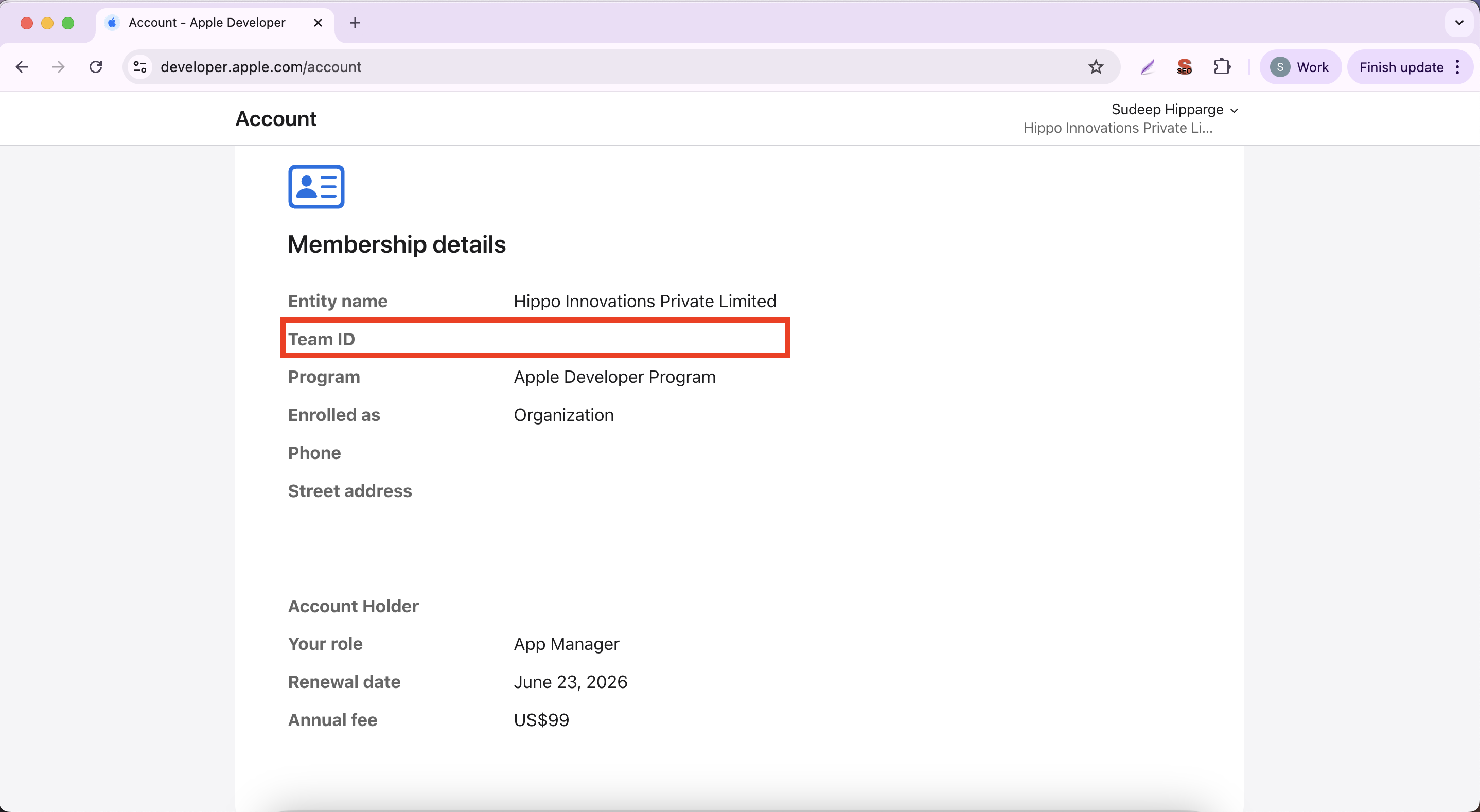
5. Apple Team ID: To add Apple team ID go to the Apple Developer account -> Membership Details -> Copy the Team Id.
6. Save the changes.
Done! Your iOS app is now connected to Firebase and Apple Push Service for push notifications.
3. Additional Configuration for Images
Splash Image
A splash screen image appears while the app is loading. It enhances the user experience by displaying branding or visual design.
Specifications:
- Format: PNG
- Dimensions:
- Android → 300x300 pixels
- iOS → 1280x1920 pixels
Advanced Tab Settings (Available during app creation):
- Splash Screen Delay:If a white screen or delay occurs during app loading, adjust the Splash Screen Delay setting so the splash image remains visible until the home page is loaded.
- Splash Screen Background Color:Default: White.To match your branding, specify a Hex Code in advanced settings.
Push Notification Settings (Android)
Push notifications help you keep users updated in real time. To ensure proper branding and visibility, configure the following:
- Push Notification Icon:
- Format: PNG
- Style: White icon with transparent background
- Dimensions: 96x96 pixels
- Push Notification Background Color:
- Define the background color for the notification icon.
- Use a Hex Code that matches your brand colors.
Icon Image
The app icon is what users see on their device home screen.
Specifications:
- Format: PNG
- Dimensions: 1024x1024 pixels
Reference for Logo & Splash Creation:Use this Figma resource → Expo App Icon & Splash