
Export logs
Export logs allow you to keep track of the export processes in your store. Once you have exported a file, you can view the general file data in the export logs.
Go to Logs > Export Logs section in StoreHippo Admin Panel to access the export logs.
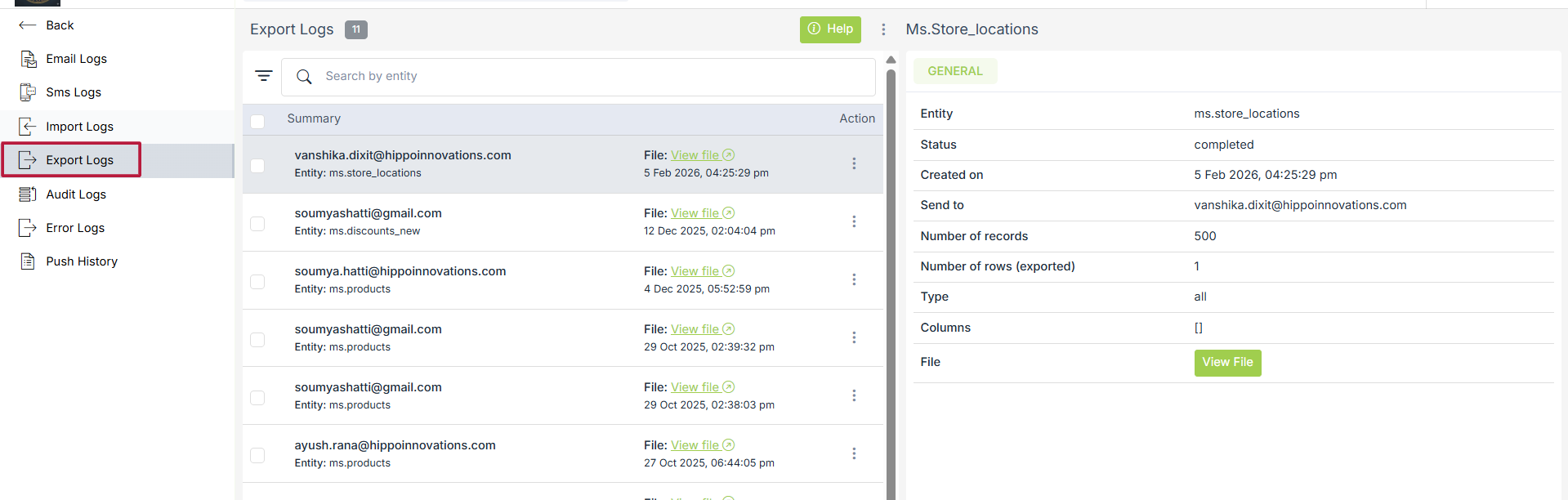
The export logs contain two tabs explained below:
General
The general tab shows a detailed summary of the export log record.
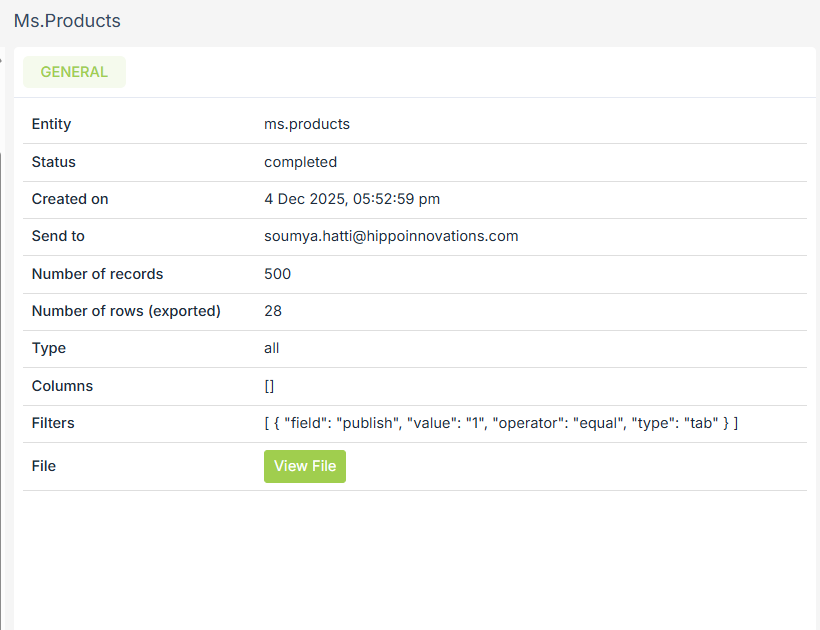
- Entity: The name of the entity in which the file is imported.
- Status: The status of the import log record, whether it is complete or failed.
- Created on: The date and time on which the file was imported.
- Send to: The email ID to which the file is sent.
- Number of Records: The total number of records in the file.
- Type: The type of all columns or specific columns was selected.
- Columns: The specific columns that were exported.
- Filters: The filters applied to the exported file.
- File: The downloadable link of the file exported.
Was this page helpful?