
Linked Products
Video to be added
Linked Products allow sellers on your store to specify different pricing of the same product. Linked Products share the same tags or categories as the current product but with different sellers and features.
Linked products are displayed on one page with all the sellers that are selling that particular product with the respective price, variant, and availability. The user can simply compare on the basis of price, seller rating etc and choose the seller he wants to make a purchase from.
Go to the Products > Linked Products section in your StoreHippo Admin Panel to manage the Linked Products.
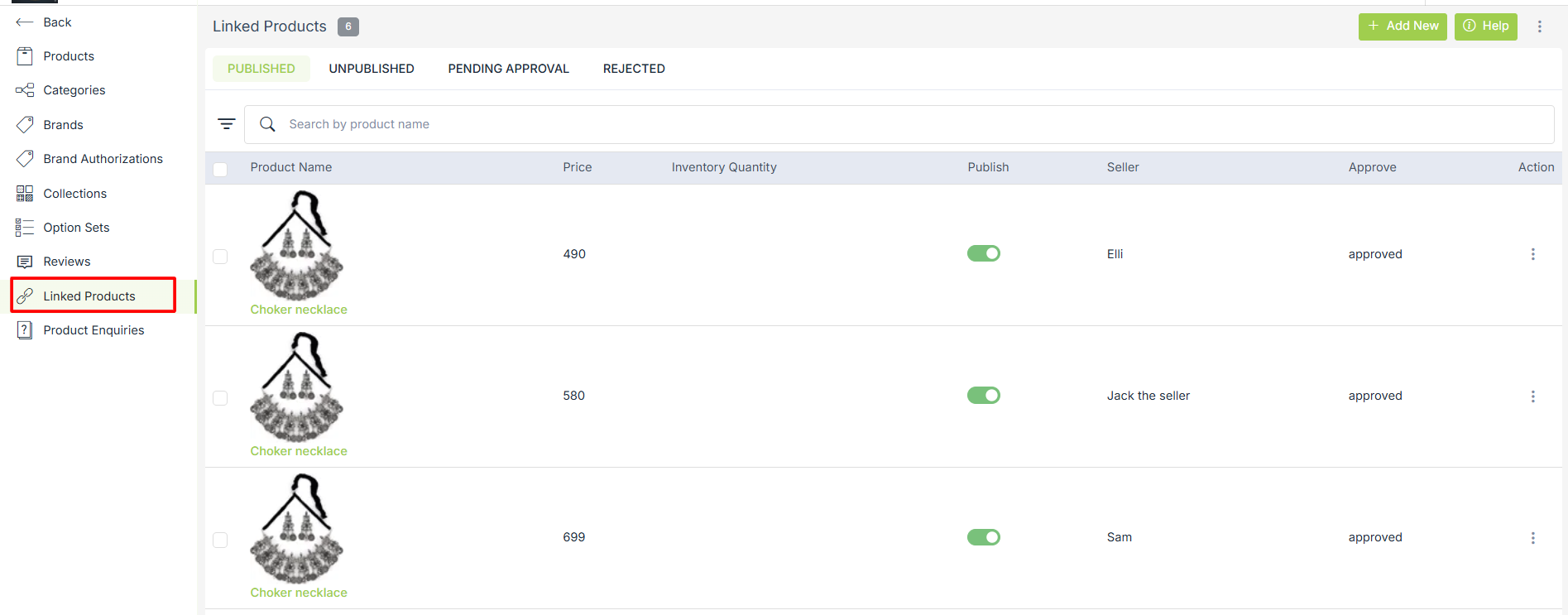
A product, when linked by a seller, would go to the pending approval list of linked products in admin. Only when the admin approves the product it will be visible on the storefront. The Linked Products section consists of the following tabs:
Published
To make your products appear at the storefront, you need to publish your products. This section contains those products that are visible to the customers by the store admin or have been published.
Unpublished
In a case when you temporarily do not want to sell a product or the product is out of stock and might take time in sourcing it again, you can use this functionality. You can hide a product from your store at your convenience.
Pending approval
Products added by the seller which need the admin’s approval are listed under the pending approval list. The products remain on the list until the admin approves/rejects the products.
Rejected
Admin can reject a product added by a seller if he doesn’t want that product to be listed at frontend. To reject a product, go to the published/unpublished/pending approval tab under products and select the reject option from the drop-down menu.
Searching for a Product
You can directly search for the desired product for fast access under this option. This allows searching for your product by the Product name.
Adding a new Product
Click on the Add New button to add new products to your linked products. The following window appears:
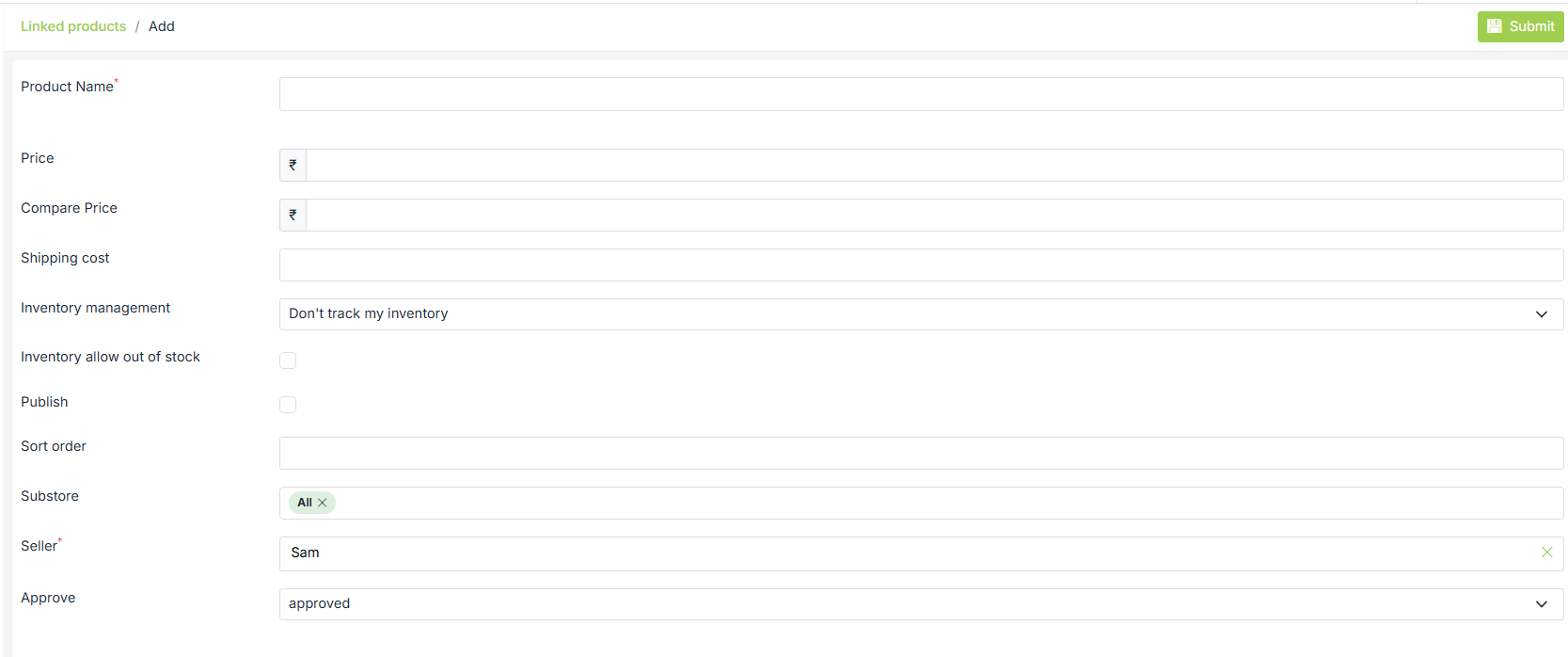
Product Name (Mandatory Field)
Select the product for which you want to add linked products.
Price
Enter the specified price of your product.
Compare Price
Compare Price can be used to specify the list price of the product which could be the manufacturer's suggested retail price (MSRP), or the recommended retail price (RRP). On Storefront, if the price is lower than the compare price then compare price is shown as stricken off.
Publish
This field allows the admin to make his product visible to the customers.
Shipping Cost
Enter the shipping cost for the product. It is the cost associated with the shipment of the product to its end-user.
Inventory Management
Inventory is the quantity of a particular product that is available for sale. Inventory Management can help you manage products that have run out of stock or let you know when you need to order or make more of your product.
Inventory Allow Out Of Stock
Select the Inventory Allow Out Of Stock checkbox to display out of stock on a website when your inventory turns zero.
Sort Order
The Sort Order field is used to set the specific sort order of your product.
Seller (Mandatory Field)
Select the name of the seller among different sellers selling the same product.
Approve
Select the approval status for the product from the drop-down. It can be pending, approved and rejected.
Substores
Select the substores if you want this linked product to be visible only for those substores. Leave blank to show it for all substores.
After entering the details click on the Save Button. Your Product will be successfully added to the list of linked products.
Setting Up Custom Fields for Adding Linked Products
You can define custom fields to add "Linked Products" to another product. In case, if you don't define any custom field, then all fields will be available while adding new linked products. Click here, to know how to define custom fields for linked products.
Filtering linked products
You can also use Advanced filters to filter your products based on different fields. Highlighted below is the button for the advanced filter.

Clicking on this button will open up a pop-up as shown below.
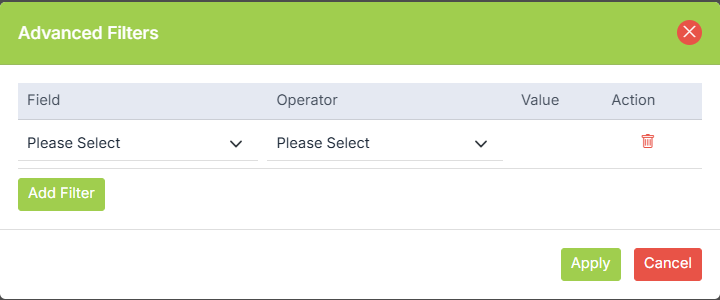
Here, you can select different fields and operators based on the requirement.
- Product Name: You can search for a specific product based on its name.
- Seller: You can search the products based on the seller.
- Created on: You can search the products based on the date on which the product was created.
- Price: You can search the products based on the price.
- SKU: You can search the products based on the SKU.
Importing Linked Products
You can import the linked products to add or update multiple products at the same time. When importing linked products, you can specify the data in simple CSV format. StoreHippo uses the data from your CSV file and turns it into products in your store.
Exporting Linked Products
You can export the linked products to a .csv file if you want to create a backup, move your existing linked products to a new StoreHippo store, or edit your products in bulk using a spreadsheet.
Examples
How to add linked products to a store?
How to provide support of substores in linked products?