
Metafields
Available in Business Plan and above.
Metafields are the extended fields in entities that are used as an additional field in store's resources such as products, categories, orders etc.
Go to the Advance Settings > Metafields section in the StoreHippo Admin Panel to access metafields.
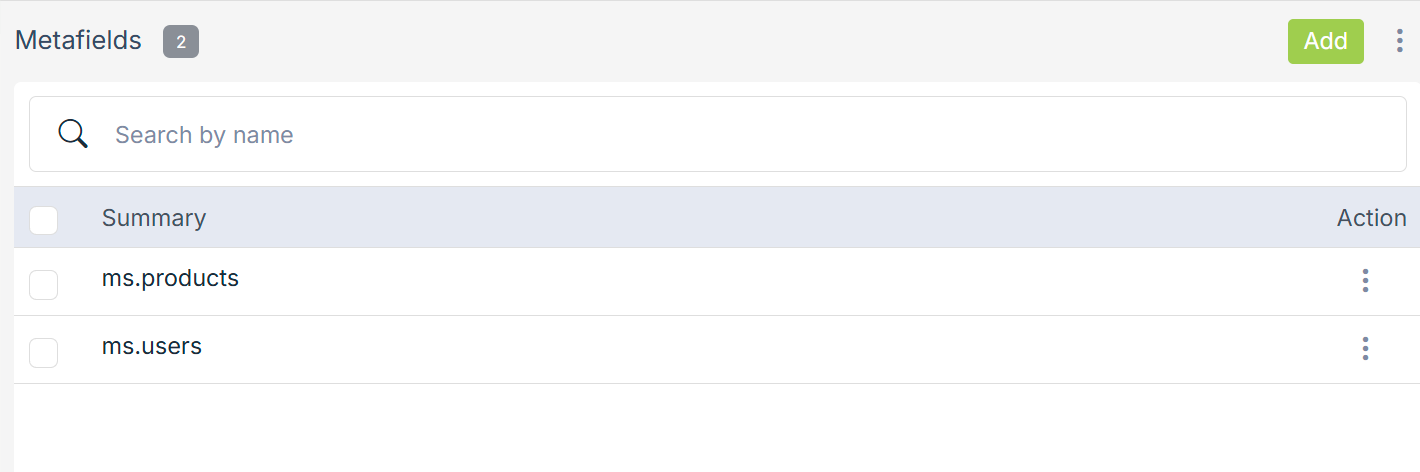
Adding metafields
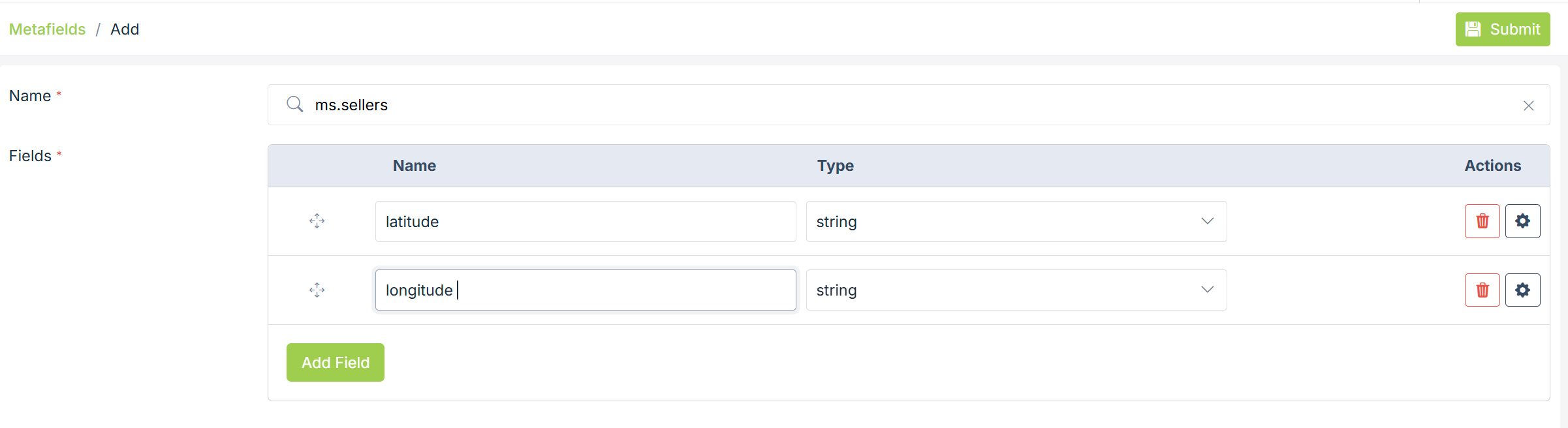
To add metafields or additional fields in an entity, click the Add New button. On adding not to use spaces and extra special characters. The following window appears with the fields explained below:
Name
Select the entity from the drop-down to which you want to add the metafield. For example: ms.sellers, ms.users, etc.
Fields
You can add multiple fields. Mention the field name, data type, and their settings here.
Field Name
Enter the name of metafield. For
Data Type
Choose a data type for the fields from the drop-down. Following are the possible data types:
- String
- Integer
- Number
- Array (list of records)
- Object
- Datetime
- File
- Geopoint
Settings
Clicking on the settings gear icon against data type lets you define the settings of the field.
Edit type
It defines the edit type or display type of the field. This editing type is used as the
- alias
- checkbox
- code
- html
- password
- radio
- select
- phone
- autocomplete
- states
- country
- text
- textarea
- slug
- widget
- otp
Validation
The validation field allows you to define the validation rules for the field. You can define more than one validation rules for a field. Following are available validation rules:
- callback
- no_dot
- numeric
- boolean
- min_length
- max_length
- greater_than
- less_than
- match_other_field
- greater_than_field
- URL
- function
- valid_chars
- zip_code
- regex
Description
Enter a brief description of the field. This description is used in the API documentation to explain the purpose of the field.
Example
Provide a sample value for the field. This will appear in the API documentation as an example response or request value.
Required
Enable this option to make the field mandatory. The form cannot be submitted without a value for this field.
Encrypt Value
Enable this option if the field value needs to be stored in encrypted form for security purposes.
Hidden
Select this option to hide the field from both add and edit forms.
Hide For Seller
Enable this option to hide the field from seller users.
Hide For Seller Manager
Enable this option to hide the field from seller manager users.
Deprecated
Enable this checkbox to mark the field as deprecated. Deprecated fields are retained for backward compatibility but should not be used going forward.
Read-Only
Enable this option to make the field read-only. The value will be visible but cannot be edited.
Disabled
Select this checkbox to completely disable the field, making it uneditable in the form.
Label
Specify the display name of the field as it appears in forms and listings.
Level
Select the priority level of the field. Fields with a higher level are given more preference and prominence.
Add Hidden
Enable this option to hide the field only on the Add form.
Edit Hidden
Enable this option to hide the field only on the Edit form.
Tooltip
Enter the text to be shown as a tooltip when users hover over the field.
Placeholder
Defines the placeholder text shown inside the field before a value is entered.
Default
Specify a default value for the field if no value is provided.
Formatter
Define a formatter function to display the field value in a specific format on Admin Panel listing pages.
Show On
Configure conditions to display this field as a sub-field based on another field’s value.
Show On Operator
Select the logical operator to apply when multiple “Show On” conditions are defined.
Events
Attach event handlers such as onChange, onLoad, or onClick.
You can define custom functions for these events in the handler.
Displaying metafield on Storefront
When a metafield is added in the admin panel, you would want to display them on the storefront. To do so, you are required to make changes to the widget template from the
For example, we have added a metafield as a "metafield name". To display the metafield on the product page, go to the product widget in the design theme and provide the following code:
<p ng-if="product.metafields.metafieldname">{{product.metafields.metafieldname}}</p>Common Use Cases
Some common uses cases of metafields are as follows:
Products
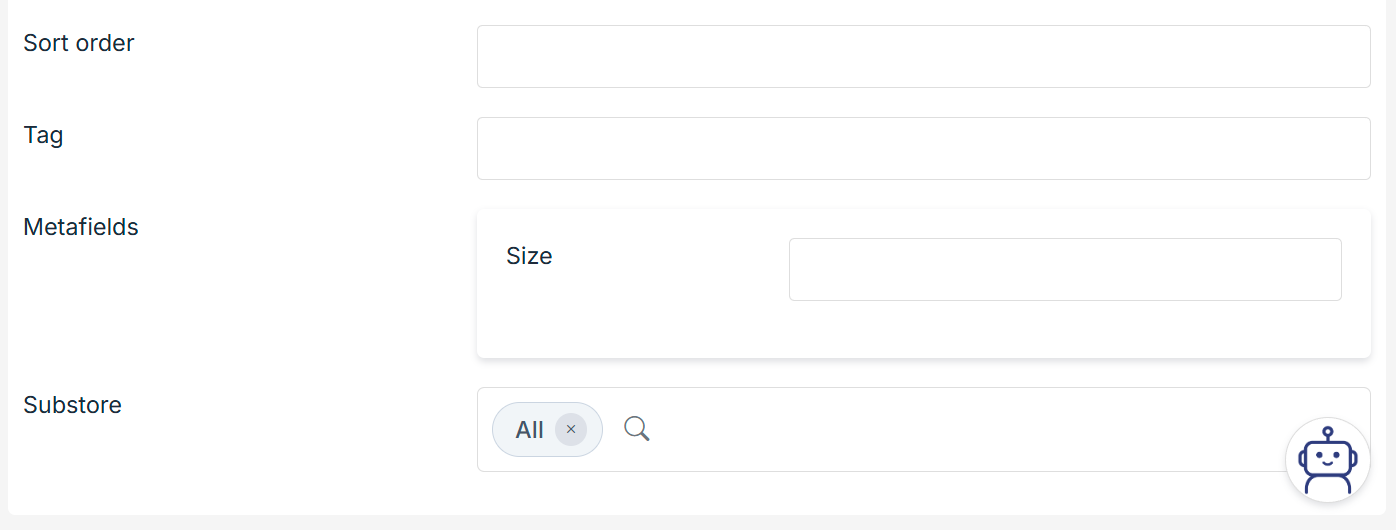
You can add metafields in the products section to add extra fields such as size charts, loyalty points, etc.
Orders
You can add metafields in the Orders section to add extra fields such as estimated delivery time, delivery boy, etc.
Sellers
You can add metafields in the Sellers section to add extra fields such as longitude, latitude, etc.