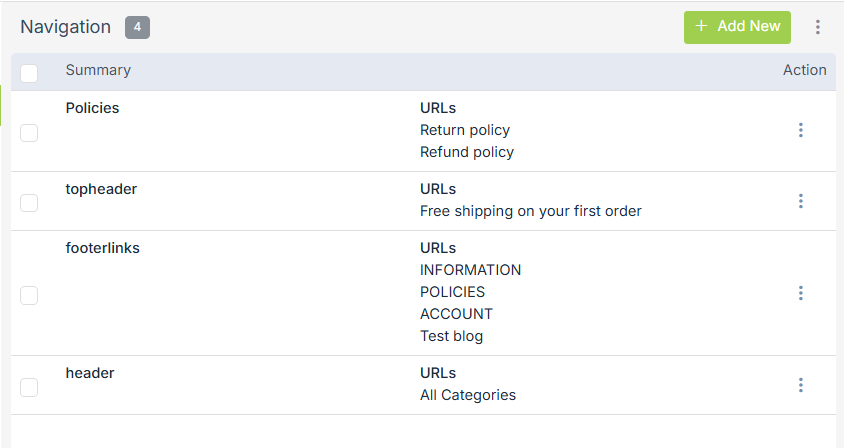
Navigation
Navigation helps you to provide a quick link to the customers, which helps them to choose the right thing or access any particular information easily.
For example, with navigation, you can provide links
Go to the Site > Navigation section in the StoreHippo Admin Panel to access navigations.
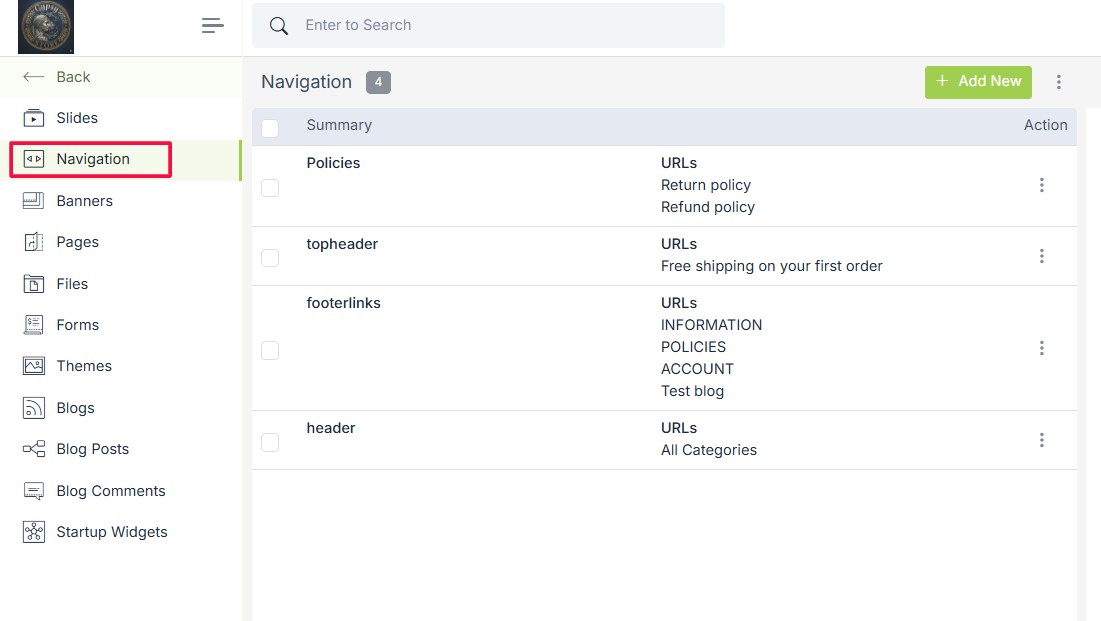
To give your customers easy access to all the pages, collections, and blogs within your online store, each page must be linked in a central place. The main navigation for your store is featured in the main menu which is generally located near the top of a storefront but it can vary depending on the theme you are using.
Adding a navigation
You can add navigation by opening the navigation panel in the site section and clicking the Add New button. On the page opened, you can provide the information regarding the navigation link. Clicking on the Add new button opens the following form. The fields are described below:
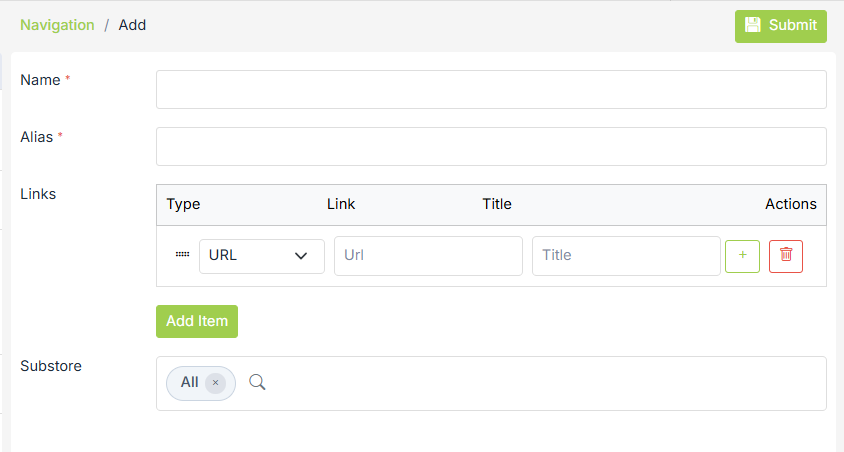
Name
Enter the name of the navigation link.
Alias
Alias of the name of the navigation link that is to be handled in the template.
Links
To generate the link, you need to click on the Add Item button.
Type
Define the type of link here. You can choose the type from the drop-down whether it's a direct link or applicable to the categories, collections, blogs, etc. Following are the types to choose from:
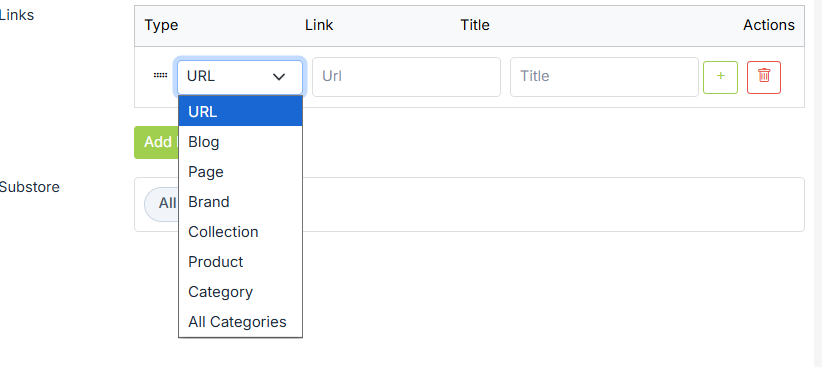
- URL
- Blog
- Static Page
- Brand
- Collection
- Product
- Category
- All categories
Link
Provide the URL where the link would be redirected.
Title
Provide an appropriate name for the title that would appear at the storefront.
Sub-Navigation
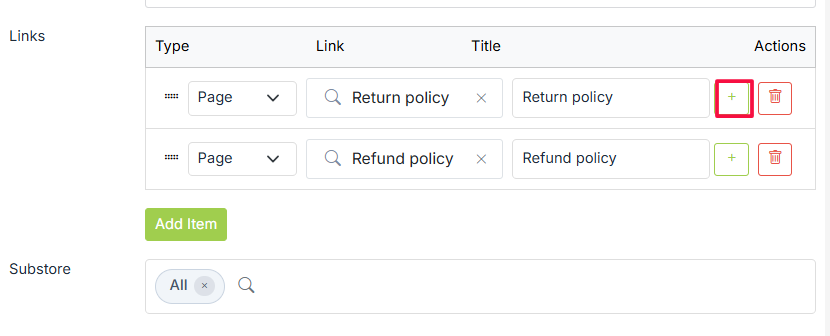
You can add sub-items within a navigation link using + sign at the particular navigation link. Sub-items can be seen by expanding a navigation record that has sub-records. After expanding navigation records, sub-records can be added further by clicking on Add Sub-Items present at bottom of all subitems.
Drag-n-Drop Navigation
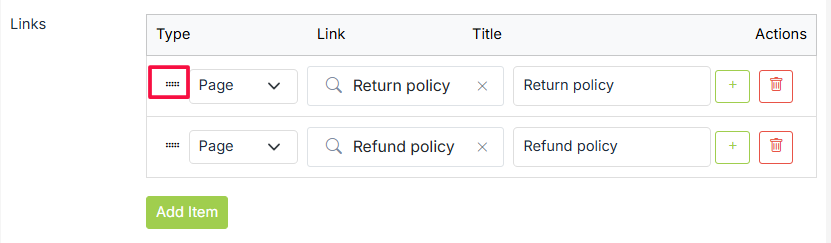
Navigation records are draggable using their drag-icon. You can rearrange the navigation records by dragging them using the hold-and-drag through the drag icon.
Default Navigations
Some generic navigations such as header, footer, etc are provided by default by StoreHippo. You can edit them to edit the link or add a new navigation link. For example, if you want to add a link to Seller Registration in the footer link. You need to edit the