
Returns
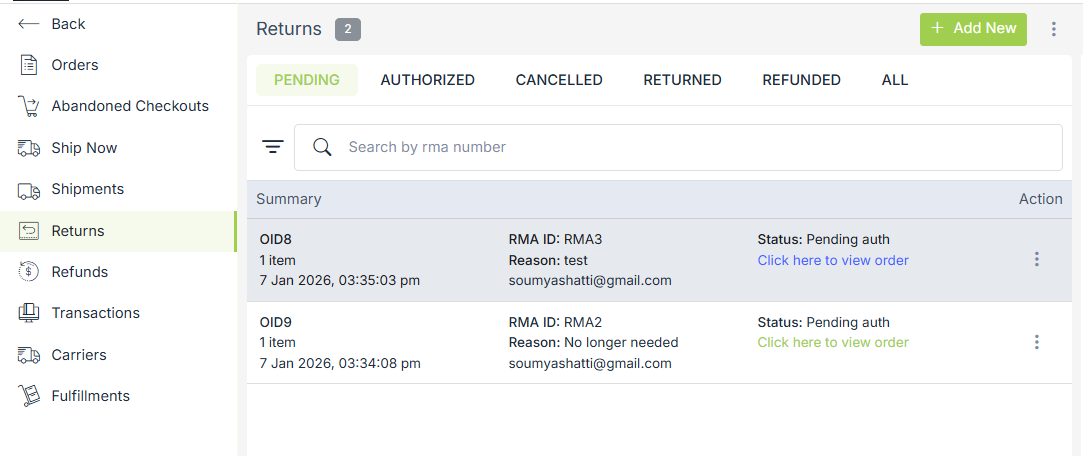
The return order request can be placed either by the customer from the storefront or admin from the admin panel. The return request can be placed only after the order has been delivered. StoreHippo supports the Return Merchandise Authorization (RMA) functionality which allows you to process returns, including the refunds. You can return an order through Orders and Returns section.
Enabling order return
You can enable the order return functionality from Settings >MISC section in StoreHippo Admin Panel. Select the Enable Order Return checkbox to enable the order return functionality.

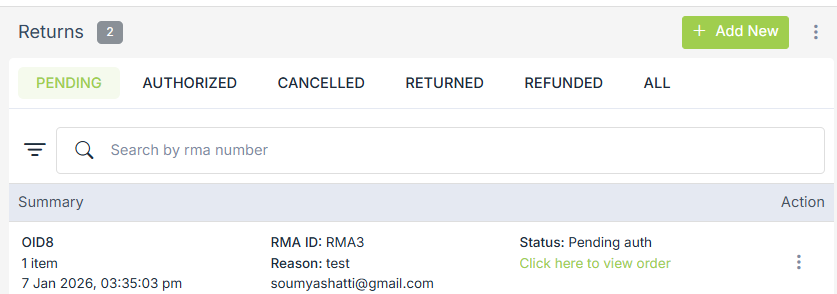
Return Status Tab
-
Pending: Return requests awaiting seller authorization.
-
Authorized: Returns approved by the seller.
-
Cancelled: Return requests that have been cancelled.
-
Returned: Items that have been received back from the customer.
-
Refunded: Returns for which the refund has been successfully processed.
-
All: Displays all return requests regardless of status.
Returns from Order section
You can add a return request on the customer's behalf from the Orders section in StoreHippo Admin Panel. Only Closed orders can be returned. To return an order, click on the order to be returned. Click on the vertical ellipsis icon and select Return Order from the drop-down as shown below:
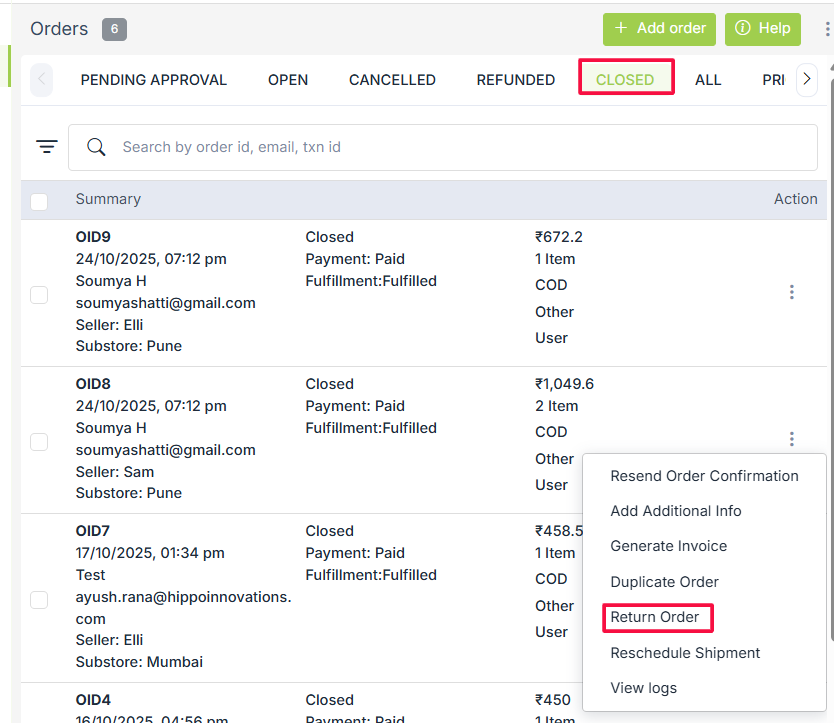
When you click on Return Order, the following popup appears:
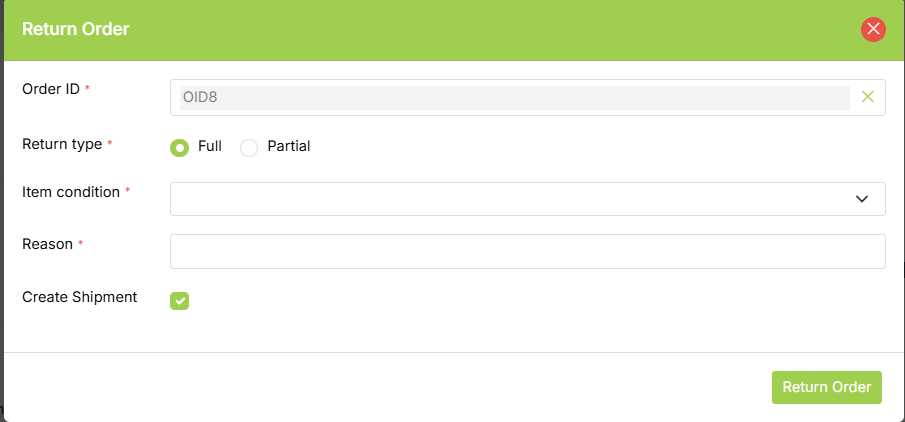
The following fields are required to add a return request:
- Order ID: The ID of the order is pre-populated.
- Return type: The return type can either be full or partial.
- Items: Items are automatically populated in the add form as soon as you select the order ID. In case you want to add a return request for a specific item(s), you can remove those items from the form.
- Item condition: Specify the condition of the item to be returned.
- Reason: A detailed reason for the return.
Returns section
All the returns are managed in the Orders > Returns section of the StoreHippo Admin Panel. You can add a new order return and perform operations like View order, Mark as Received, etc.
Click on Add New to manually add the return request. The following form appears with the fields described below:
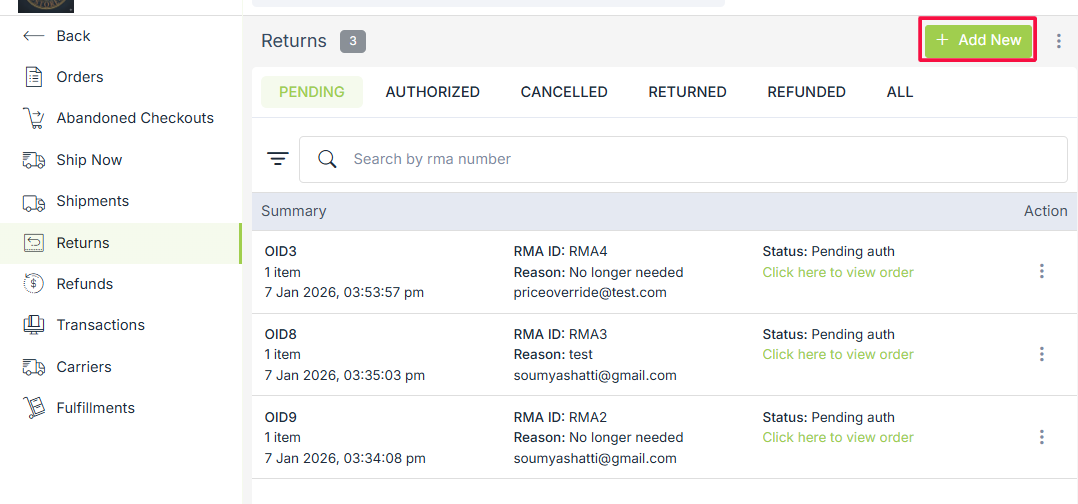
Order ID
Choose the order ID of the order that you want to return from the drop-down.
Return Type
You can return the order either full or partially.
- Full Order: The full order return type means that the order that was shipped to the customer is fully returned.
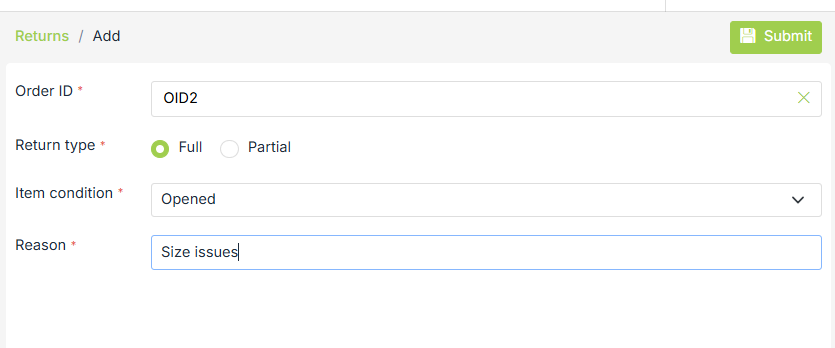
- Partial Order: The partial order return option means that only a part of the shipped order is returned by the customer. For example, if a customer ordered two items and wants to return only one item, you can mark the order as partially returned.
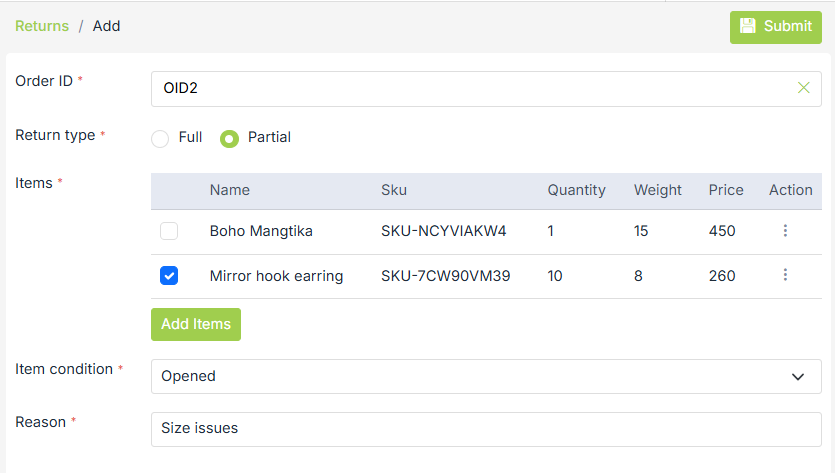
In some cases, if a customer wants to return only a few quantities from their purchase, you can cancel the specific quantities by clicking on the ellipsis next to the return item. A pop-up will appear, where you can update the quantity to be returned partially.
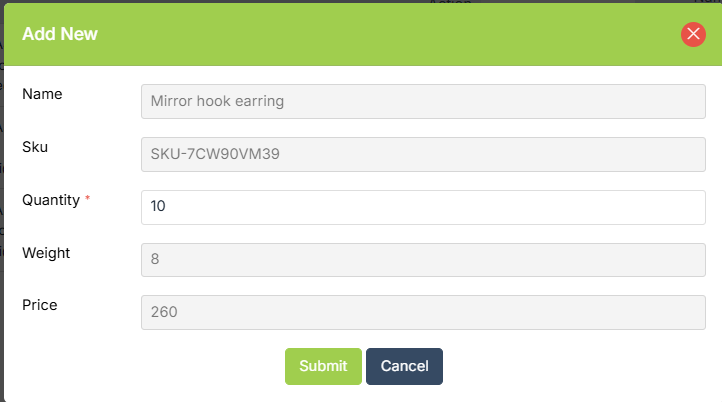
Items
Items are automatically populated in the add form as soon as you select the order ID when full order return type is chosen. Select items to be returned in case of the partial return type.
Item condition
Select the condition of the item to be returned from the drop-down. It is either Opened, Unopened or Damaged.
Reason
Specify a detailed reason for the order return.
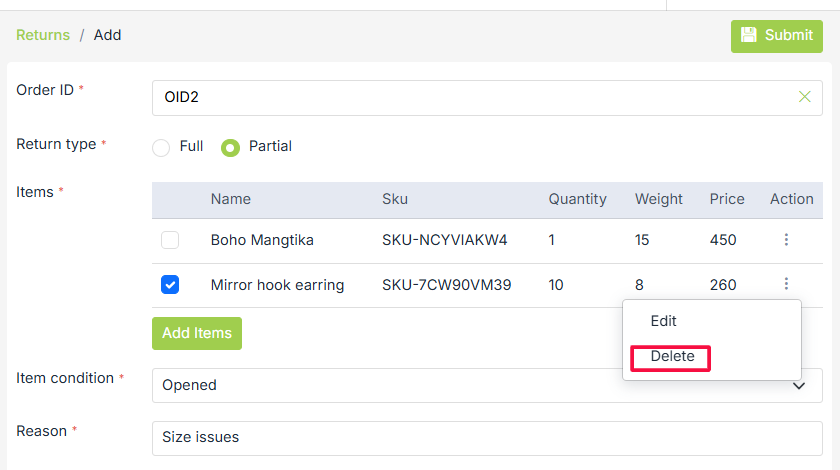
Deleting item while making a partial return
When you are making the partial return of an order, you need to delete the item(s) which you don't want to return.
Operations on Returns
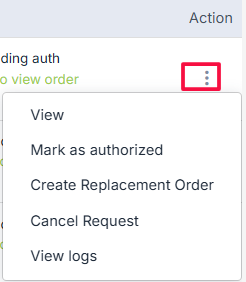
From the Action menu (ellipsis icon), sellers can perform the following actions:
-
View: Check complete details of the return request.
-
Mark as Authorized: Approve the return after verification.
-
Create Replacement Order: Generate a replacement if the customer requests an exchange. This will take you to order section to duplicate orders and you can add replacement items.
-
Cancel Request: Cancel the return request if it is no longer required.
-
View Logs: Track the complete history and actions taken on the return request.