
Seller Ledger Rules
In a multi-seller marketplace, the admin might want to charge the seller's fee/commission on different activities, e.g., when they sell or list their products on the marketplace. You can charge your sellers either on the percentage basis or apply flat charges. Seller Ledger Rules are configurable conditions that automatically apply charges (such as selling fees) to seller accounts when an order is placed or processed.
Go to the Sellers > Seller Ledger Rules section in the StoreHippo Admin Panel to manage the rules to define the fees/commissions for sellers.
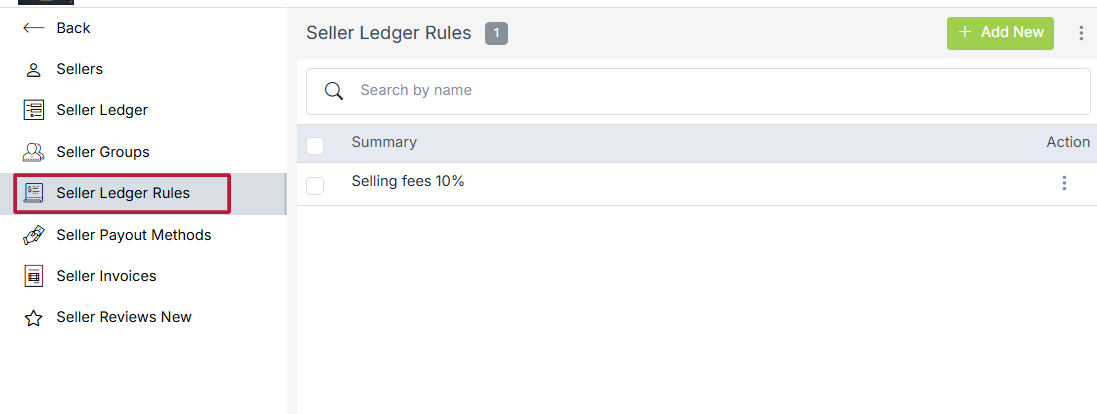
Adding a new seller ledger rule
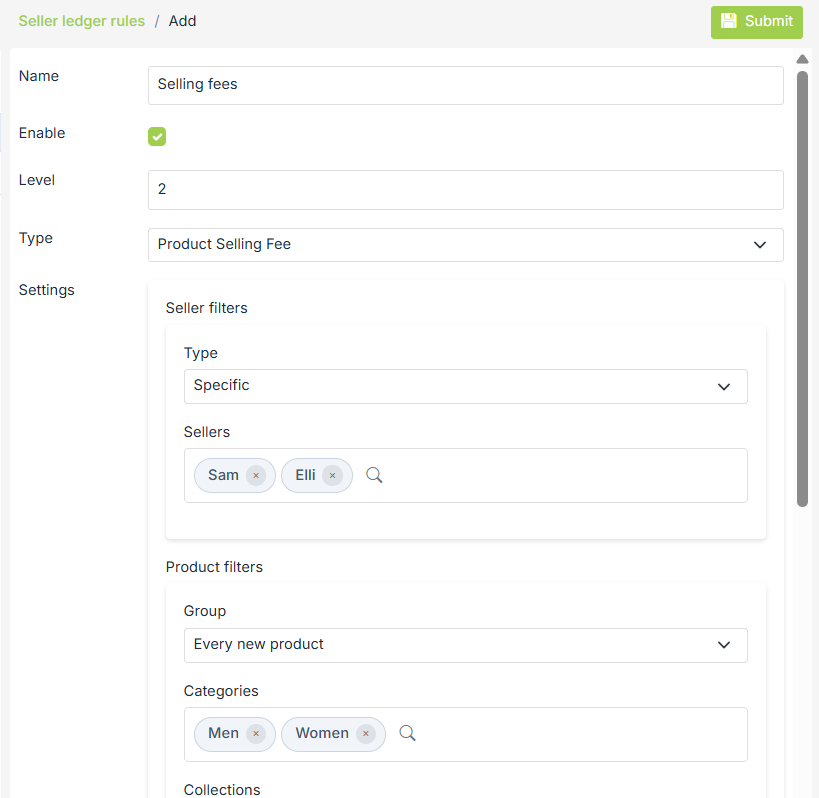
Click on the Add New button to add a new seller ledger rule. Clicking the button will open a form that will have the following fields:
Name
Enter the name of the ledger rule.
Enable
Check on the enable box if you want to enable the listing fee rule, or leave it unchecked. You can enable or disable it any time you want by visiting the seller ledger rule.
Level
You can set the priority level of the listing fee rule here. The higher the level of a listing, the higher will be its
Type
Select the type of ledger rule you want to apply. Currently, 3 types of ledger rules are supported:
- Product Listing Fee: If a Product Listing Fee is defined, then a transaction will be created with the product listing fee for every product added. Product Listing Fee is applied even if the product is not approved yet. Click here to know how to define seller ledger rule for the product listing.
- Product Selling Fee: If a product selling fee is defined, then a transaction will be created with the product selling fee for every product that is sold. If an order contains multiple products on which a product selling fee is applicable, then there will be multiple entries for one order, one for each product in the order. Click here to know how to define the seller ledger rule for product selling.
- Order Shipping Fee: If an Order Shipping Fee is defined, then a transaction will be created with the order shipping fee for every order that is shipped. Click here to know how to define the seller ledger for the order shipping.
Seller Filters
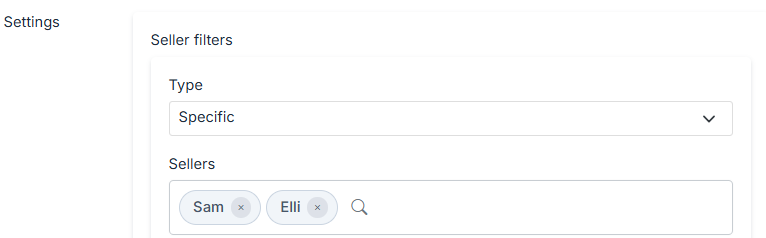
You can select the seller for which the rules apply. It can be all sellers, or you can select specific sellers based on their names.
-
Type
-
All: Applies to all sellers
-
Specific: Applies only to selected sellers
-
-
Sellers
-
Select individual sellers (e.g., Sam, Elli)
-
For example, if you want to define seller-specific tax rules, all you have to do is select the radio button labeled as 'Specific Sellers' and type the seller's name in the field that pops below.
Product Filters
Define which products the rule should apply to.
-
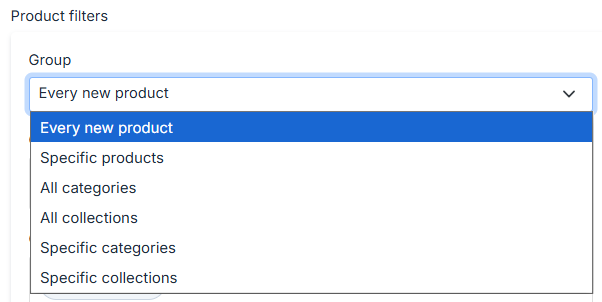
Group: Select the group Example: Every new product
-
Categories: Select applicable categories (e.g., Men, Women)
-
Collections: Choose collections (e.g., Under 200)
-
Products: Select specific products if required (e.g., Ethnic Oxidised Drop Earrings)
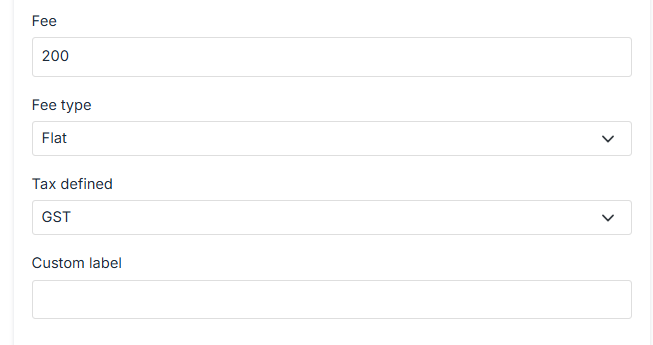
Fee setup
-
Fee: Enter the fee value
-
Fee Type
-
Flat: Fixed amount per product/order
-
Percentage: Percentage of product price
-
-
Tax Defined: Select applicable tax (e.g., GST)
-
Custom Label: Optional label shown in seller ledger. Example: Product Selling Charge
Click Submit to save and activate the seller ledger rule. Once saved, the fee will automatically be applied whenever an order matches the defined conditions.
Importing and Exporting Seller ledger rules
You can import and export the seller ledger rules in bulk through the CSV file. Click here to know more about importing and exporting the seller ledger rules.