
Seller Ratings
Seller rating is very important for e-commerce stores. Seller ratings are a measurement of how your sellers are delivering the service and how your business is performing. It lets you know how buyers have found the experience of making a purchase from your seller. The higher the seller’s feedback score, the better the seller. To maintain trust with your customers, keep your seller standards high. This helps your customers to choose the better and more reputable sellers by looking at the reviews and ratings.
StoreHippo provides the seller/order rating functionality. After the order is delivered, the customer can proceed to rate and review the order.
Adding seller/order ratings
You can add order/seller reviews from the admin panel. Follow the steps mentioned below to add the seller/order rating:
- Go to the Sellers > Seller reviews section in the StoreHippo Admin Panel.

- Click the Add New button to add a new review.
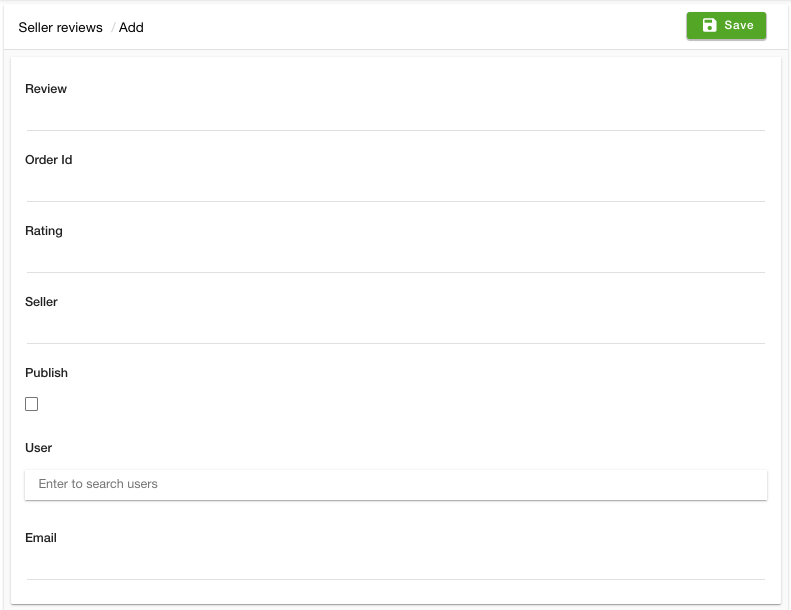
- Provide the details and click the Save button to apply the changes.
Enable seller rating
To add the rate order button follow the steps mentioned below:
- Go to the design theme section in the StoreHippo Admin Panel.
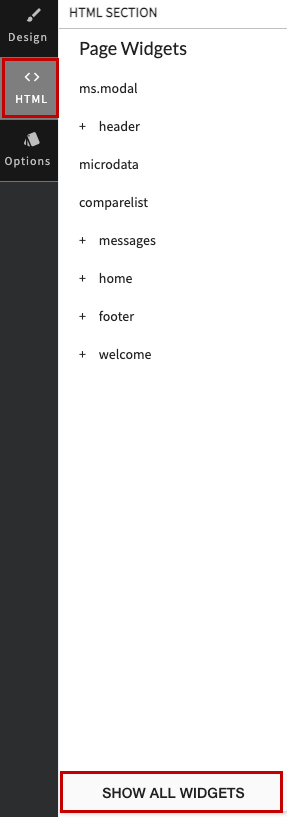
- Click on the HTML option followed by the Show All Widgets option.
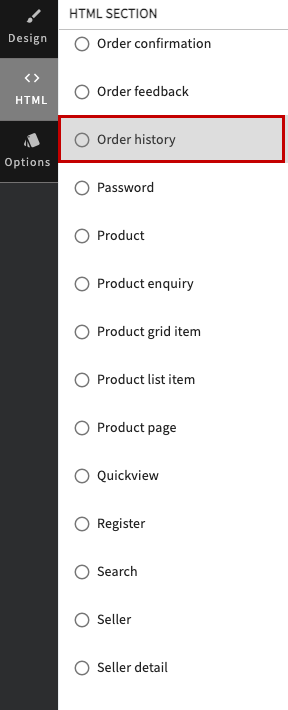
- Select the Order History option as shown in the image above. This will open up the page.
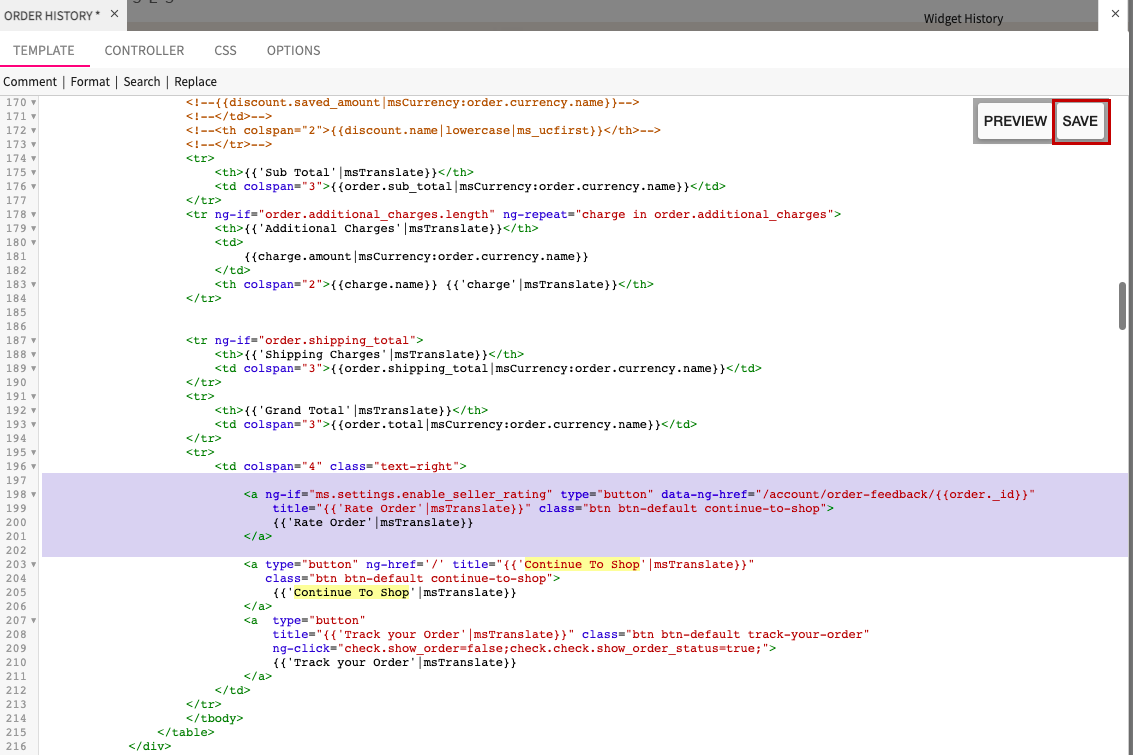
- Find the "Continue To Shop" and paste the below mentioned code above that. Refer to the image above.
<a ng-if="ms.settings.enable_seller_rating" type="button" data-ng-href="/account/order-feedback/{{order._id}}"
   title="{{'Rate Order'|msTranslate}}" class="btn btn-default continue-to-shop">
  {{'Rate Order'|msTranslate}}
</a> - Click the Save button to apply the changes.
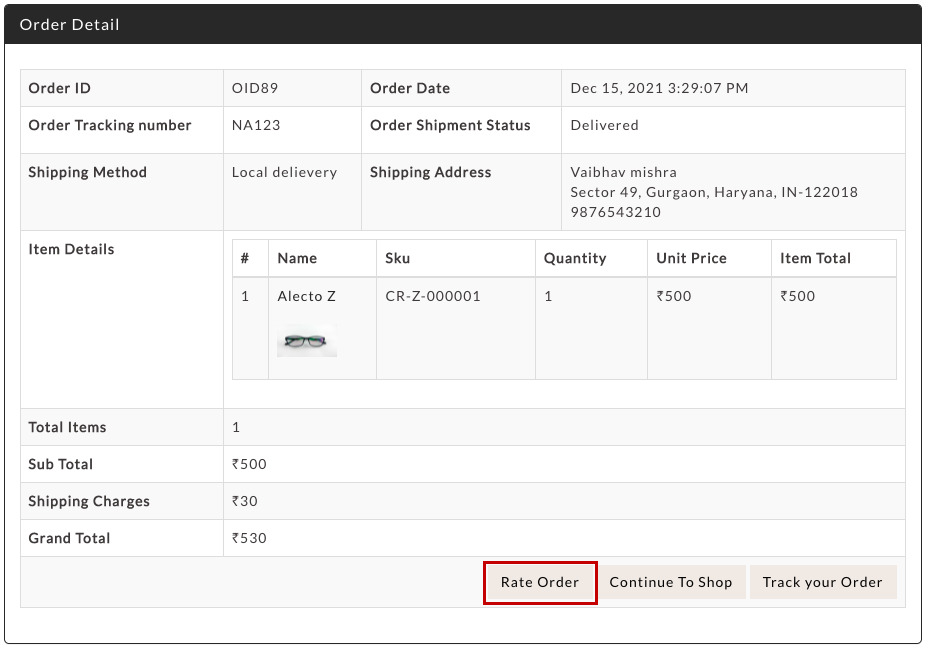
Now, the Rate Order button will appear. The customer can click on it and proceed to rate the order or seller.
Rating the order
The customer can rate the order from the order history section. Only the completed orders can be reviewed. To rate the order from the storefront, follow the steps mentioned below:
- Go to the storefront and log in to your account.
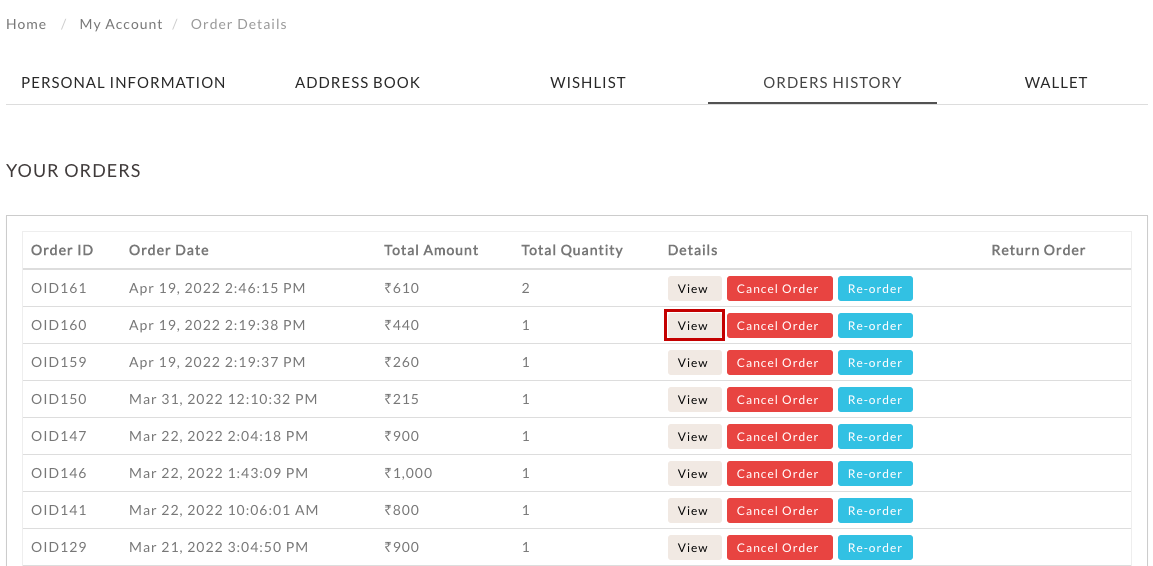
- Under the My Account section, go to the Orders History tab.
- Click on the View button against the order that you want to rate. The order details page will open up.
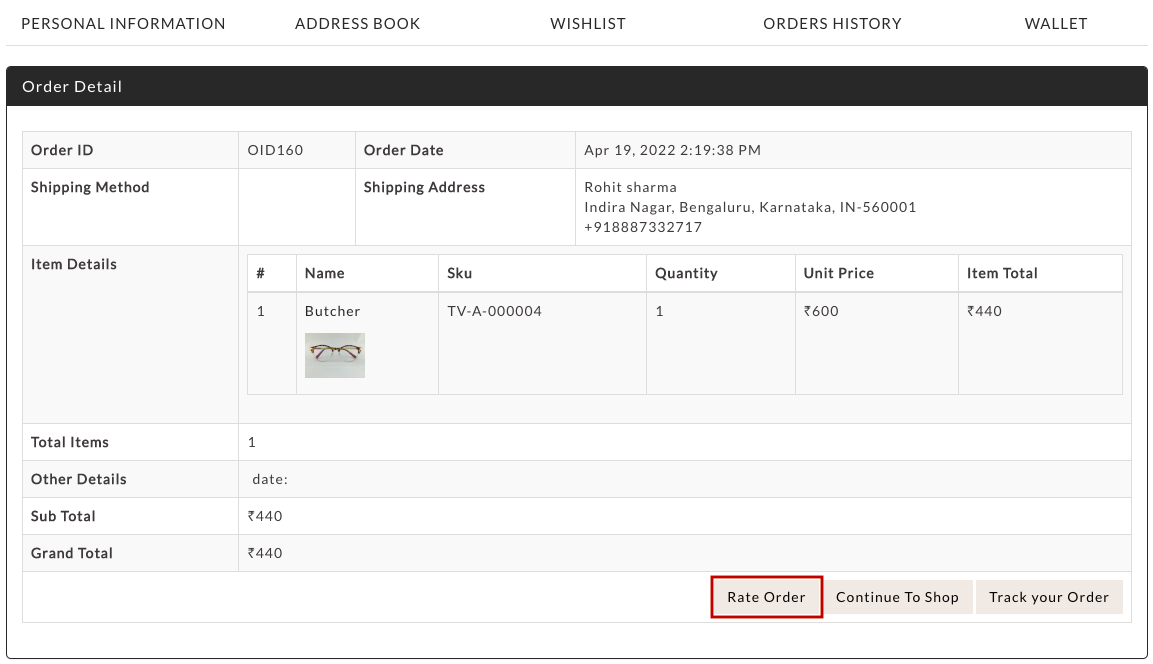
- Click the Rate Order button. A rating page will open up.
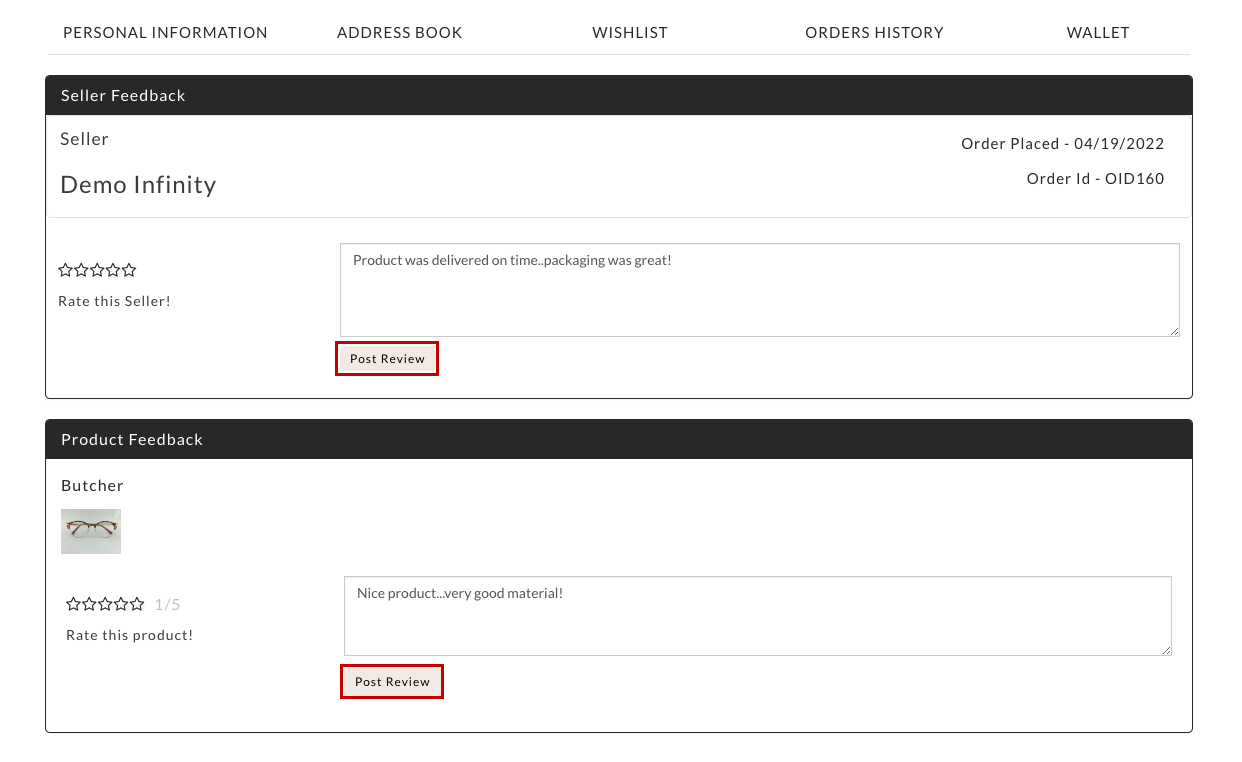
- You can add the product rating as well as the seller rating (or anyone) and enter the review. Click the Post Review button.
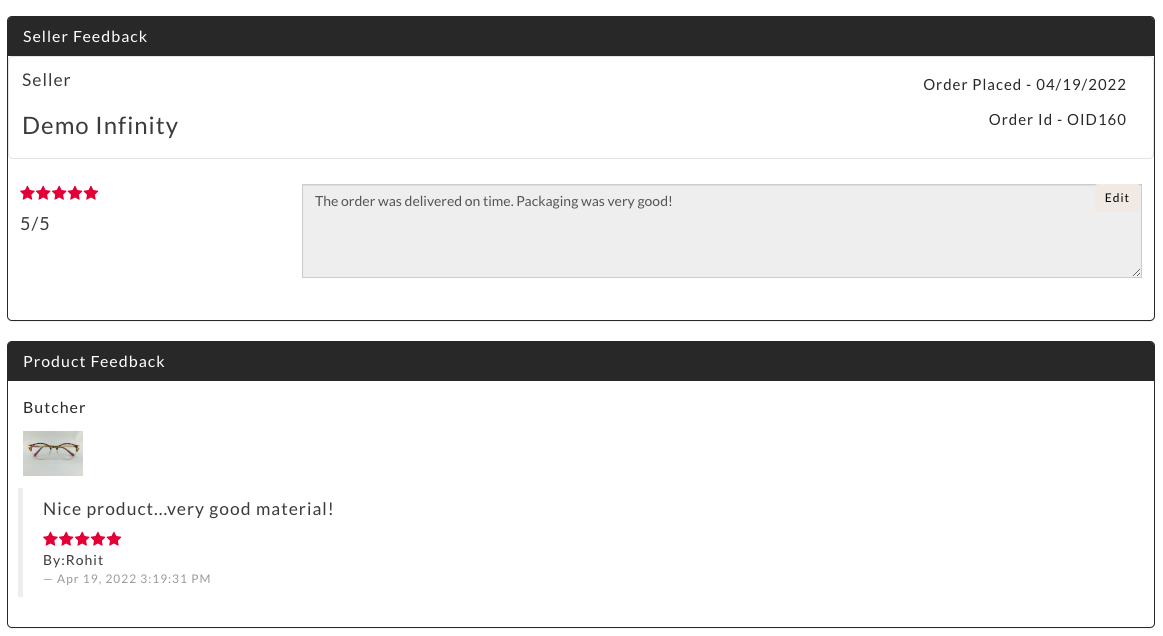
- The respective ratings and reviews will be added. You can also edit the seller review by clicking on the Edit button next to the seller review.
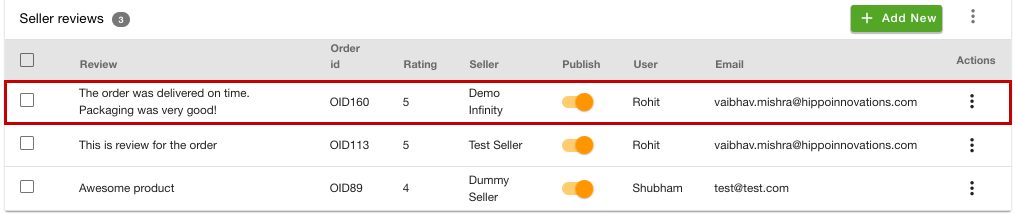
Once the seller and product review will be added. The same will be also reflected under the product reviews and seller reviews section respectively.