
Shipments
StoreHippo provides different options to ship your orders. The Shipments section provides complete visibility and control over all shipments created for their orders. Each shipment represents a courier movement, and a single order may have one or more shipments based on delivery attempts, returns, or courier changes. This page helps to track deliveries, monitor COD payments, manage returns (RTO), and review courier charges from one place. Once the pickup for an order is arranged, you can manage the corresponding shipment from the Shipments section.
You can manage the shipments for your orders in Orders > Shipments section in the StoreHippo Admin Panel.
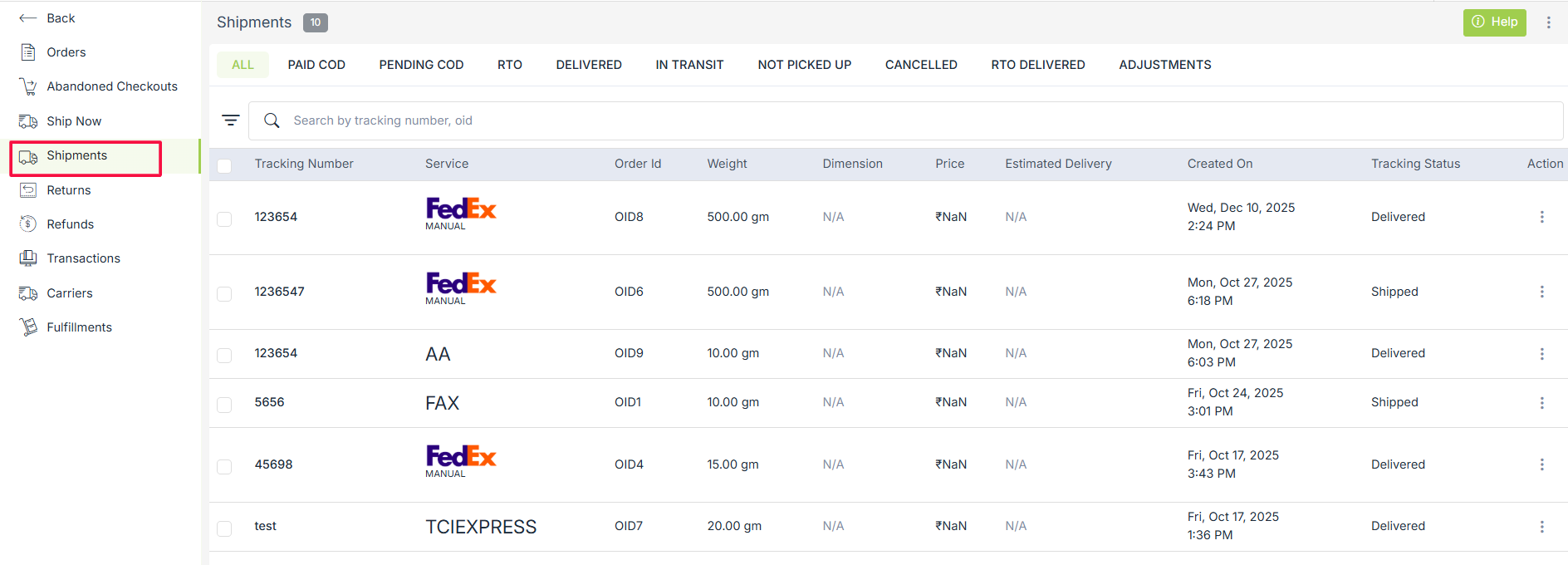
Shipment Status Tabs
The tabs at the top help you quickly filter shipments based on their delivery or payment status.

All
Shows every shipment created in your store, including active, delivered, cancelled, and returned shipments.
Paid COD
Shows cash-on-delivery shipments for which payment has been successfully collected from the customer and settled.
Pending COD
Displays COD shipments where the payment is still pending or not yet confirmed.
RTO
Shows shipments that were Returned to Origin because delivery could not be completed due to reasons like customer unavailability or refusal.
Delivered
Displays shipments that have been successfully delivered to the customer.
In Transit
Shows shipments that are currently moving through the courier network and are on the way to the customer.
Not Picked Up
Displays shipments that are created and manifested but have not yet been picked up by the courier partner.
Cancelled
Shows shipments that were cancelled before delivery, either manually or due to courier issues.
RTO Delivered
Shows shipments that were returned and successfully delivered back to the seller’s pickup address.
Adjustments
Displays shipment-level adjustments made by the courier, such as changes in weight, dimensions, or shipping charges after verification.
The adjustment section shows all shipments where weight, dimensions, or price were adjusted after booking.
Each row shows Tracking Number, Courier Service, Order ID, Weight, Dimensions, Price, Estimated Delivery, Created Date, and Status. Original values (e.g., weight/price/dimensions) are shown struck-through, and updated values are shown next to them.
“View Adjustment” lets you see the reason/details for the price change.
This helps sellers track extra charges or corrections applied by the courier.
Search and Filter
The search bar allows you to quickly find a shipment using the Tracking Number (AWB) or Order ID. This is helpful when tracking a specific shipment or responding to customer queries.

Shipment Details Table
Each row in the table represents one shipment and provides detailed information.

Tracking Number
Shows the courier tracking number assigned to the shipment. This number can be used to track the shipment directly with the courier partner.
Service
Displays the courier service used for the shipment. This can be:
- Automated courier (integrated service)
- Manual courier added by the seller
Order ID
Shows the order linked to the shipment. If the shipment is returned, a View Return option is available to check return details.
Weight
Displays the actual shipment weight used for courier billing.
Dimension
Shows the package dimensions entered at the time of shipment creation. If dimensions are not provided, it appears as N/A.
Price
Shows the shipping cost charged for this shipment.
Estimated Delivery
Displays the expected delivery date provided by the courier.
Created On
Shows the date and time when the shipment was created.
Tracking Status
Displays the current status of the shipment, such as Manifested, In Transit, Shipped, Delivered, Cancelled, or RTO.
Operations on Shipments
This section allows sellers to manage and take action on individual shipments. Click on the ellipsis to run the operation on the shipment.
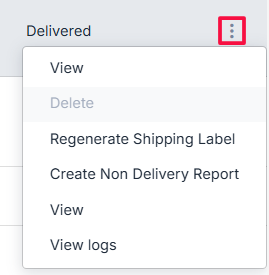
View
Open and view complete shipment details.
Delete
Remove the shipment record if it is no longer required.
Regenerate Shipping Label
Create a new shipping label in case the previous one is lost or incorrect.
Create Non-Delivery Report (NDR)
Raise an NDR when a shipment is not delivered due to issues like incorrect address or customer unavailability.
View Logs
View the activity history and all actions performed on the shipment.