
SMS logs
StoreHippo allows you to maintain a track of SMS sent or received via SMS logs. You can view orders received, order confirmations, notification SMS, etc. in the SMS logs.
Go to Logs > Sms logs section in StoreHippo Admin Panel to view the email logs.
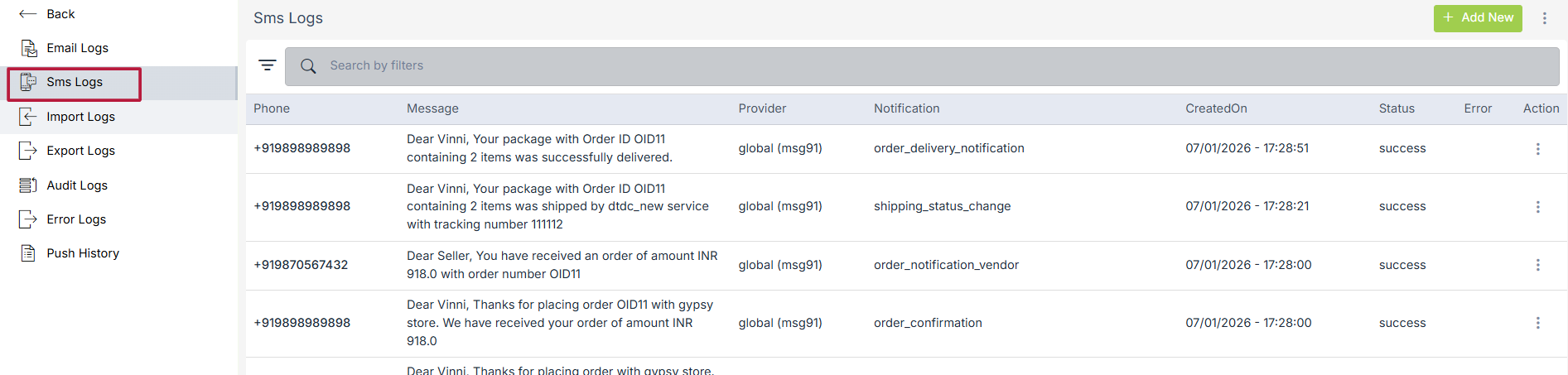
Summary of SMS Log
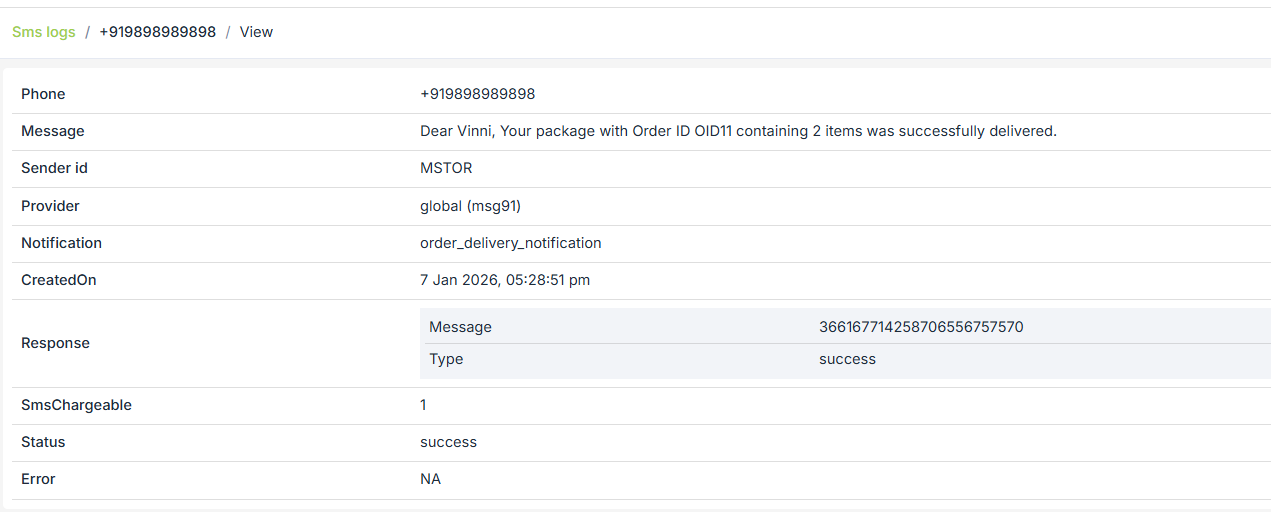
The SMS log recor contains the following details.
-
Phone: Displays the recipient’s mobile number to which the SMS was sent.
-
Message: Shows the SMS content delivered to the customer.
-
Sender ID: Indicates the registered sender name used for sending the SMS (e.g., MSTOR).
-
Provider: Displays the SMS gateway/service provider used to send the message (e.g., MSG91 – global).
-
Notification: Shows the event or trigger for which the SMS was sent (e.g., order_delivery_notification).
-
Created On: Displays the date and time when the SMS was generated/sent.
-
Response:
-
Message: Shows the provider-generated message ID for tracking.
-
Type: Indicates whether the SMS request was successful or failed.
-
-
SMS Chargeable: Shows the number of SMS credits consumed for this message.
-
Status: Displays the final delivery status of the SMS (e.g., success or failed).
-
Error: Shows any error message if SMS delivery failed.
Adding new SMS log record
To add a new SMS log record, follow the steps given below:
- Click on the Add New button present at the top right of the page.
- The form opens up with the following fields.
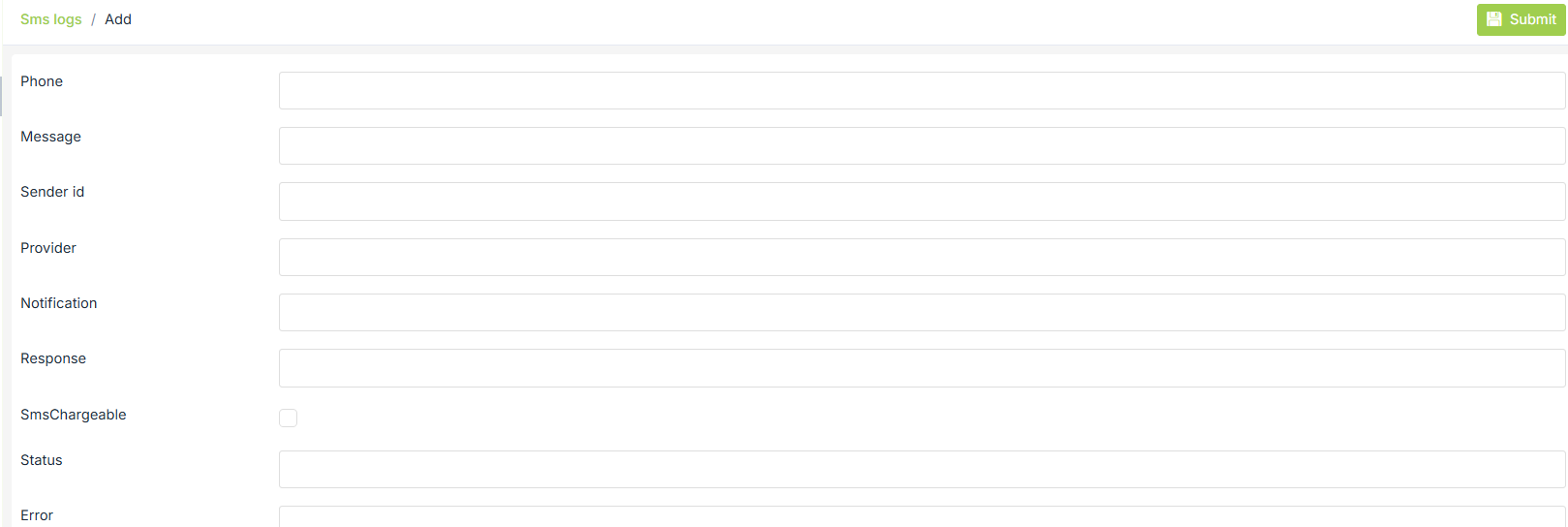
- After entering all the required fields, click on the Save button, and the SMS log will be added.