
Transactions
This section contains the list of all the transactions initiated by the customers on your store at the time of placing an order. A transaction record is created when any user initializes the payment. Whether the payment is successful, fails, or remains pending, the transaction record will be created. You can view, search, filter, and export the order transactions.
Significance of transaction records
- Transaction records help you analyze the behavior of your customers and also identify the issue related to your payment gateway. For example, if a customer is initiating multiple transactions but not completing the payment, then you might want to check with the customer if the customer is facing any issue.
- The transaction record also tracks the full request and response from the payment gateway so you can see the reason why a payment is failed e.g. whether the user has abandoned the payment or whether it failed due to an invalid card or due to insufficient balance.
- StoreHippo also reconciles the pending transactions with some selected payment gateways.
You can track the Transactions in the Orders > Transactions section in the StoreHippo Admin Panel.
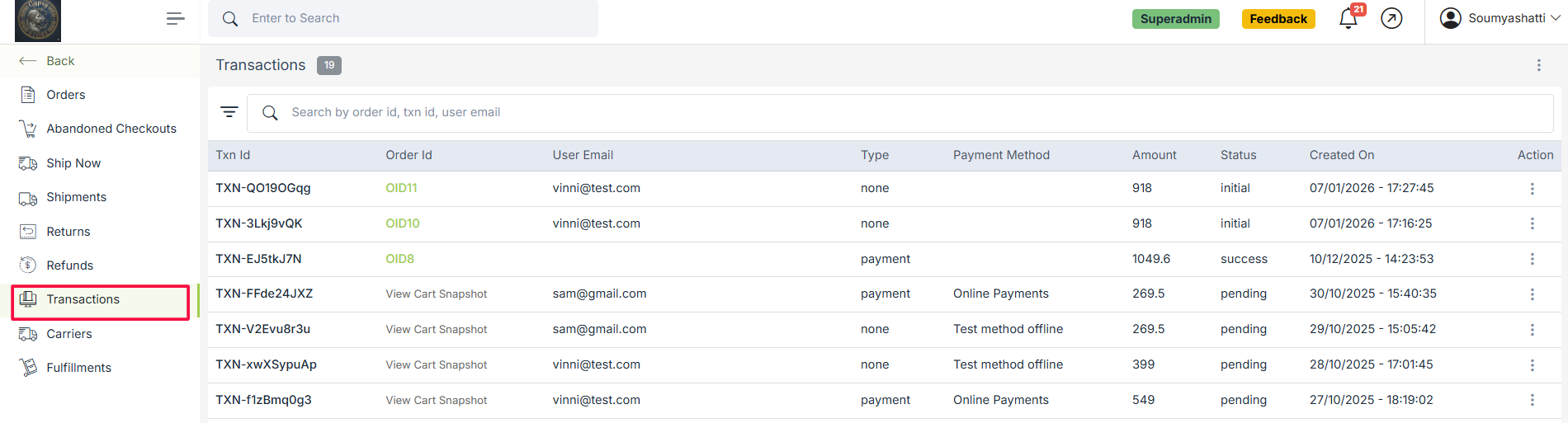
Transaction details
You can view all the details of the transactions. To view the transactions, click the hamburger icon followed by the View button.
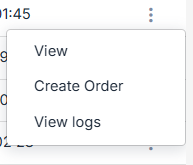
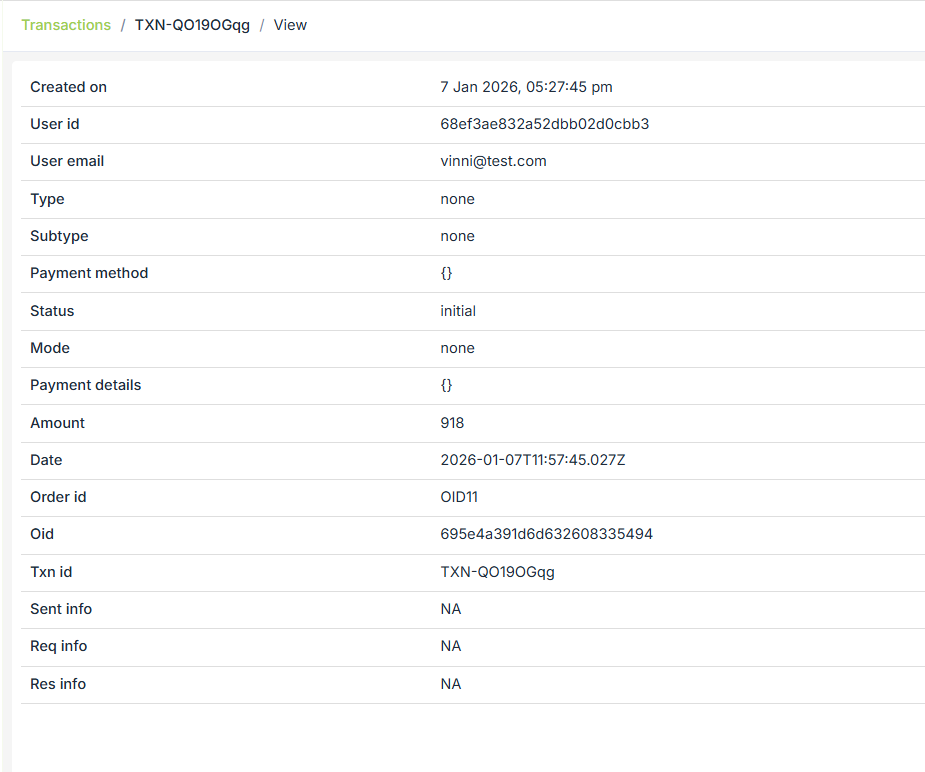
This will open up the transaction details page. The transaction details are displayed as follows:
General
The General tab displays the general information of the transaction, such as date on which the transaction was created, user ID, user email, payment type, payment method, payment mode, status, and so on.
Search and filter transactions
If there are many transactions in the panel, you can easily search and filter the specific transaction(s) to view detail, edit, etc.
Search transactions
You can use the quick search box to search transactions by the order ID, transaction ID, and user email.

Filter transactions
You can create filters using one or more fields in the filters. Filters can be accessed by clicking on the filter icon on the left side of the search bar. You can apply one or multiple filters.
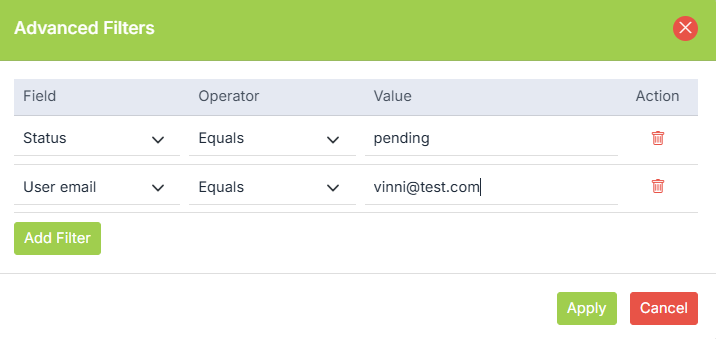
You can filter the users by the following fields:
- Txn ID: You can search for a specific transaction based on its transaction ID.
- Status: You filter out the transactions based on the status.
- Order ID: You can search for a specific transaction using the order ID.
- User email: You filter out the transactions based on the user email.
Exporting transactions
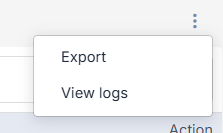
You can export the transactions. The exported transactions will be in the CSV file. If you want to export the transactions, click the ellipses icon at the top right of the transactions page followed by the Export option.
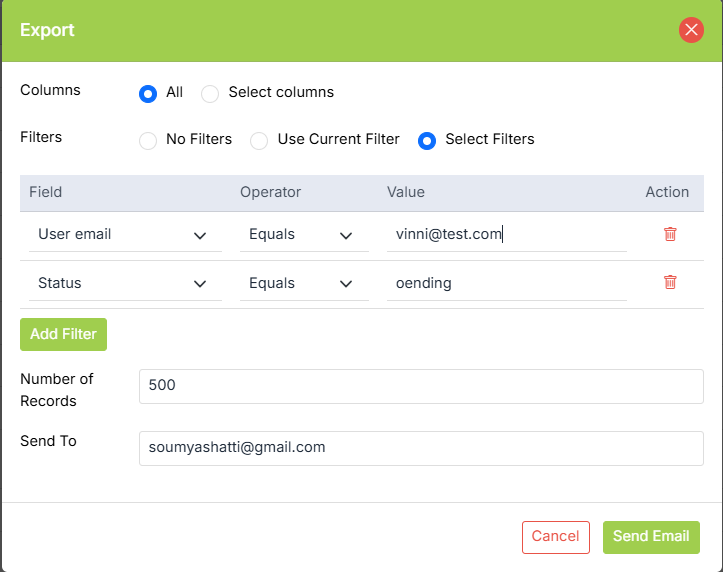
When you click on the Export option, the dialog box opens up. You can select all or some specific columns and add filters to export.
Columns
You can export all of the columns in the order data, or you can also export specific columns based on your requirements.
Filters
If there are some specific users that you want to export, then use the Export Filters to select for export. There are three options:
- No filters: It will be selected by default. No filters will be applied to export by default.
- Use Current Filter: These are the filter(s) that are currently applied by the user.
- Select Filters: This option allows you to select the filters for exporting records.
Number of records
By default system exports 500 records in one go. However, the maximum limit to be exported in one go is 100000. To export 100000 records in one go, you can mark the number of records as 100000 or less.
Send To
Provide the email id on which you want to send the downloadable link to the exported file. The email id field is prepopulated with the currently logged-in user id. The CSV file can be downloaded by the link provided in the mail. The link expires automatically after 7 days.
When you click on the 'Send Email' button, the export process will get initiated in the background. The export process will take from a few seconds to several minutes depending on the number of users exported. The link to the exported file will be sent to your email once the export process is complete. You can also find all the details of the previous export files and download them from the Logs > Export logs section.