
Brands
On your storefront, you can show a brand page and have dedicated pages for each of the brands for the customers who like to shop by brand.
Go to Products > Brands section of StoreHippo Admin Panel to manage brands in your store.
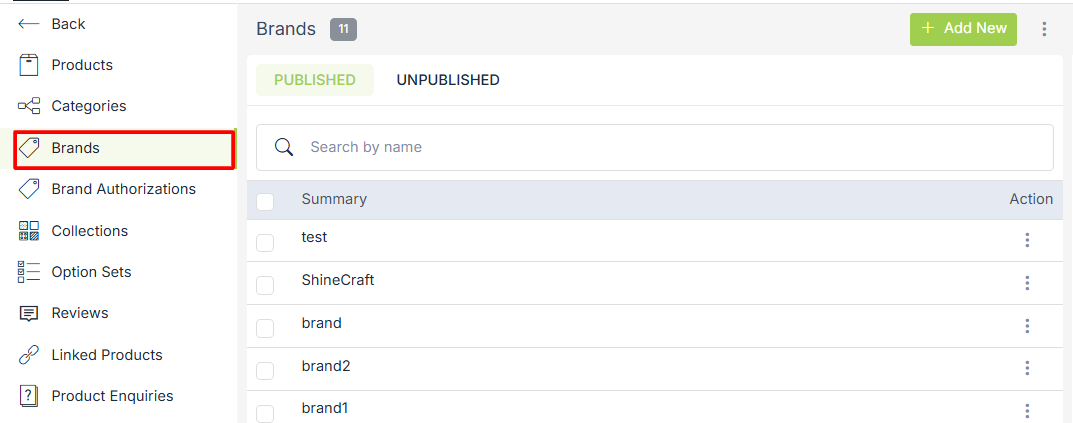
Adding new brand
To add a new brand, click on Add New button in the top right corner of brand listing. The following fields are required to add a new brand:
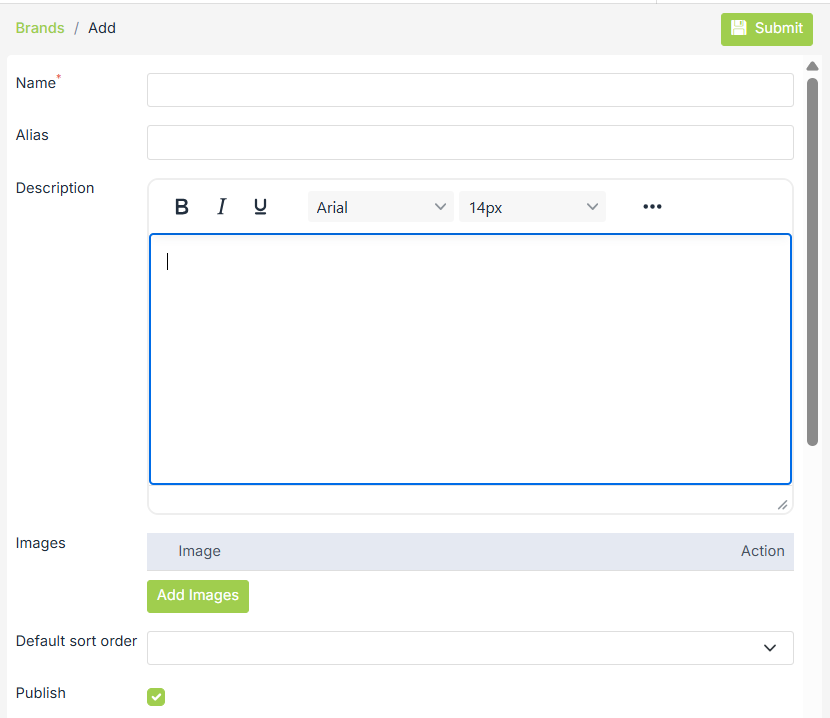
Name
Enter a name for your brand.
Alias
Aliases are used to create a unique brand URLs on your Storefront. Aliases are created automatically but you can always modify it to create an SEO-friendly URL for the brand.
Description
Enter a summary or a line about the brand.
Images
Add an image to give an identity to your brand. It can be your brand logo as well.
Publish
Check this box if you want your brand to be displayed on your store forefront, else keep it unchecked.
SEO
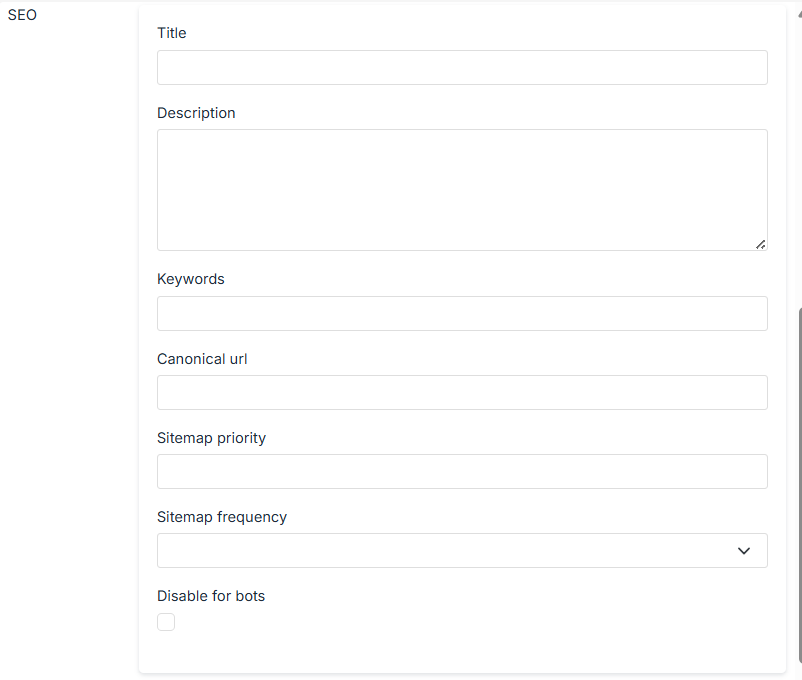
Provide custom information needed for effective SEO of your brands.
Title
Enter the title of the product to specify a custom title for the product page for SEO. If you do not specify this field, the product name is used as the title.
Description
Enter the description of the product to specify a custom meta description for the product page for SEO. If you do not specify this field, the product description is used as the meta description.
Keywords
Enter the keywords to specify a custom meta keywords for the product page for SEO.
Canonical URL
The canonical URL used to declare a single page as its own source or for duplicate pages to reference their source/originating page. This is an advanced SEO option and should be used carefully.
Sitemap Priority
Sitemap priority defines the priority of the particular page in your store, pages with higher priorities are crawled by Google more often. Provide the sitemap priority to the pages within a range of 0.0 to 1.0. The default priority used is 0.5.
Sitemap Frequency
The sitemap frequency (Change Frequency) tells the search engines how frequently content is likely to change. Here, you need to select the change frequency for the brand page. The default value of the sitemap frequency for the brands is weekly.
Disable for bots
Disable for bots to stop bots from accessing, interacting with, or performing actions on a particular website, page, or service
Default Sort Order
Select sort order from pre-defined values in which you want your brand to be displayed.
Substores
Select the substores if you want this linked product to be visible only for those substores. Leave blank to show it for all substores.
Associating Products with Brands
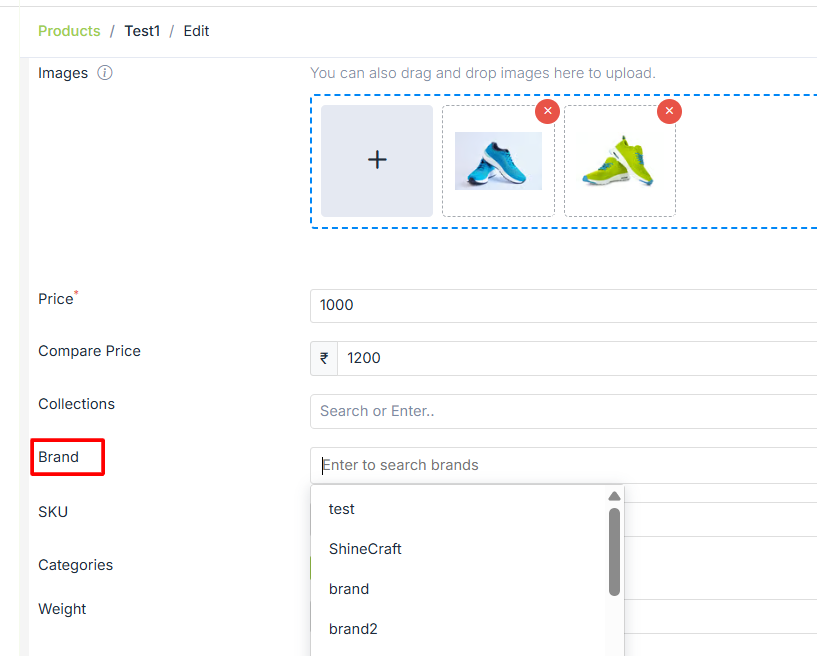
For associating a brand with the product, select the brand from the drop-down in the brand field while adding the product.
Import/Export Brands
You can import and export brands in bulk through the CSV file. StoreHippo provides the option to import and export brands to update the status of the brands in bulk. You can export the brands, update the status of brands and import the CSV file back.
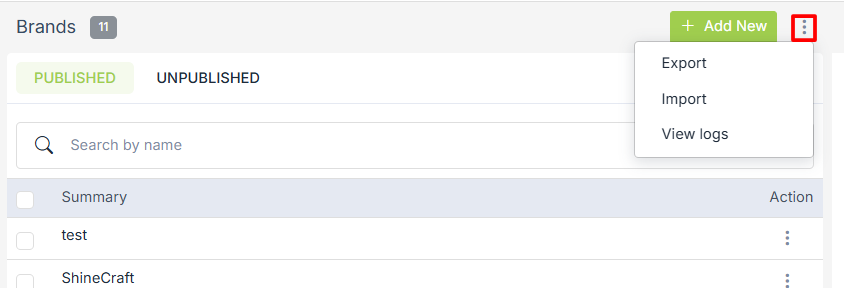
Operations on Brands
You can perform operations on brands by clicking on the ellipsis button against brands. The following drop-down appears:
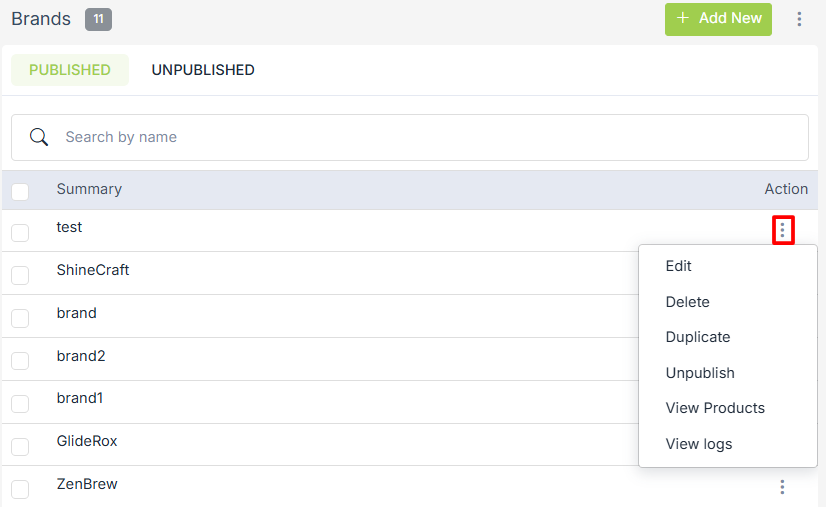
Edit
Choose the Edit option to edit the brand.
Delete
Choose the delete option if you want to delete the brand.
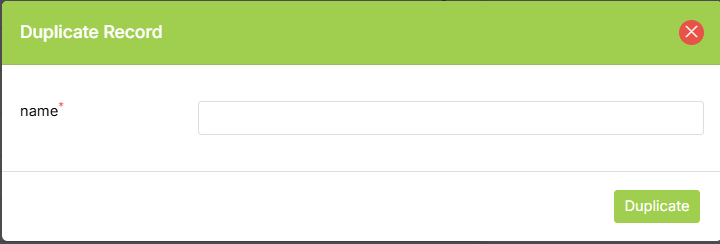
Duplicate
Choose the duplicate option to duplicate the brand. The following popup appears and
View Logs
You can also check out the logs to maintain the trail of operations and keep track of the same.