
Adding a single product
StoreHippo provides you with an effortless way to upload your products with a few essential details.
To add a single product, go to Products > Products section in StoreHippo Admin Panel.
Click on the +Add new button in the right corner on the product listing page.
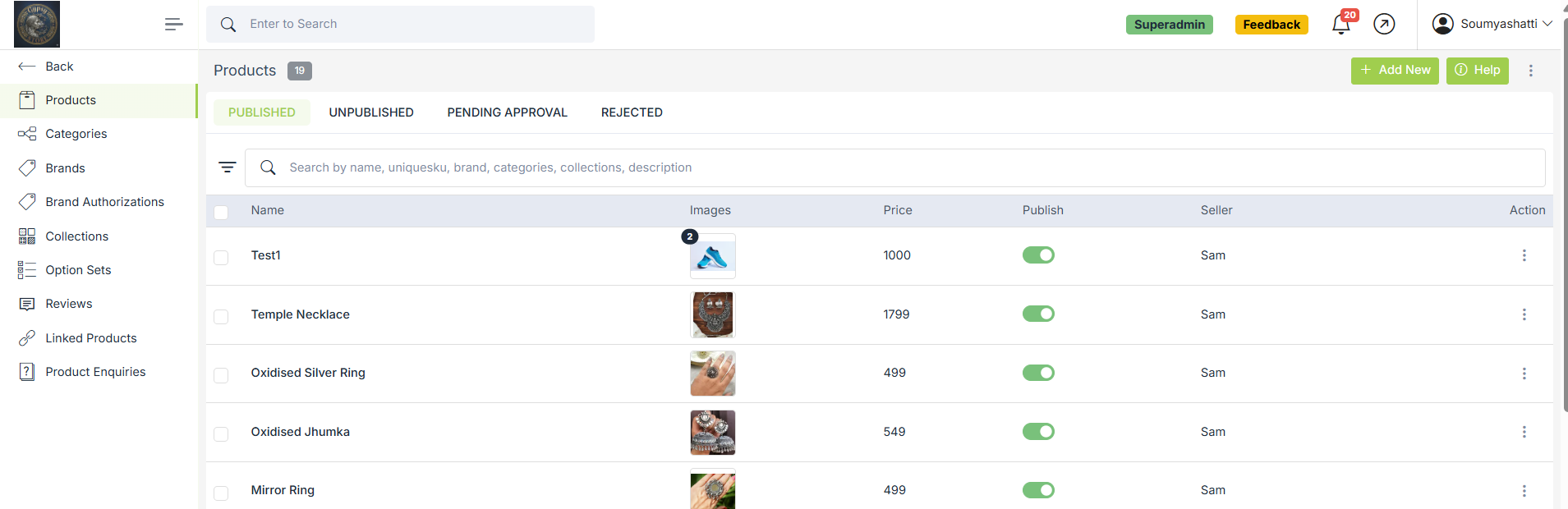
It will open a new page which is divided into multiple sections like General, Inventory, Options & Variants, SEO, Miscellaneous & Seller. Described below are the fields under different tabs:
General
It contains general information about the product. It consists of the following fields:
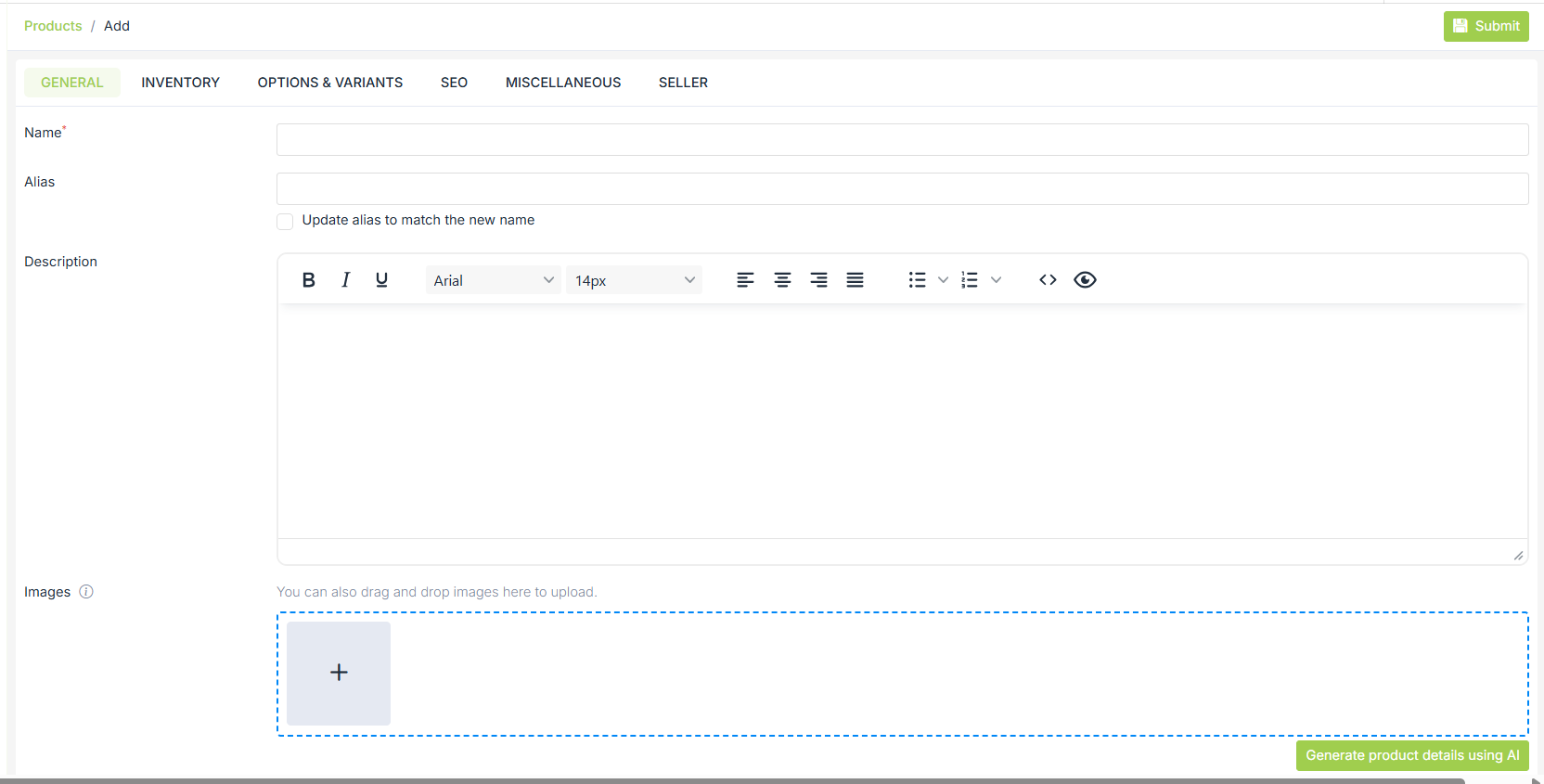
Name
Enter the name of your product which would be visible to the customer on the storefront.
Alias
Aliases are used to create unique product URL on your Storefront. Aliases are created automatically, but you can always modify it to create an SEO friendly URL for the product.
Description
Enter the description of your products. For example: If your product is a T-shirt then you can write about the type of fabric,
Images
Images are an important part of your product description. Product images not only help in enhancing the product
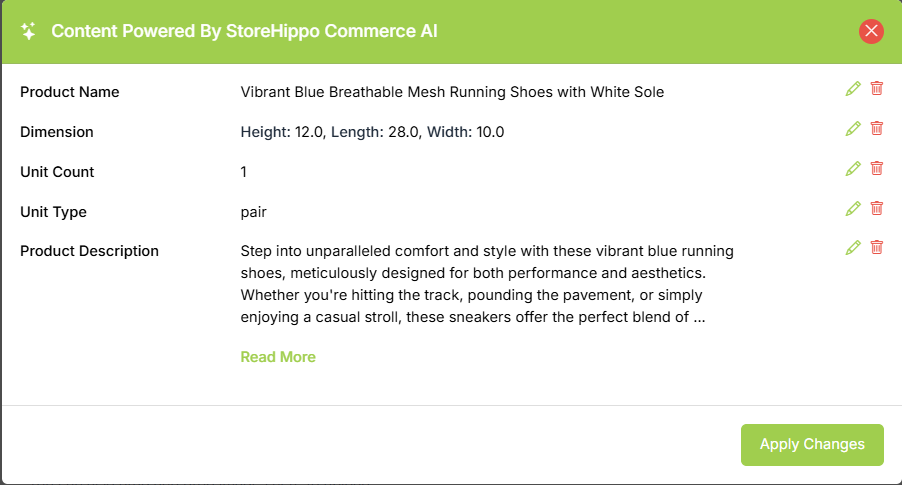
Generate product details using AI
After uploading product images, click “Generate product details using AI” to automatically create the product name, dimensions, and description. 
Review the suggested details in the preview, make edits if needed, and click Apply Changes to add them to your product. This feature helps you create accurate content quickly.
Price
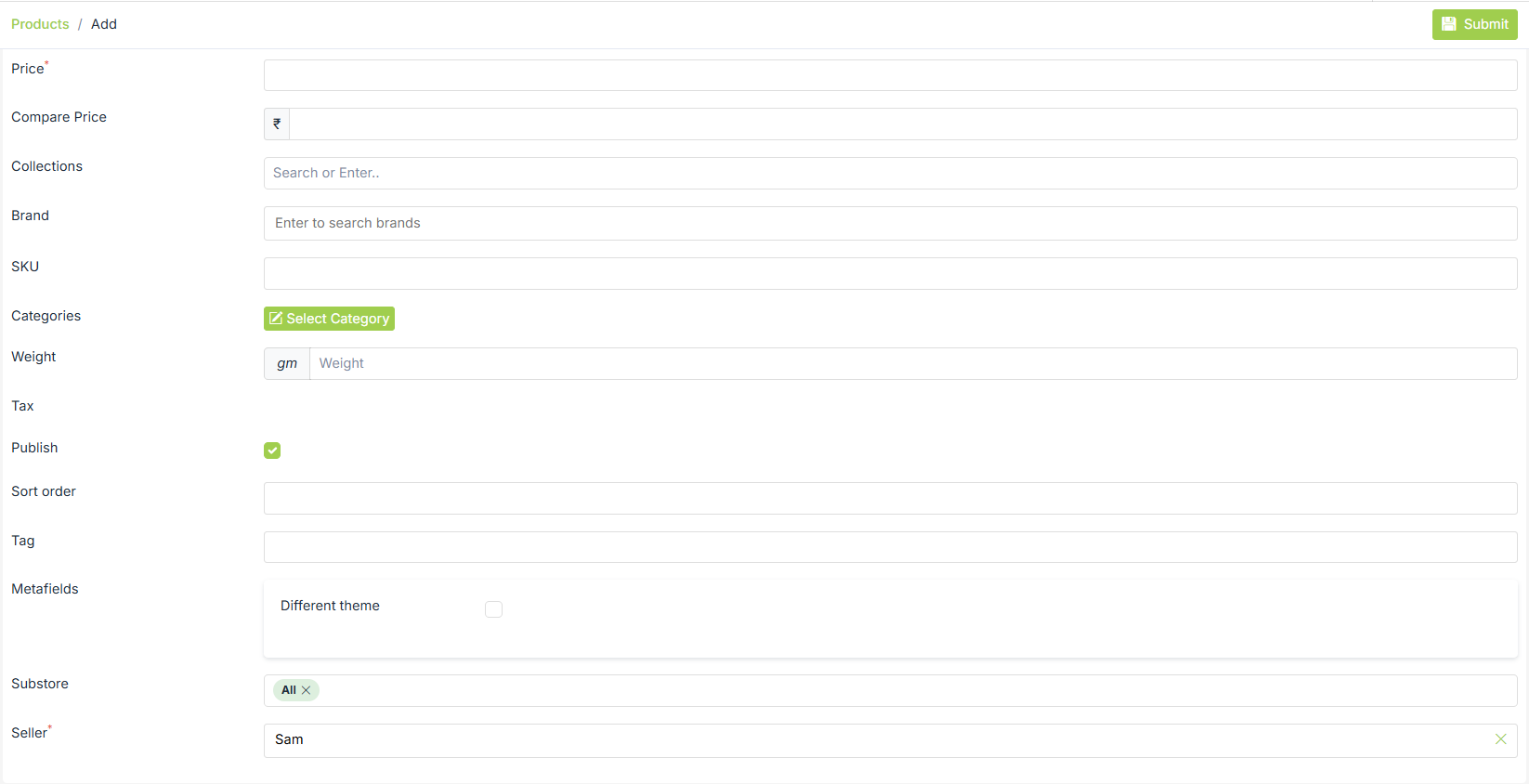
Enter the price of the product in this field. Price is the selling price of the product at which you want to sell the product. It is a mandatory field.
Compare Price
Compare price can be used to specify the list price of the product which could be manufacturer's suggested retail price (MSRP), or the recommended retail price (RRP), or the suggested retail price (SRP). On Storefront, if the price is lower than the
Collections
Collections can be used to group products across different categories together, e.g. "Featured Products". A single product can be added to multiple collections according to its relevance.
Brand
The brand is the identity of the product’s manufacturer. You can select one of the brands from the drop-down menu. You can manage the brands in Brands section.
Other details
Following are the fields for some other product related details you can use.
SKU
SKU or Stock-Keeping Unit is the unique identifier or code that is used to identify the product or any of its variants. SKUs are used to manage and track inventory.
By default, SKU
Categories
Categories help you to categorise the products based on different qualities of the product. It systematically arranges the products, so it is easier for the customers to manage and search the products.
Weight
The exact weight including the packaging weight should be mentioned in this field. It lets the customer know the total weight of the product he would receive. For example, if somebody is buying a T-Shirt which individually weighs around 150 gm and with packaging, it weighs around 250 gm, then 250 gm would be the weight that you would enter in this field.
Tax
From tax drop-down, you can choose which tax method would apply to a particular product. If there is a default tax configured for your products, then this field would be pre-populated with the default value. You can manage taxes in the Tax Rules section.
Publish
If you don’t want a product to be visible in the store or product is out of stock, but you might want to make it visible later, you can uncheck the Publish field. The product is no more visible in the store until you check the button again to make it live on the store again.
Sort Order
Sort order field is used to set the specific sort order of your product. Default sort order is 0 for new products. By default, products are displayed in increasing sort order. The lower the number, the further up it will display.
Tag & Metafields
You can add metafields in the products section to add extra fields such as size charts, loyalty points, etc.
Substores
Select the substores if you want this linked product to be visible only for those substores. Leave blank to show it for all substores.
Inventory
Inventory is the quantity of a particular product that is available for sale.
Inventory tracking can help you avoid selling products that have run out of stock or let you know when you need to order or make more of your product.
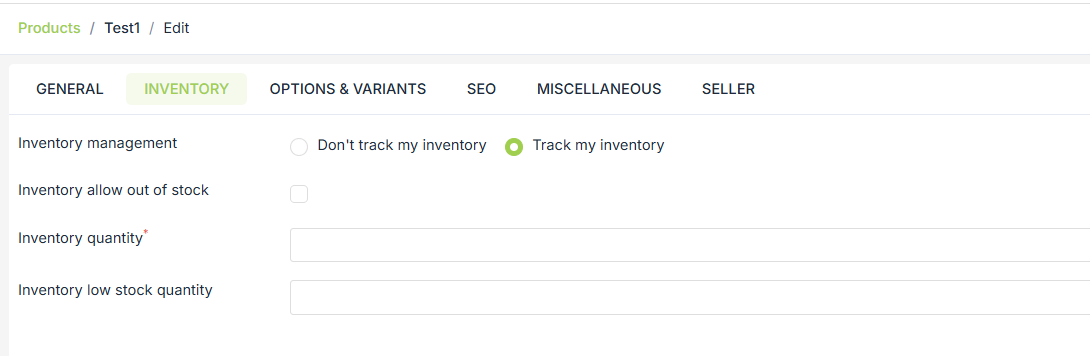
Manage inventory by tracking the number of items that have been sold out. You can also update the inventory of the products with no variants on the product listing page.
Options & Variants
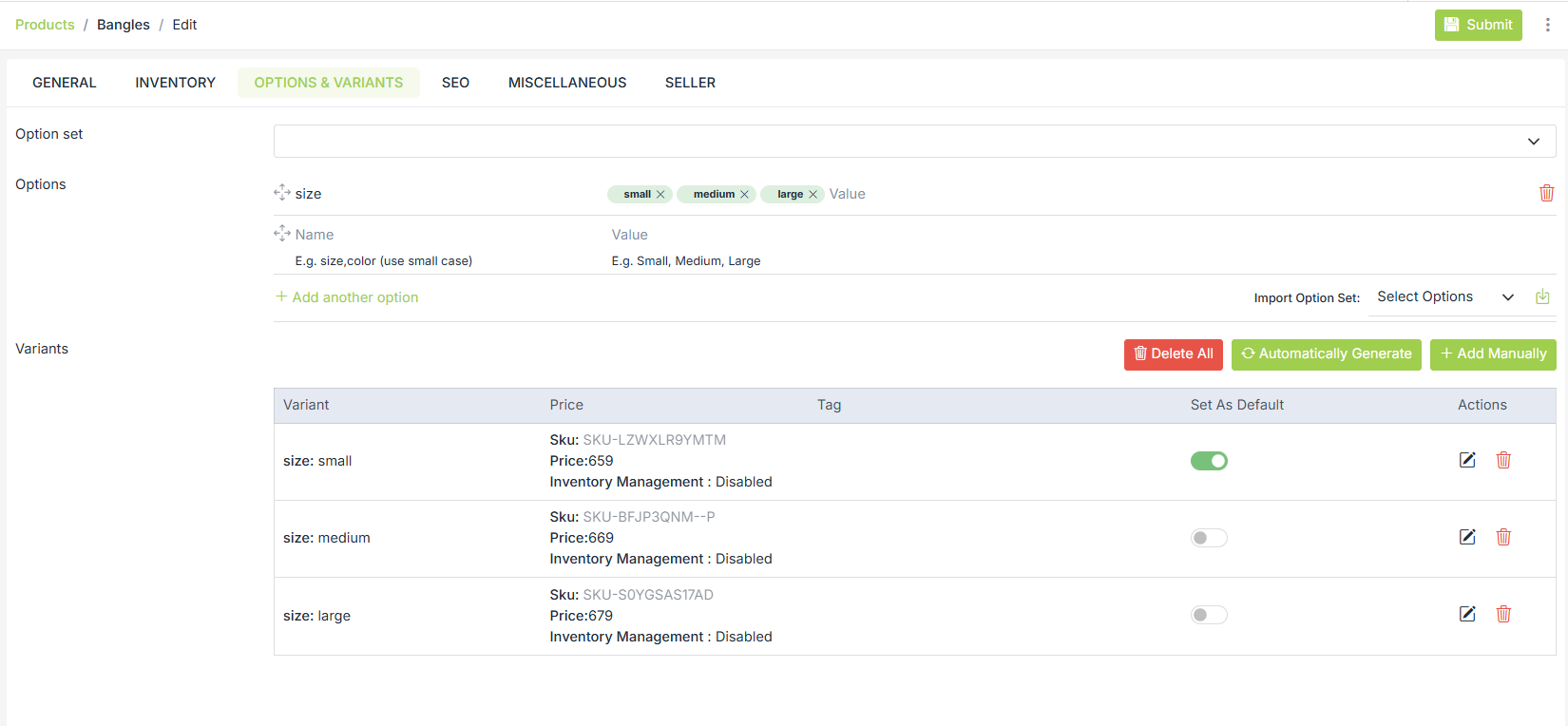
Add options and variants by either importing options from an option set or by adding your own set of options and variants.
SEO
StoreHipo allows you to provide custom information needed for effective SEO of your products. You can provide the SEO information in the SEO tab while adding or editing the product.
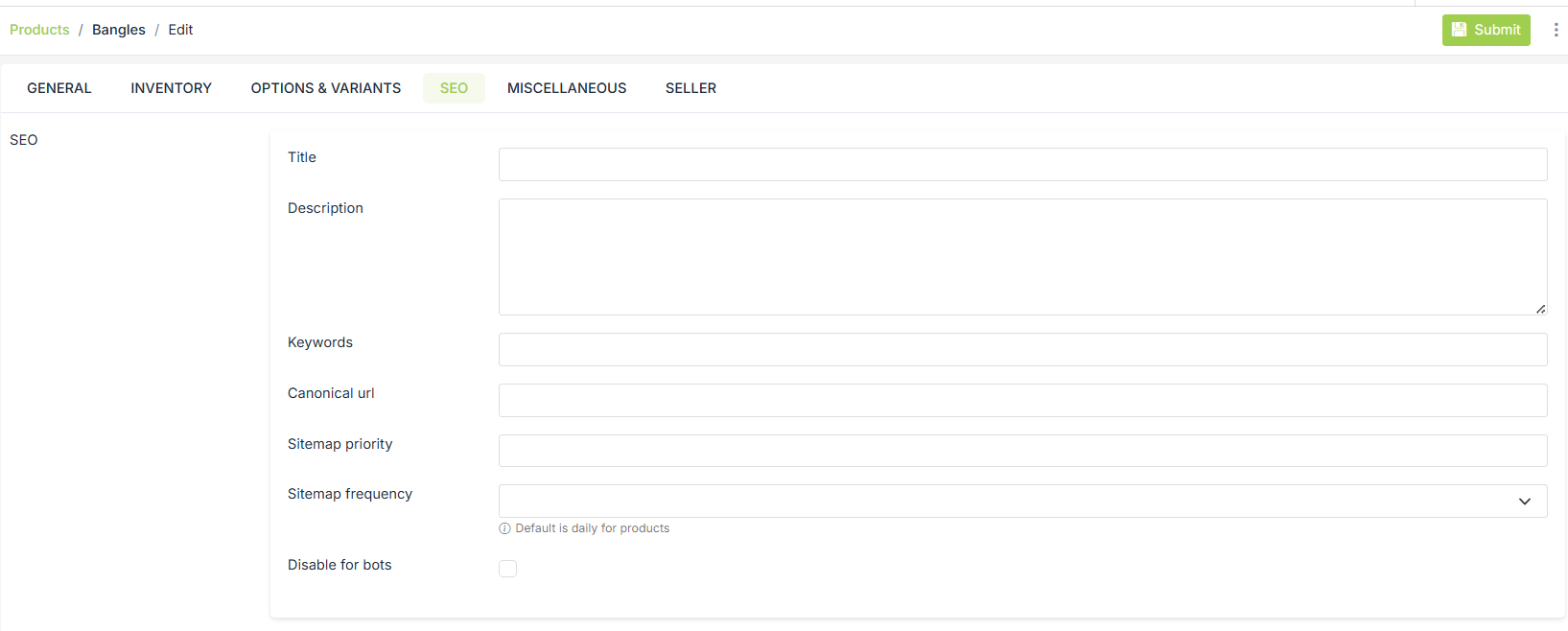
Title
Enter the title of the product to specify a custom title for the product page for SEO. If you do not specify this field, the product name is used as the title.Description
Enter the description of the product to specify a custom meta description for the product page for SEO. If you do not specify this field, the product description is used as the meta description.Keywords
Enter the keywords to specify custom meta keywords for the product page for SEO.Canonical URL
The canonical URL is used to declare a single page as its source or for duplicate pages to reference their source/originating page. This is an advanced SEO option and should be used carefully.Sitemap Priority
Sitemap priority defines the priority of the particular page in your store; pages with higher priorities are crawled by Google more often. Provide the sitemap priority to the pages within a range of 0.0 to 1.0. The default priority used is 0.5.Sitemap Frequency
Here, you need to select the sitemap frequency (Change Frequency) of the product page. This tells the search engines how frequently content is likely to change. The default value of the sitemap frequency for the product is daily.
Miscellaneous
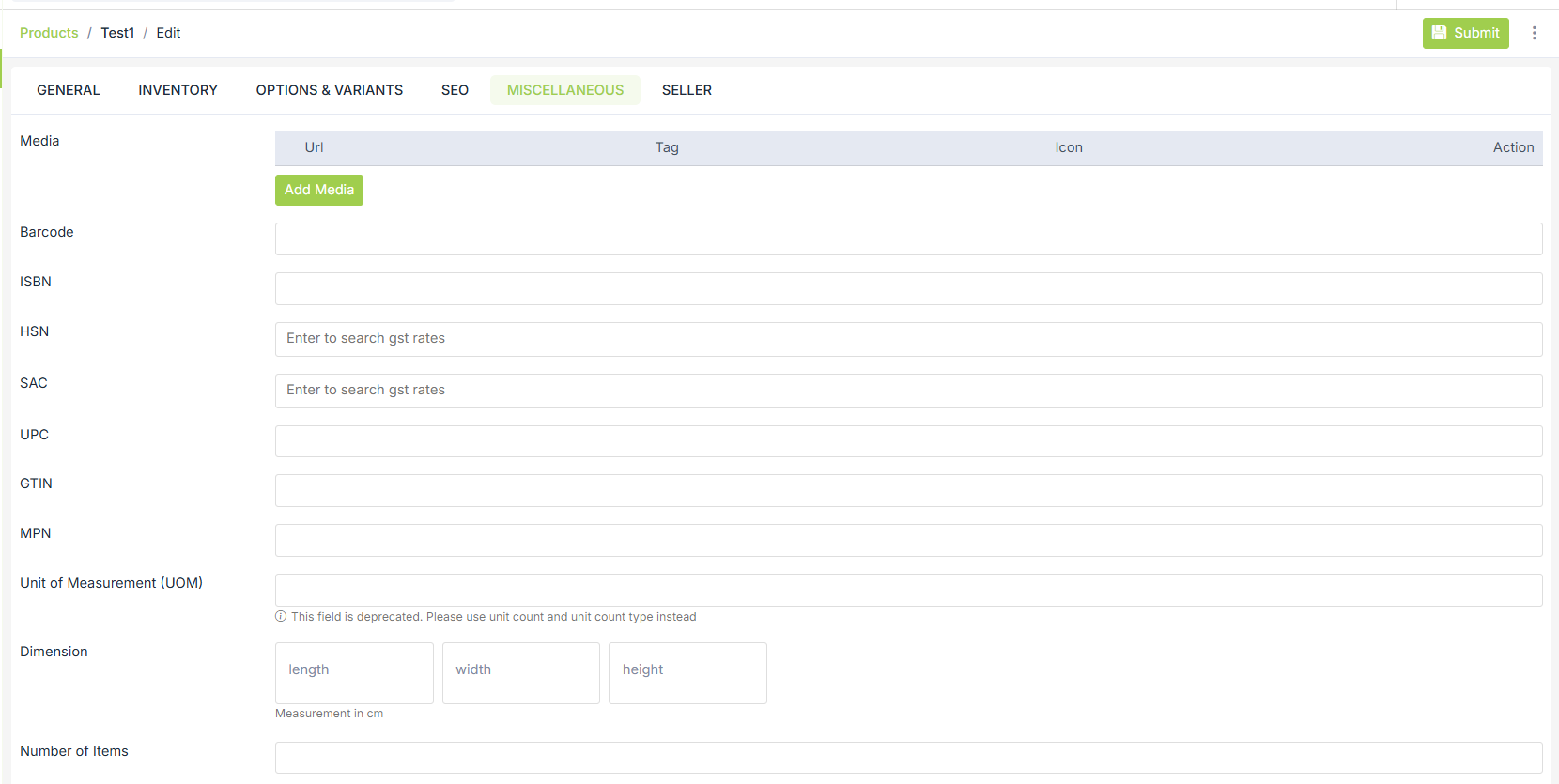
Media
You can provide video on the product page for a better understanding of the product. Click on Add media. Provide the embedded URL of the video and tag in case of product variant. Click on Insert Media to add the video to the product.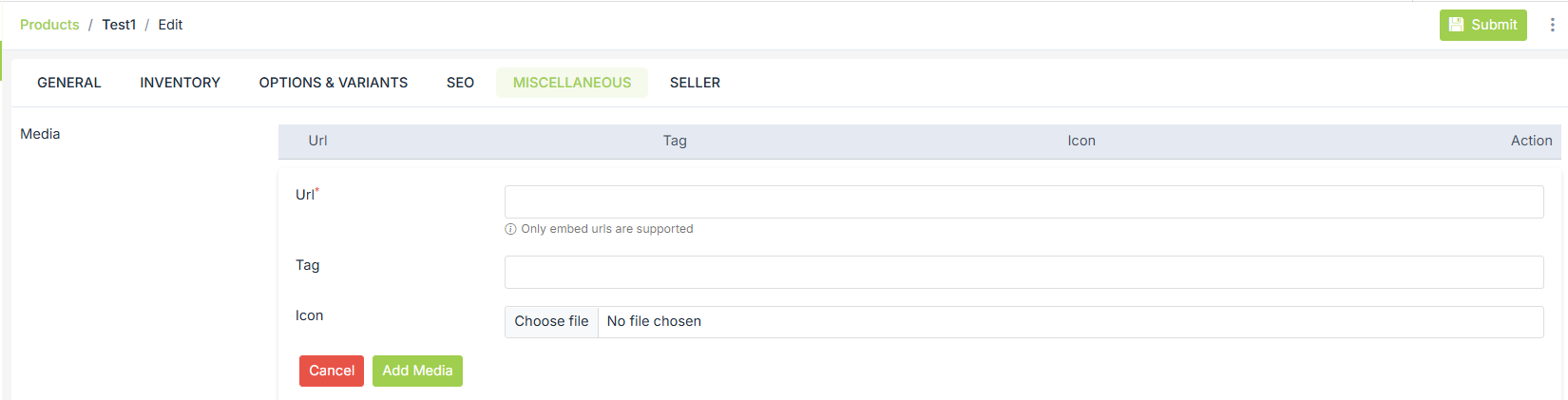
Barcode, ISBN, UPC, HSN and SAC code
Barcode can be used as another product identifier whereas ISBN & UPCs are specifically related to books. HSN is a multipurpose international product nomenclature and SAC Service Tariff Code for GST.
Attributes
Attributes specify different properties of the product as key-value pairs. Attributes can be used to specify Technical Specification, Product Information or any other additional details about the product. Attributes can also be used in search filters in search facets along with the brand, category, price, options. While product options are to receive user input, attributes are mainly for informational purposes.

Min Limit To Buy This Product
You can control the minimum limit for users to purchase the product.
Max Limit To Buy This Product
You can control the maximum limit for users to purchase the product.
Files
If you are selling a digital product or service, this field is where you can upload the files for your product. The downloadable link for the file would be available on the order summary page both at the front and back end, also the link would be available to the customer in the mail that he receives after placing the order.
Shipping Cost
If there is any shipping cost involved for a product, this is the field where you can specify the shipping cost value. The shipping cost specified at product level will take higher priority than cost calculated using shipping methods.
Catalog Options
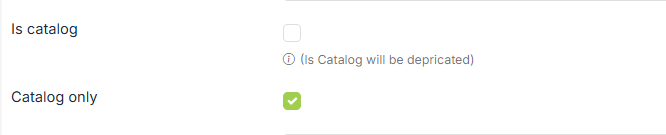
Choosing 'Is Catalog' field will put the product under catalog and users will be able to buy it too apart from making enquiries about it.
Checking 'Catalog only' will restrict the buyer from purchasing that product instead, user can only view the product and make 'Product Enquiry' about the same.
Google Product Category
Google Product Category allows you to list your product in Google product feed easily. You can choose the category for a product from the pre-defined Google product categories in the drop-down.
Seller
It is a mandatory field where you can select a seller for the particular product that you are currently adding.
Approve
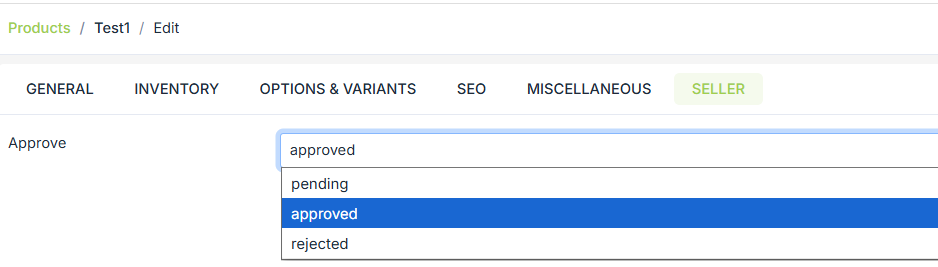
Manage product approval flow by changing the status of the approved field. You can either approve/reject a product or change the status to pending if you do not want to take any action right now. The products would be listed under different tabs based on the status you set for selling products.
-
If a product is approved and published, it would be listed under the Published tab.
-
If a product is approved and unpublished, it would be listed under the Unpublished tab.
-
If a product is rejected, it would be listed under the Rejected tab.
-
If a product is pending approval, it would be listed under Pending approval and Unpublished tab.
Examples
How to add video to a product page?