
Operations on products
StoreHippo allows you to perform multiple operations on the data records in the admin panel. In the Products section, you can edit, delete, duplicate and perform many other such operations. Most of these operations are common to all the sections in the admin panel. However, there might be variations for certain entities.
Go to the Products > Products section in StoreHippo Admin Panel. You will see the list of all the products in your store. You can perform operations on your products here.
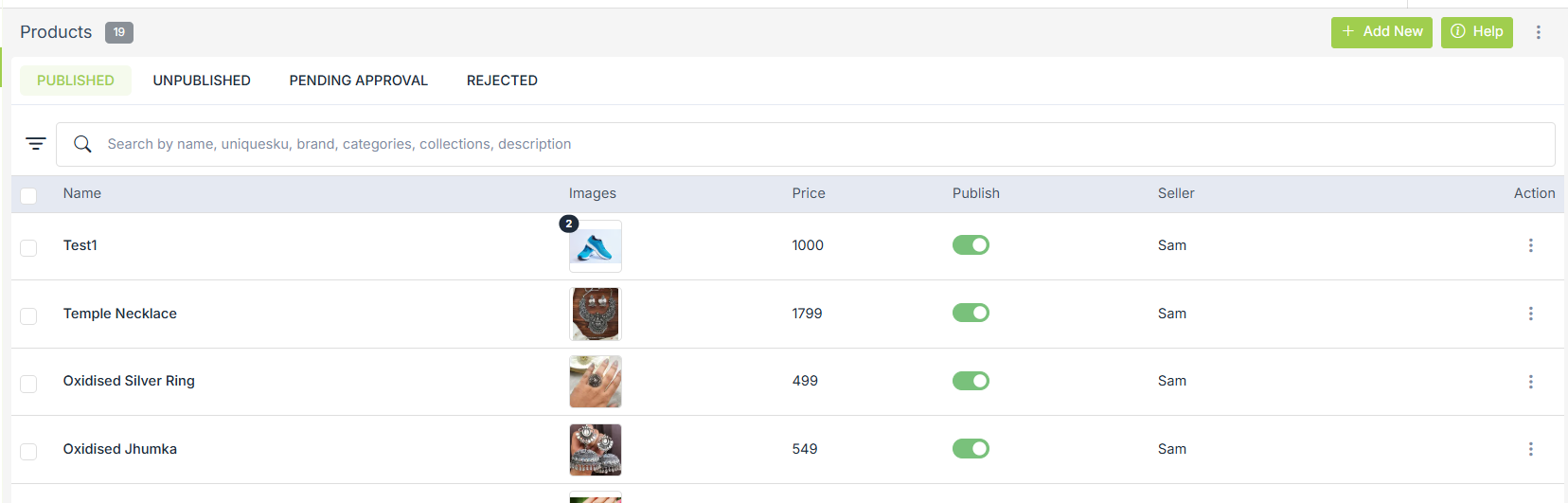
Edit
When a product has been added to your store, you can also edit the details later. You can make changes to the complete profile of the product. There are two ways by which a product’s details can be edited after it has been saved.
- Method-1: In the products list, click on the product name to open the editing options.
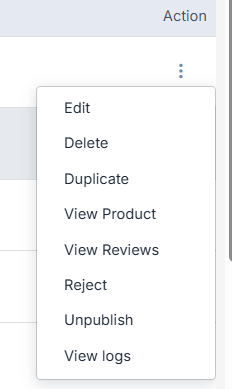
- Method-2: Click on the ellipsis button on the product that you want to edit. Choose the Edit option from the drop-down.
Delete
To delete a product, click on the ellipsis button on the product which you want to delete and choose the Delete option from the drop-down.
Bulk Delete
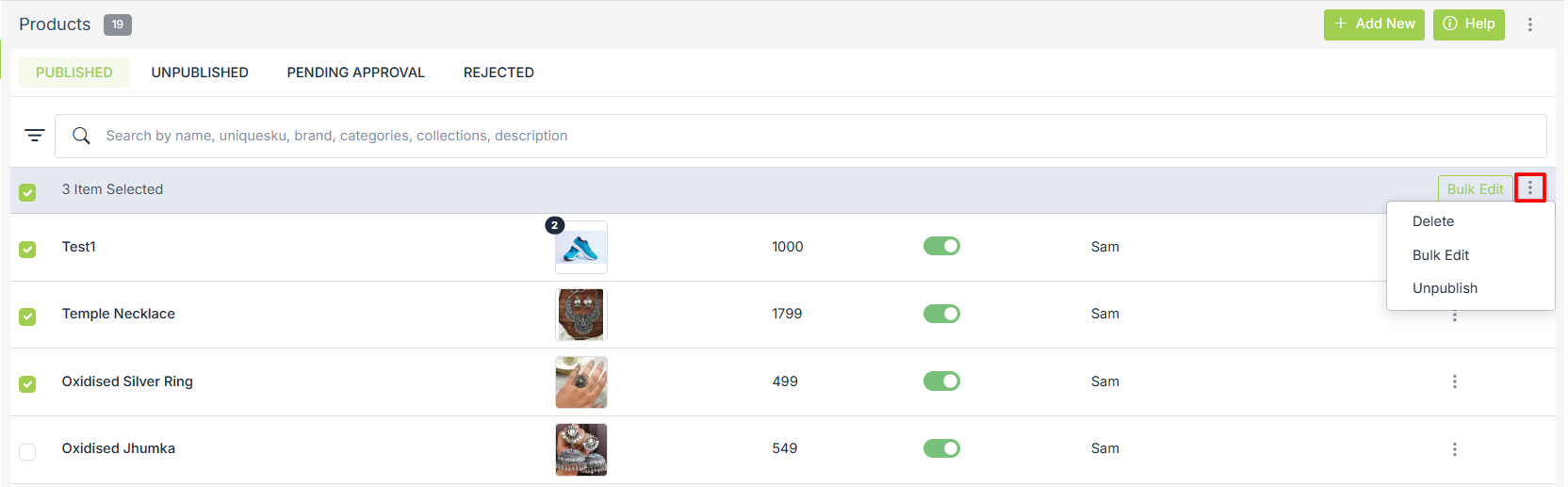
You can also Delete or Unpublish selected products from the same menu.You can delete products in bulk either through CSV file or admin panel. To delete products from the admin panel, select the checkbox on the top bar of the product list. Select the checkbox of the individual products, if you want to delete a few products. After selection, choose the delete option from the drop-down menu to delete the selected products.
Bulk Edit
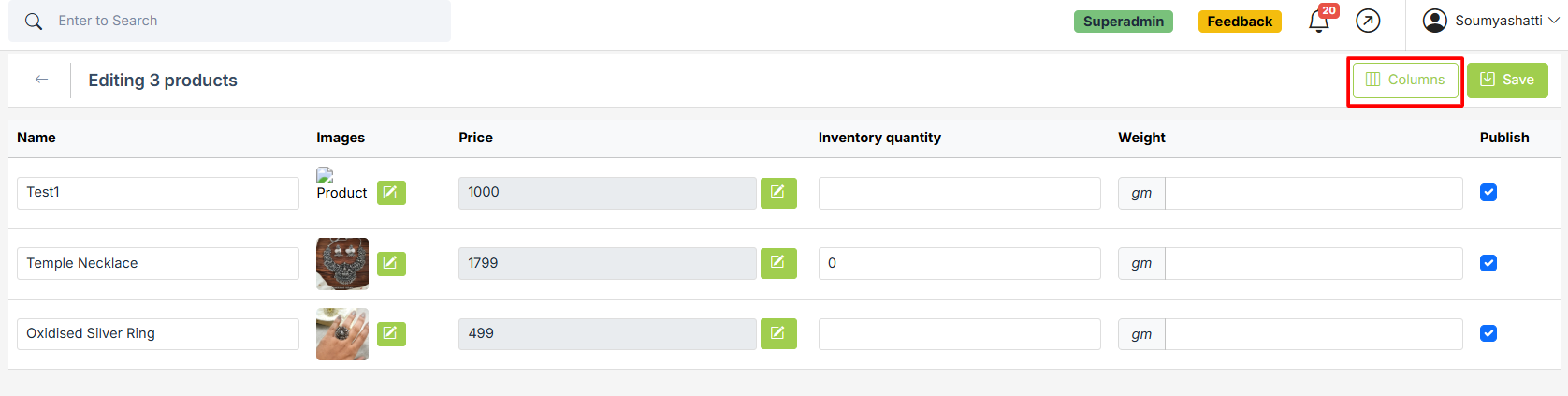
The Bulk Edit option lets you update multiple products at once. Select the products, click the three-dot menu, and choose Bulk Edit. To manage which fields you want to edit, click the Columns button in the Bulk Edit screen. A list of available fields will appear, allowing you to select the ones you need and deselect the ones you don’t. Once you make your selections, the Bulk Edit view automatically updates and displays only the chosen columns, making it easier to focus on the specific information you want to modify. Edit the required fields and save to apply changes.
Duplicate
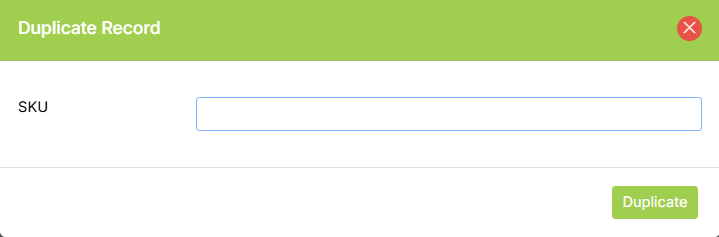
Sometimes you might want to duplicate a product that you have created rather than entering all of the details again. It can save your time, as you'll only need to update the product name, SKU, and a few other details that are different.You can click on the ellipsis button and choose the duplicate option from the drop-down menu. Provide the SKU in the
Publish
To make your products appear on the storefront, you need to publish your products. You can publish a product by two methods:
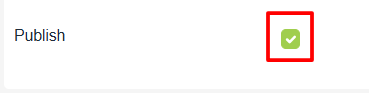
- Method-1: Add/Edit a product and click on the checkbox of the Publish field.
- Method-2: Go to the Unpublished tab of products and turn on the publish slider to publish an unpublished product.

Unpublish
In case you temporarily do not want to sell a product, or the product is out of stock and it might take time to source it again, you can use the Unpublish functionality. You can hide a product from your store at your convenience by turning off the Publish slider in the Published tab.

Once a product is unpublished or hidden, it automatically gets removed from the Published tab and is added to the Unpublished tab.
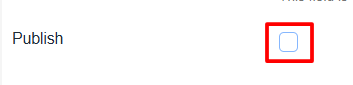
Another way to do the same is to edit the product and uncheck the Publish checkbox to unpublish a product in product general edit.
Approve
The approval option is provided to the admin to approve products added by different sellers.

Admin can approve some products or all products at one click. To approve a product, go to the Pending approval/Rejected tab under products and select the approve option from the drop-down menu.
Reject
Admin can reject a product added by a seller if he doesn’t want that product to be listed at frontend. To reject a product, go to the published/unpublished/pending approval tab under products and select the reject option from the drop-down menu.
Pending Approval
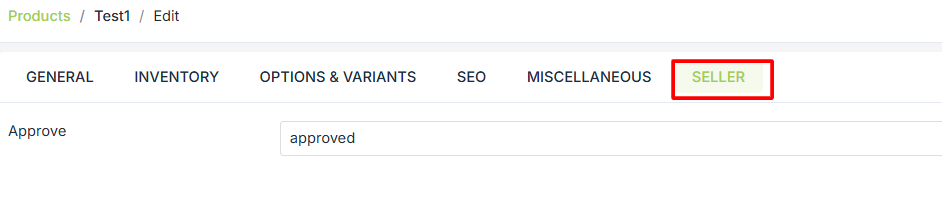
Products added by the seller which need the admin’s approval are listed under the pending approval list. The products remain on the list until the admin approves/rejects the products. You can edit a product and change the status of the "approve" field under the Sellers tab to move a product to the pending approval list.
View Reviews
Letting your buyers contribute content to your site is a great way to engage them while also showing new customers that your products are universally adored. Sharing honest reviews from consumers shows you have nothing to hide.
StoreHippo provides you with this feature to manage reviews added by your customers. Clicking on the View Reviews redirects you to the Reviews section where all the reviews are listed.
View Products
When you have added a product, you might want to see how it appears on the storefront. You can choose View Product from the drop-down. It gets redirected to the storefront, and there you can review the product. You can also view categories and collections.
Learn more about Manage Approval Flow.
View Logs
Whenever anything is changed in a product, the change is recorded in the Audit Logs section so that it can be reviewed at a later stage.