
Managing orders
The Orders section allows you to view, manage, and track all customer orders from one dashboard. You can monitor order status, search specific orders, and take action as needed.
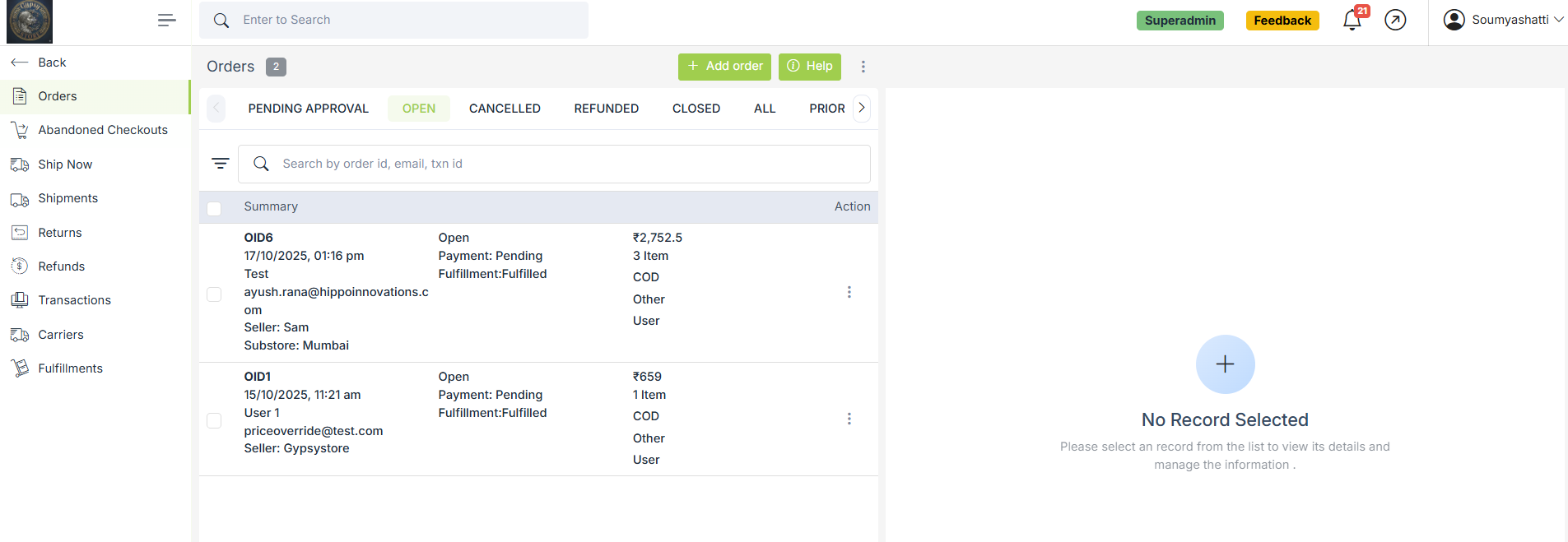
Order Status Tabs
- Pending Approval – Orders waiting for confirmation or approval.
- Open – Confirmed orders that are being processed.
- Cancelled – Orders that have been canceled.
- Refunded – Orders for which refunds have been processed.
- Closed – Completed orders.
- All – View all orders in one place.
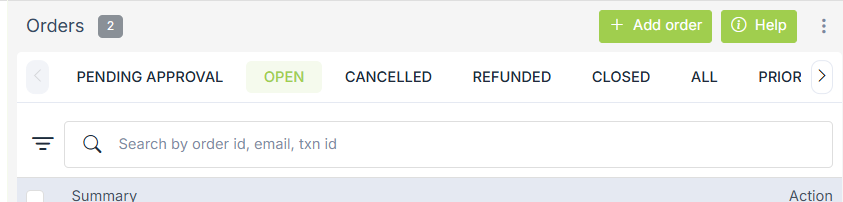
Search Orders
Use the search bar to quickly find orders using Order ID, Customer email, Transaction ID etc.

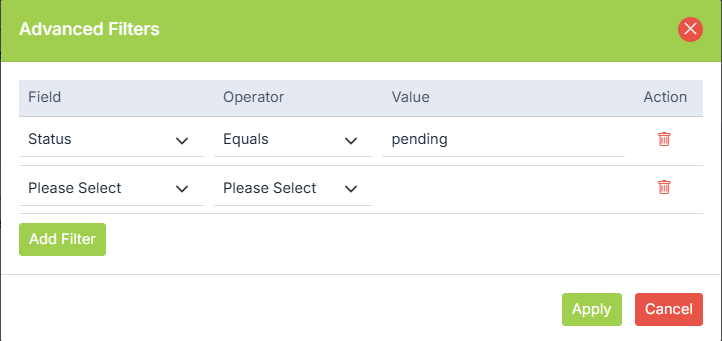
You can also use Advanced filters to filter your products based on different fields. Highlighted below is the button for the advanced filter.

The following form will pop. Here, you can select different fields and operators based on the requirement.
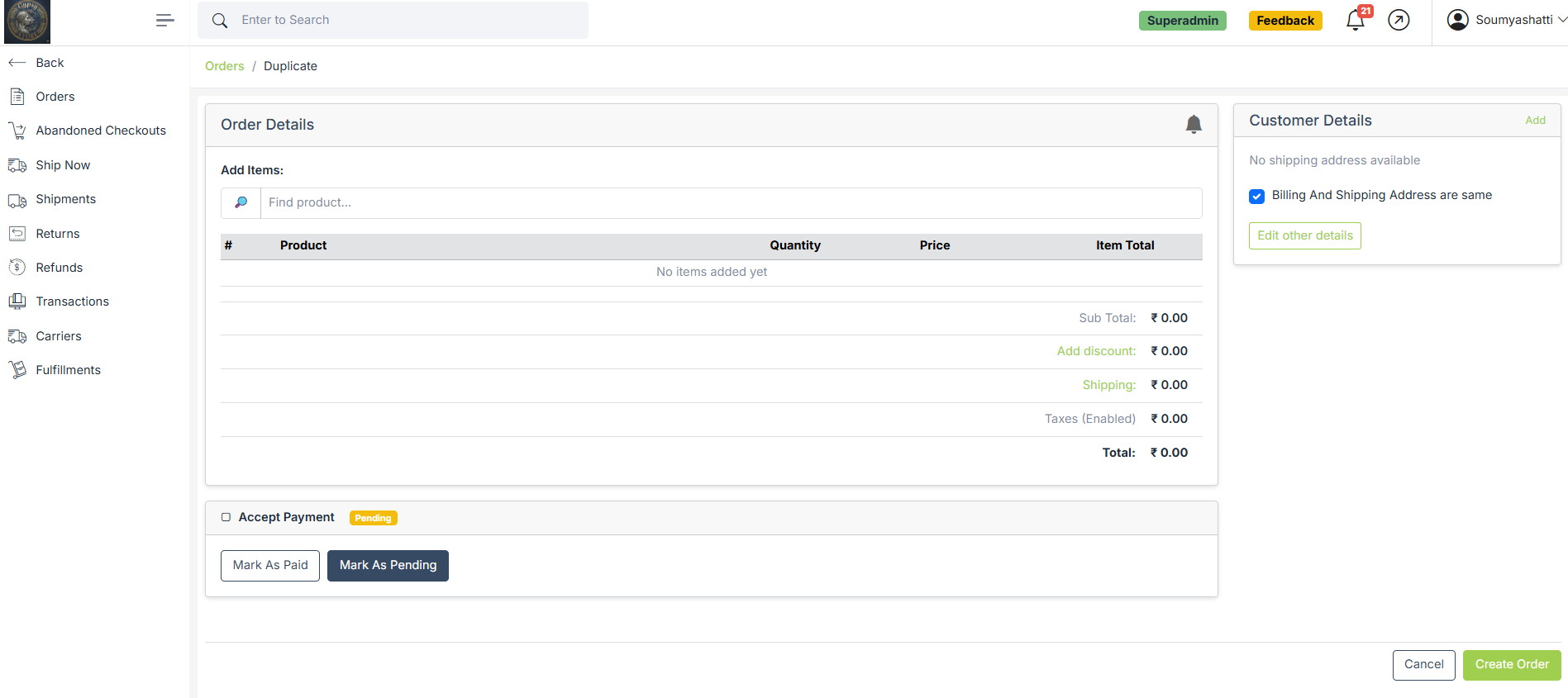
Add Order
StoreHippo allows you to create orders manually from the admin panel. This is useful for phone orders, WhatsApp orders, offline sales, or test orders. Click Add Order to create a new order manually from the admin panel.
Order Details Overview
The Order Details page gives sellers complete visibility into an order, from products and pricing to shipping, payment, and fulfillment information.
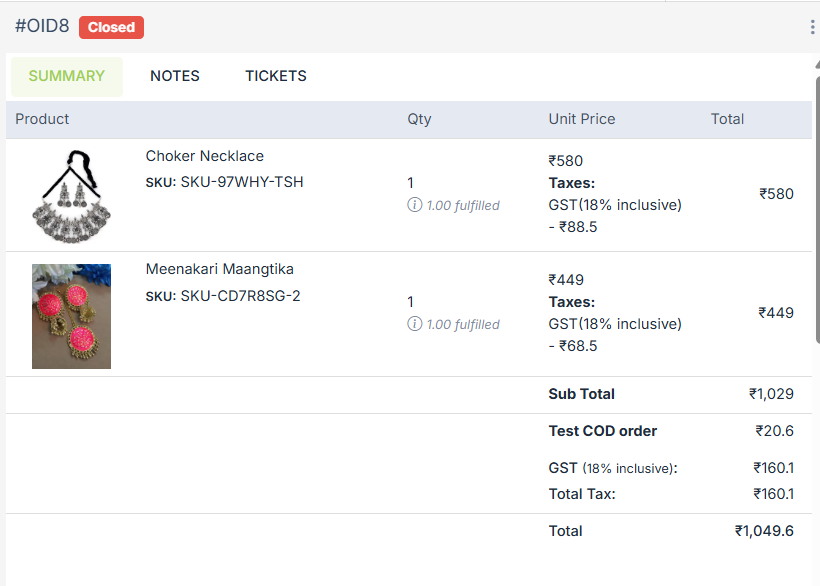
Order Summary: Shows the products ordered, quantity, unit price, discounts, taxes, and the final payable amount.
- Product Details: Displays product name, SKU, quantity ordered, and fulfillment status for each item.
- Pricing, Discounts & Taxes: Shows subtotal, applied discounts, additional charges (like COD), GST details, total tax, and final order value.
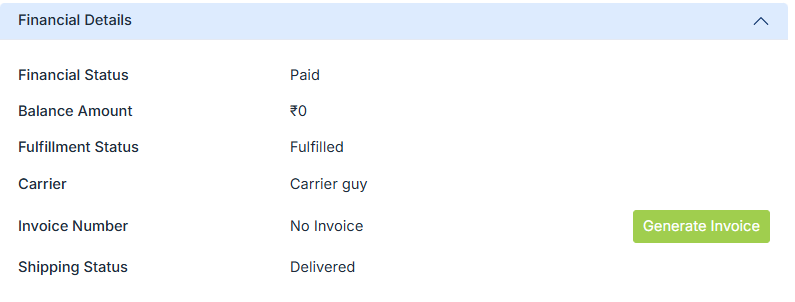
Order Timeline: Tracks the order journey, including order received time, time-to-ship status, and delivery status.
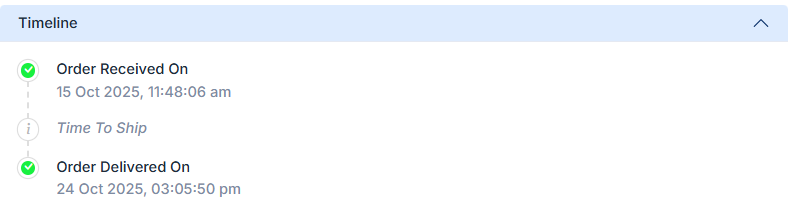
Delivery Details
Shows pickup address (seller location) and customer delivery address along with contact details and GST state code.
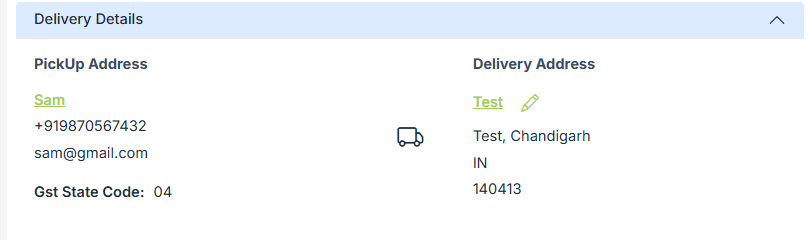
Financial Details
Displays payment status, pending balance amount, fulfillment status, shipping status, and invoice details. Sellers can mark payment as received, add carrier details, generate invoices, and mark orders as delivered.
Fulfillments
Shows shipment-level details such as fulfillment ID, fulfillment date, shipping service, and shipment status. You can view shipment details from here.
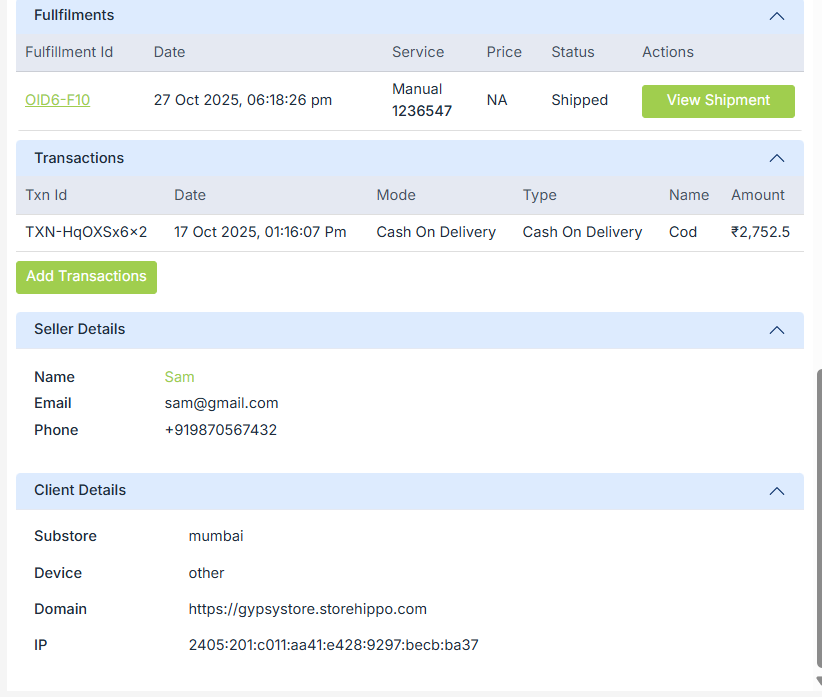
Transactions
Displays payment transactions related to the order, including transaction ID, payment mode, date, and amount. Additional transactions can be added if required.
Seller Details
Shows seller contact information such as name, email, and phone number.
Client Details
Provides technical details about the order source, including substore, device type, domain, and IP address.
Order Notes
- The Notes tab allows sellers to add internal comments related to an order.
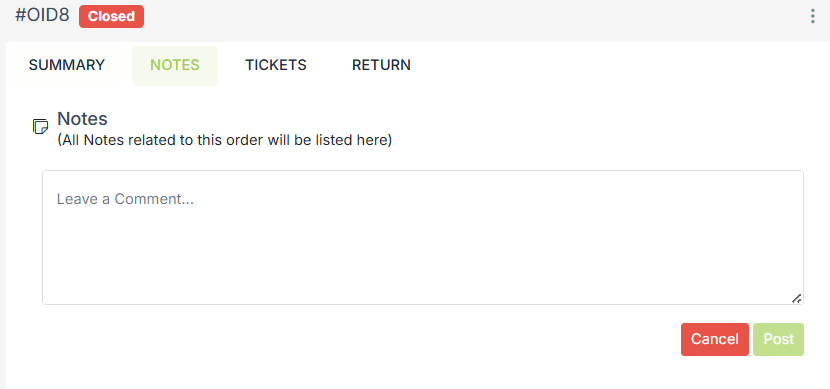
- Notes are useful for recording important updates, internal communication, or order-related observations.
- Enter your comment in the text box and click Post to save it.
- All added notes are listed chronologically and are visible only to internal users.
Support Tickets in Orders
Sellers can raise a support ticket directly from an order for any issue related to that order.
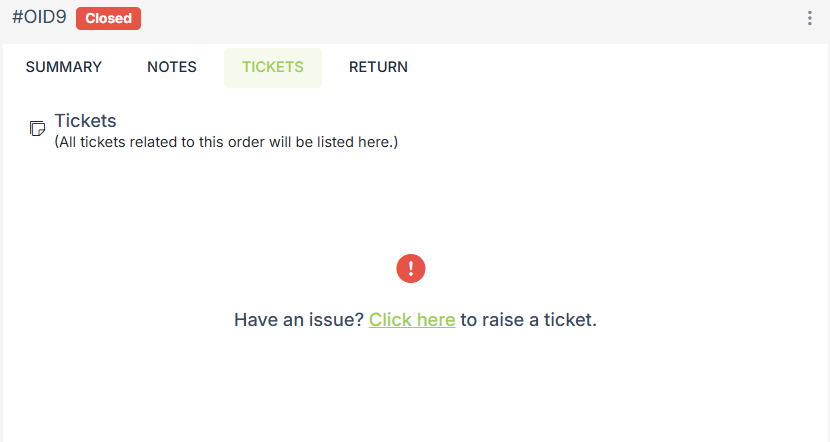
- To create a ticket, click on "click here" to raise a ticket from the Tickets tab inside the order.
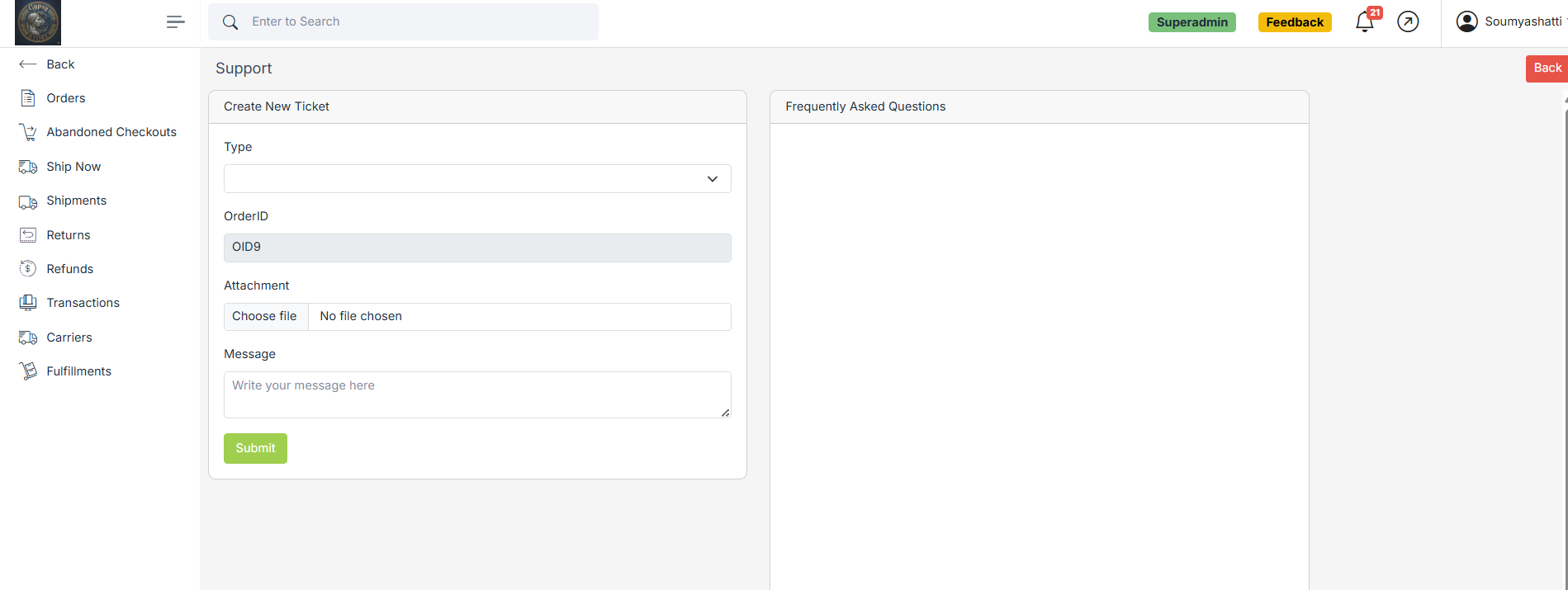
- Select the issue type, verify the Order ID (auto-filled), attach any supporting files if required, and enter your message.
- Click Submit to raise the ticket.
- All tickets related to the order will be visible under the Tickets tab for easy tracking and follow-ups.
Operations on orders
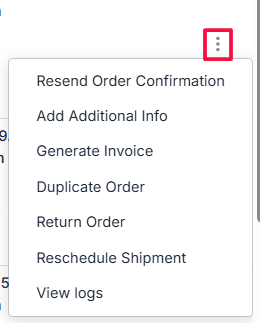
Click on the ellipsis to perform various operations on the order.
-
Resend Order Confirmation
Sends the order confirmation notification again to the customer. -
Add Additional Info
Add internal notes or extra details related to the order. -
Generate Invoice
Create and download the invoice for the order. -
Duplicate Order
Create a new order with the same details as the existing order. -
Return Order
Initiate a return request for delivered items. -
Reschedule Shipment
Change the shipment pickup or delivery schedule. -
View Logs
View the activity history and actions taken on the order.