
Managing users
Video to be added
The Users section contains the list of all the users who have registered on your store. You can manage users of your store here. You can add a new user, search, and import and export users.
Go to Users > Users section in StoreHippo Admin Panel to manage users.
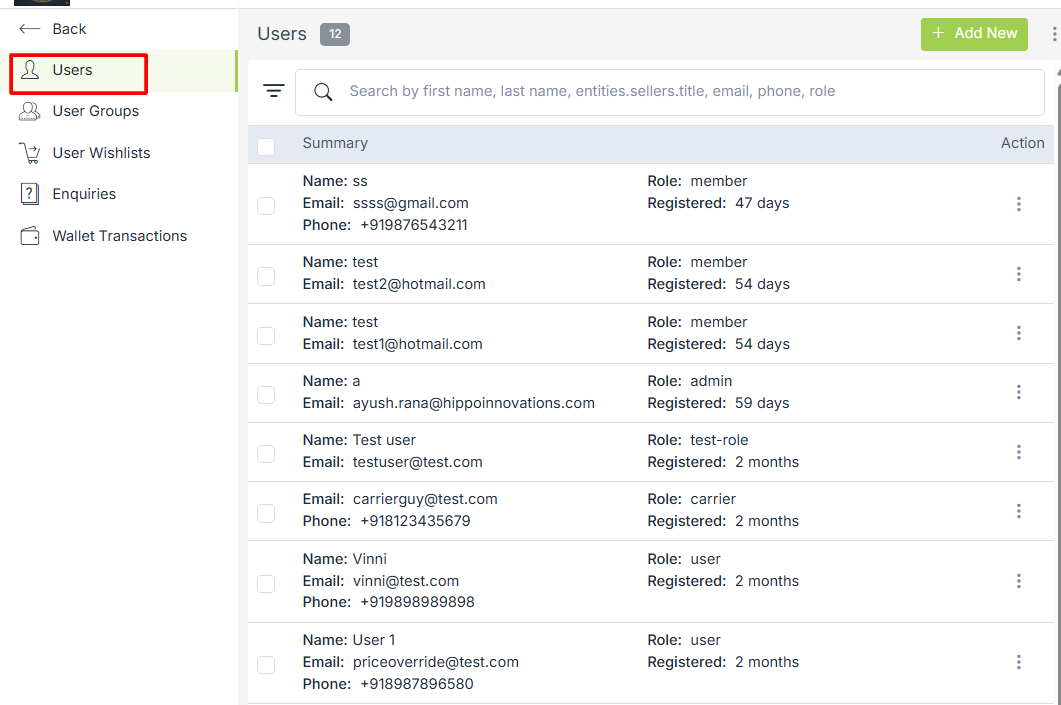
User Details
You can view all the details of your users by clicking on the user. The user details are explained as follows:
General
The general tab displays the general information of the user, such as name, email, password, phone, status, etc.
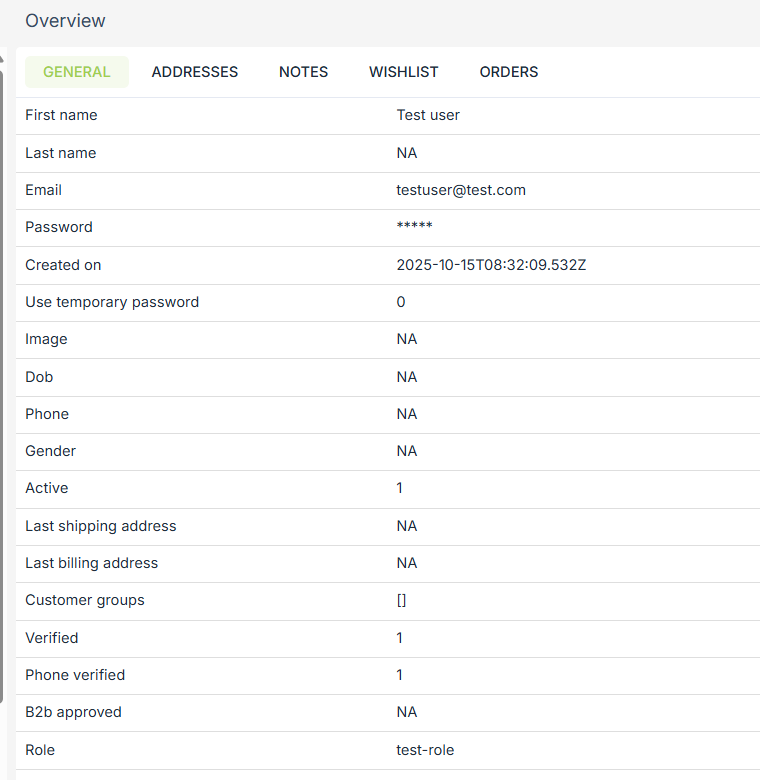
Account
This tab displays the login account details of the user.
Addresses
You can view and make changes to the addresses of the user. You can add, edit and delete the address.
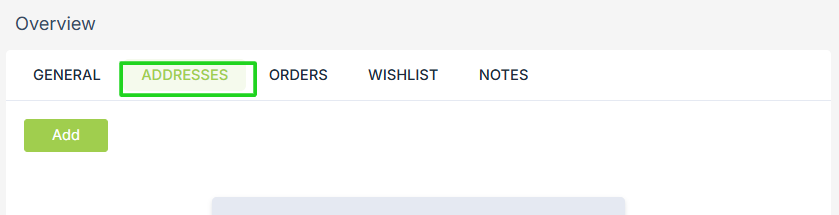
Click on the Add new button to add a new address, or click on a previous address to edit it. You will be redirected to the User addresses section. You can access the addresses of all the users here.
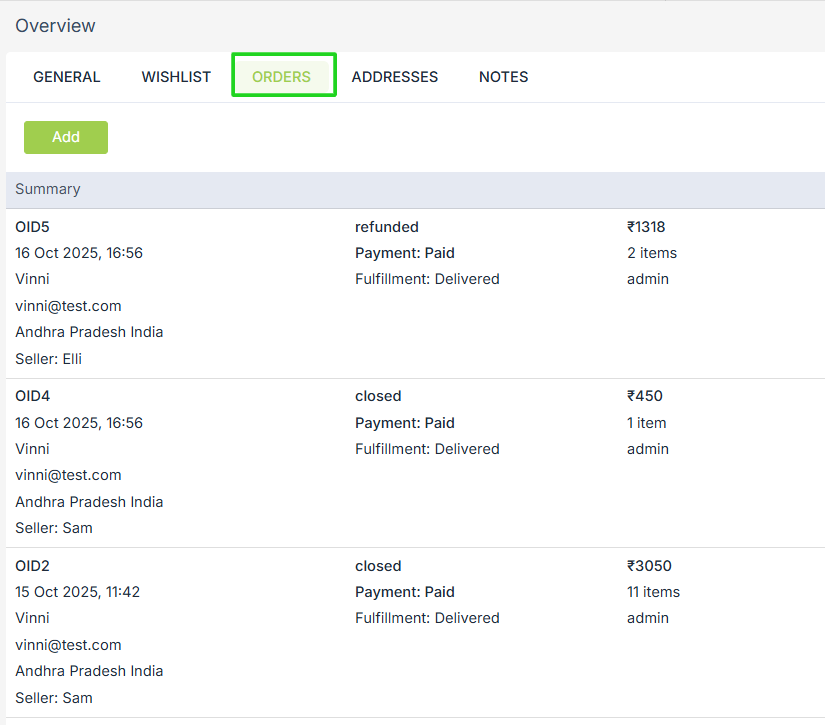
Orders
The Orders tab lets you view the orders of the customers. You can also add a new order manually for your customers. When you click on Add new button, you are redirected to the Orders section to add a new order.
Wishlist
In the wishlist tab, you can view the wishlist of the customer. You can add or edit the wishlist on the customer.
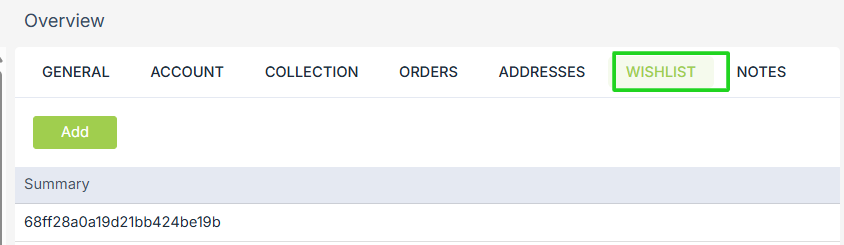
To add/edit the wishlist, you are redirected to the User wishlist section. You can access the wishlists of all your users here.

Notes
You can add notes for your reference about the customer in this section.
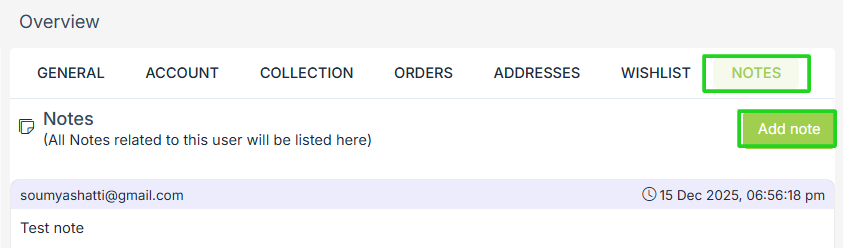
Adding a new user
Users can register themselves on the storefront by filling up the registration form, or you can manually add a new user from the admin panel.
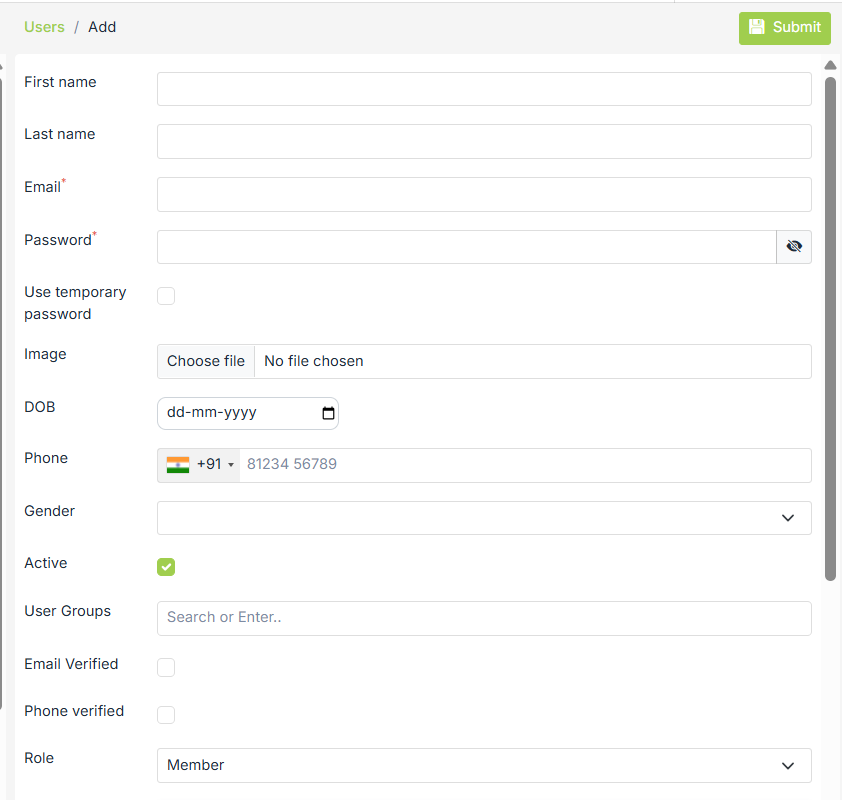
Click on the Add New button to add a new user. The new user form appears with the following fields:
First Name
Enter the first name of the user.
Last Name
Enter the last name of the user.
Enter the email ID of the user.
Password
Fill the password for the user.
Use Temporary Password
Check this field if you want to enable automatic generation of temporary password when you add a new user.
Image
Click on Choose file to upload the image of a user.
DoB
Enter the date of birth of the user.
Phone
Enter the phone number of the user.
Gender
Provide the gender of the user.
Active
Check the box if the user is active. It is checked by default, but if the user is inactive, you can uncheck the box.
User groups
Select user groups from the drop-down.
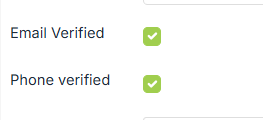
Email & Phone Verification
Select the respective checkboxes if the email or phone of the user is verified.
Roles
Roles are assigned to the users when they register to your store. Custom roles can also be added.
Wallets
This field reflects the amount of store credits or store points the user has to his name.
Search and filter users
If there are many users in the panel and you need to filter specific users out of the list, you can easily search and filter the specific user or users to view detail, edit, etc.
Search Users
You can use the quick search box to search users by First name, Last name, Email, Phone or role.

Filter Users
You can create filters using one or more fields in the filters. Filters can be accessed by click on the filter icon on the left side of the search bar.
You can filter the users by the following fields:
- First Name: You can search for a specific user based on its first name.
- Email: You can search user for specific email id.
- Role: You can search for a user from a particular role.
- Phone: Users can also be filtered out based on their phone number.
- User Groups: You can also search for users based on customer groups to which they belong.
- Created on: You can filter the user by date or time of their creation.
Import/Export Users
You can import and export users in bulk through CSV file. StoreHippo provides the option to import and export users. If you want to add users in bulk to your store, use the import provided in the ellipses button, next to the Help button. If you wish to export your store's users and their details, use the export option.
Operations on Users
There are certain operations that you can perform on users. Click on the vertical ellipsis and choose any of the following operations.
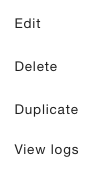
Edit
You can edit to give permissions to the registered users and update customers' details including address, orders and wishlist. Address, orders, and wishlist can be updated from the user details.
Delete
You can delete a user by choosing the delete option from the operations. If there are many users that you don’t want in your store anymore, you can bulk delete those. Select the users and click on the ellipsis button on the header and choose the delete option to bulk delete the users.
Duplicate
You can duplicate the users.
View Logs
You can view & track the activities of users or staff under this option.